Free YouTube Video Conversion: Best Methods 2026
Download YouTube video safely with yt-dlp, convert to MP4 or MP3 without wrecking quality, then turn it into a transcript or subtitle file. No sketchy sites.
10 min read
•
May 25, 2026
Written by
Adrian Ispas
You've got a YouTube video that still has value after the upload. Maybe it's a webinar that should become a blog post, a training recording that needs captions, or an interview you want to quote without scrubbing through an hour of audio. Then you search for free YouTube video conversion and run into the same mess everyone else does: sketchy downloader sites, fake buttons, forced redirects, and tools that treat “conversion” as nothing more than spitting out an MP3.
That's too narrow.
Useful conversion means turning a YouTube video into usable assets. Sometimes that's an MP4 for editing. Sometimes it's an MP3 for a podcast workflow. Often, the highest-value output is a transcript or subtitle file that makes the content searchable, editable, and accessible. That matters because a large share of content is still inaccessible. The WHO estimates over 5% of the world's population has disabling hearing loss, and the W3C notes that captions also help people watching with sound off and non-native speakers, as summarized in this accessibility-focused discussion of YouTube conversion workflows.
Beyond Downloading Redefining YouTube Conversion
A common situation looks like this. A team publishes a strong one-hour panel discussion on YouTube. A week later, marketing wants quotes for social posts, editorial wants a clean transcript, and product wants short clips for a landing page. The original video exists, but the value is trapped inside it.
That's where most “free YouTube video conversion” guides fall short. They focus on file grabbing, not workflow.
What conversion actually means in practice
For working teams, conversion usually falls into four buckets:
- Format conversion: turning a downloaded file into MP4, MP3, or another common format
- Editing conversion: trimming a long recording into clips, trailers, or chapter segments
- Text conversion: generating a transcript, subtitles, or captions
- Repurposing conversion: turning spoken content into articles, summaries, show notes, or searchable archives
The first bucket is easy. The last three are where the greatest potential lies.
Practical rule: If the output can't be searched, quoted, subtitled, or edited cleanly, you haven't finished converting the video. You've only moved the file.
A long webinar is a good example. A raw download helps if you need backup footage. But if your real goal is reuse, a transcript with timestamps is much more valuable. It lets an editor pull exact lines, gives legal or compliance teams something reviewable, and makes subtitle creation far less painful.
If you also need clips, browser editors can be useful once you already have the source material — cutting highlights after conversion is a lightweight workflow that pairs well with the process here.
What usually doesn't work
The lowest-quality path is the one many users try first:
- Paste a YouTube link into a random downloader
- Accept whatever file it gives you
- Upload that file into another random converter
- Manually clean the broken transcript later
That chain creates avoidable problems. You lose quality, hand your data to multiple unknown services, and often end up redoing the work with better tools anyway.
The durable workflow is simpler. Get the source safely. Convert locally when possible. Generate text with a tool that preserves structure, timestamps, and speaker turns.
Safely Downloading YouTube Video and Audio
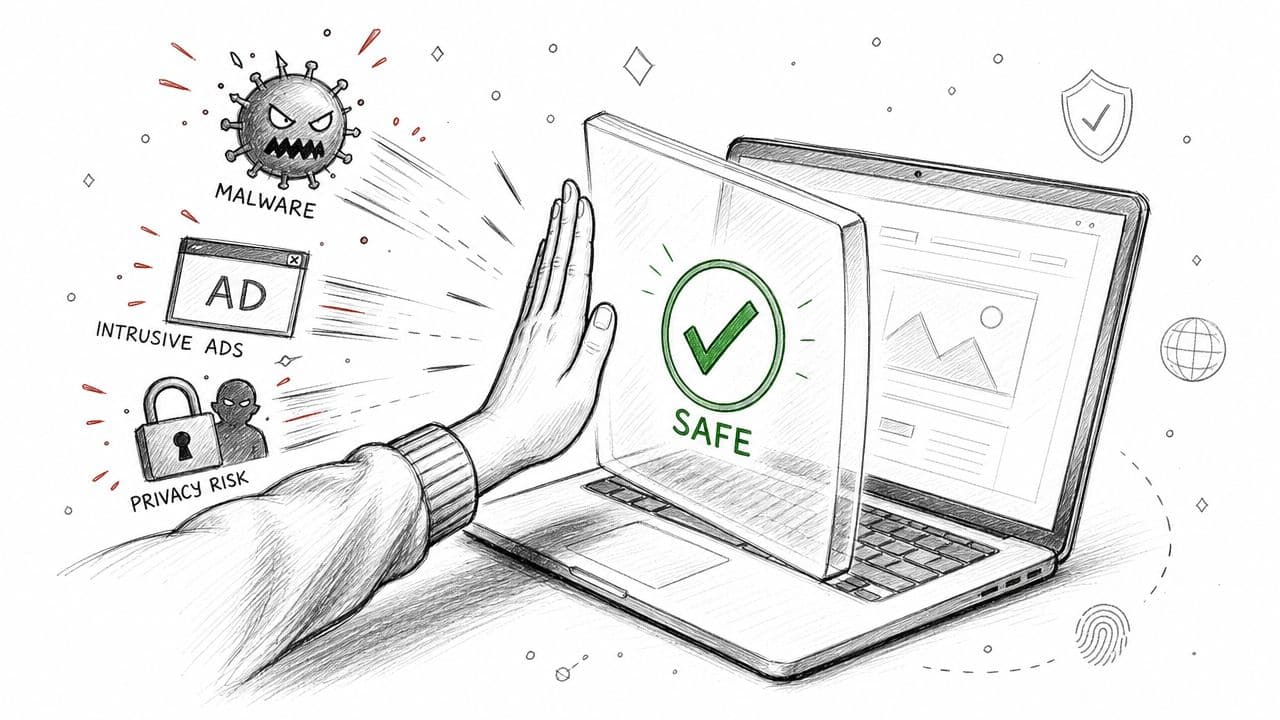
Most risk in free YouTube video conversion shows up before the conversion even starts. It starts at download.
Ad-heavy web downloaders often combine deceptive buttons, push notifications, aggressive popups, and vague permissions. They're convenient until they aren't. People searching for free conversion tools rarely get good guidance on privacy and copyright. That gap matters more now because YouTube content is commercially valuable and increasingly protected. One industry roundup notes that YouTube ad revenue was approximately $8.9 billion in Q1 2026, which reinforces why the safer question isn't just “what's free?” but “what respects rights and accuracy?” in a discussion of free conversion workflows and privacy concerns.
Why media pros use yt-dlp
If you need a clean source file, yt-dlp is the no-nonsense option. It's an open-source command-line tool that downloads video or audio directly, without funneling you through a third-party website. You control the file, the destination, and the format selection.
That's why developers, newsroom staff, archivists, and video editors tend to prefer it. It removes the browser junk and gives you reproducible results.
Use it only for your own videos, public domain material, or content you have permission to use. If you didn't create it and don't have rights, don't assume a downloader makes it fair game.
Simple download commands
To grab the best available combined video and audio:
- Best quality video:
yt-dlp -f "bv*+ba/b" "YOUTUBE_URL"
To extract audio only:
- Audio extraction:
yt-dlp -x --audio-format mp3 "YOUTUBE_URL"
To keep source audio in a preferred format when possible:
- Audio-first workflow:
yt-dlp -f "bestaudio" "YOUTUBE_URL"
If your actual goal is audio repurposing, a focused walkthrough on how to extract the sound from a video helps avoid unnecessary re-encoding later.
Download once at the highest quality you can legally use. Every extra conversion step after a poor download compounds the damage.
When an app list helps
Not everyone wants command-line tools. If you need a simpler overview of software-based options, this roundup of free apps for YouTube downloads is more useful than the usual “paste link here” sites because it frames downloads as app workflows rather than anonymous web forms.
Still, local tools beat mystery websites for three reasons:
- Privacy control: your file stays on your machine
- Fewer traps: no fake download buttons or redirect loops
- More consistency: you can repeat the same steps next week and get the same output
A short legal filter
Before you download, ask three questions:
- Did you make this video yourself?
- Did the owner give you explicit permission?
- Is the content clearly public domain or otherwise licensed for reuse?
If the answer is no across the board, stop there. The technical ability to download doesn't grant the legal right to repurpose.
Converting Media Files to MP4 or MP3
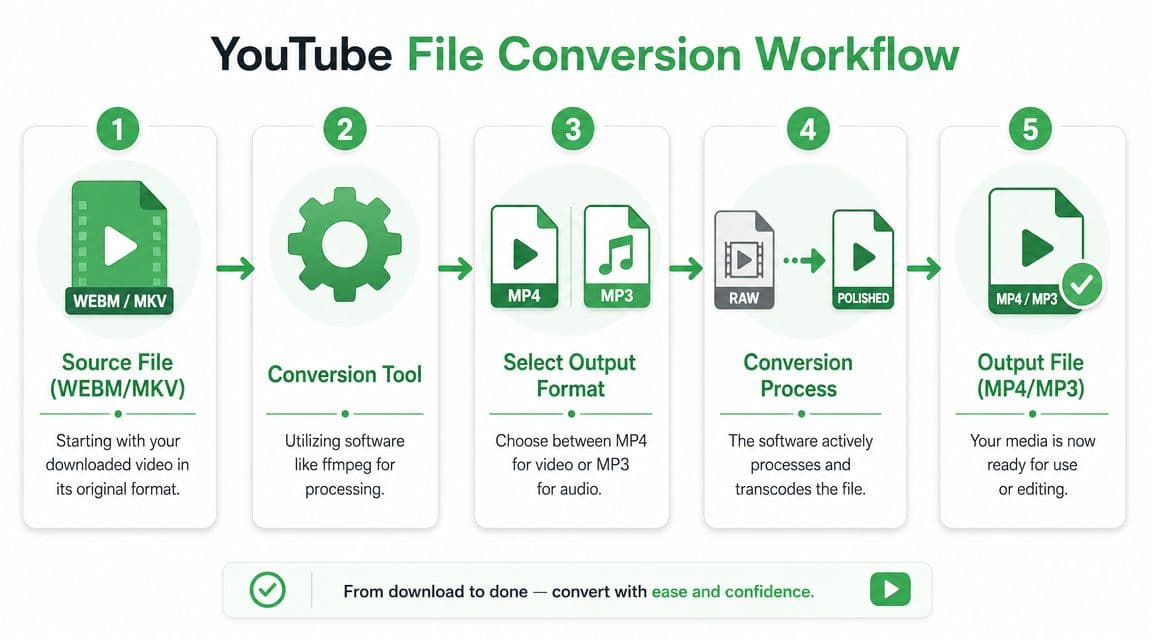
Once you've downloaded the source, you may end up with a file in WEBM, MKV, or another container that your editor, CMS, or archive system doesn't like. That's normal. This is the stage where format conversion matters.
For local work, I recommend keeping the job simple. Use one tool for video and one for audio. That cuts down on fiddly settings and makes failures easier to diagnose.
Local conversion versus browser conversion
Here's the practical trade-off:
| Method | Best for | Main advantage | Main drawback |
|---|---|---|---|
| HandBrake | Video to MP4 | Strong control over output and quality | More settings than casual users want |
| Audacity | Audio cleanup and export | Good for editing and exporting audio | Not a batch video converter |
| ffmpeg | Advanced batch workflows | Fast and scriptable | Command line learning curve |
| Online converters | Small, non-sensitive files | Fast to access from any browser | Privacy, upload limits, and quality uncertainty |
Local software is the safer default. You don't upload source files to another service, and you keep more control over bitrate, resolution, and file naming. Online converters are acceptable for low-risk throwaway tasks, but I wouldn't use them for client media, unpublished interviews, or anything with rights or confidentiality concerns.
Quick MP4 workflow with HandBrake
For video conversion, HandBrake is the easiest serious tool to recommend.
Use this quick workflow:
- Open the source file in HandBrake.
- Choose MP4 as the container.
- Keep the original resolution unless you have a specific delivery requirement.
- Keep the original frame rate when possible.
- Start with a standard preset, then test the result before batch processing more files.
The goal isn't to chase perfect settings. The goal is to create a broadly compatible MP4 that edits cleanly and doesn't visibly degrade the source.
A lot of people over-compress here because they assume smaller is better. It usually isn't. Storage is cheaper than redoing damaged media.
For readers who want a visual walkthrough of the general file conversion mindset, this embedded video is useful:
MP3 conversion without wrecking the audio
For audio, Audacity is useful when you need more than simple extraction. You can trim dead air, normalize levels, remove obvious noise, and export to MP3.
If you're comparing audio formats before export, this guide on how to convert FLAC audio to MP3 gives a good baseline for understanding compatibility versus fidelity.
Browser converters are convenient. Local converters are accountable. If a file matters, keep it on your own machine.
One more practical note. If your end goal is transcription, don't obsess over MP3 unless another system requires it. Clean audio matters more than the exact consumer format.
Generating Accurate Transcripts and Subtitles
Free YouTube video conversion holds substantial value. A clean transcript changes how a video can be used. It turns a recording into something searchable, quotable, reviewable, and easier to subtitle.
That matters commercially too. Video already helps conversion performance across the funnel. One industry roundup reports that landing pages with embedded video can increase conversions by 86%, and that sites using video showed a 4.8% average conversion rate versus 2.9% for sites without video in the cited dataset, according to this video marketing statistics roundup. Text conversion extends that value by making the same asset easier to discover, adapt, and publish in more formats.
The free baseline with YouTube auto-captions
YouTube's built-in captions are the natural starting point because they're already attached to the video. For many internal uses, they're good enough to get orientation fast.
Use them when you need to:
- Scan topics quickly: useful for finding rough moments in a long recording
- Draft a first-pass transcript: acceptable when someone will edit heavily afterward
- Pull temporary captions: fine for low-stakes internal review
The problem is consistency. Auto-captions often need cleanup around punctuation, speaker changes, names, acronyms, and timing. They can help you get started, but they rarely finish the job if the output needs to be published or archived properly.
Where specialist transcription tools save time
The gap gets obvious on interviews, webinars, multi-speaker panels, and anything with domain terminology. That's where a dedicated speech-to-text tool becomes more practical than manually repairing auto-captions.
Vatis Tech is one example. It lets you paste a YouTube link and generate a transcript, then export in formats such as TXT, DOCX, SRT, and VTT. The company says its speech-to-text system supports 50+ languages and delivers 95%+ accuracy, with speaker diarization and timestamps, according to the subtitle workflow guide from Vatis Tech. For teams that need editable output rather than rough captions, those features matter more than pure speed.
Here's the practical comparison.
| Feature | YouTube Auto-Captions | Vatis Tech (Free Trial) |
|---|---|---|
| Access method | Built into YouTube | Paste YouTube link into transcript workflow |
| Good for | Quick rough review | Publishable transcript and subtitle prep |
| Speaker labels | Limited | Included in supported workflow |
| Timestamps | Basic caption timing | Export-ready timing for transcript and caption use |
| Export formats | Limited workflow flexibility | TXT, DOCX, SRT, VTT and others in product workflow |
| Editing burden | Often high | Lower when structured output is needed |
What good transcript conversion looks like
A useful transcript isn't just words on a page. It should preserve enough structure that another person can work from it without reopening the whole video.
Look for these outputs:
- Speaker identification: important for interviews, panels, legal review, and journalism
- Timestamps: necessary for quote verification, clip selection, and subtitle alignment
- Clean punctuation: makes the transcript readable enough to reuse in articles or reports
- Export flexibility: SRT and VTT for captions, DOCX or TXT for editorial work
The real cost in transcription isn't generating text. It's cleaning text that arrives without structure.
A journalist clipping a recorded interview needs exact speaker turns. An educator needs captions that don't collapse into unreadable blocks. A compliance team needs timestamps that can be audited. YouTube auto-captions can support rough discovery, but they usually don't meet those downstream needs on their own.
If your workflow ends at “download captions,” you've solved the smallest part of the problem. If your workflow ends with an editable transcript and ready-to-publish subtitle file, the video becomes reusable across channels.
Essential Tips for Quality and Legal Compliance
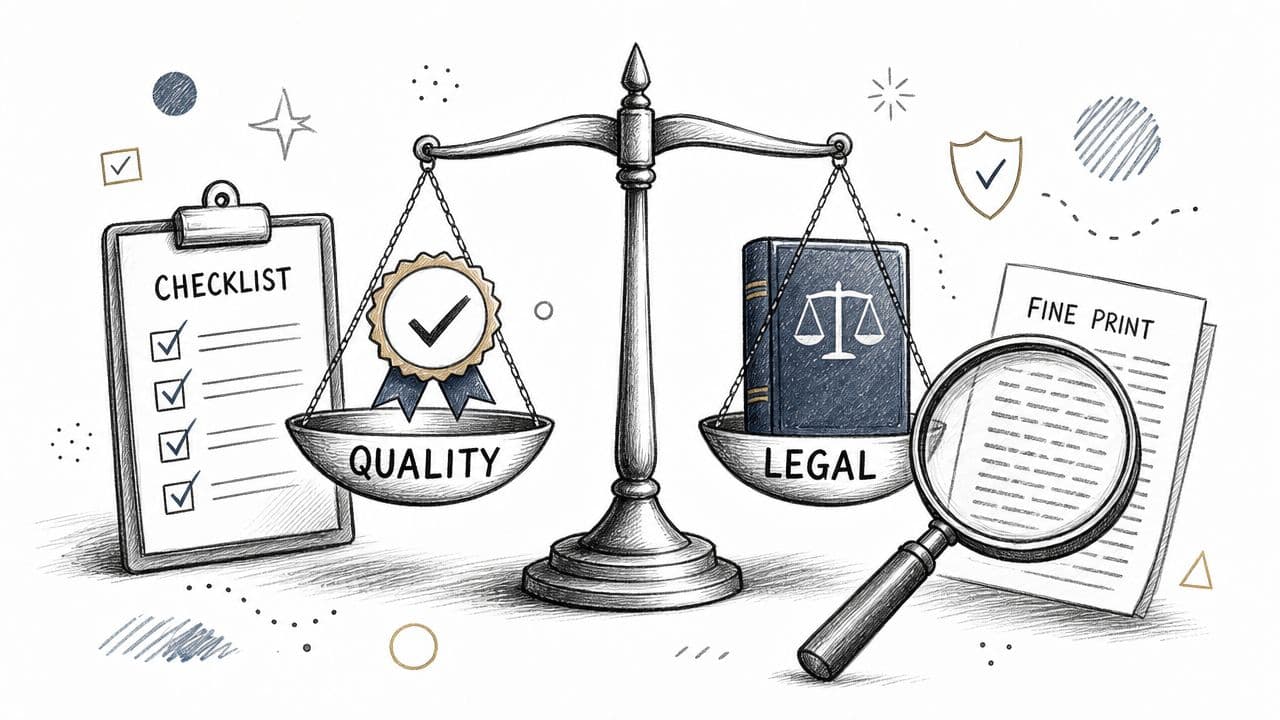
A decent conversion workflow can still fail at the finish line if you ignore rights, file quality, or measurement. The mistakes here are predictable. People grab the first file they can get, compress it too hard, and publish captions or clips without thinking through ownership or end use.
A practical compliance checklist
Use this short checklist before you convert or republish anything:
- Confirm rights first: if you didn't create the video and don't have permission, treat it as restricted.
- Document the source: save the original URL, upload date, and any permission trail you have.
- Keep the highest-quality source: bad input limits every later output.
- Avoid repeated lossy exports: every unnecessary re-encode can soften video and smear audio.
- Match the tool to the job: local converter for files, transcript tool for text, editor for clipping.
For executives and organizations dealing with sensitive or reputationally risky video, rights and takedown strategy can get complicated fast. Take counsel if your issue goes beyond simple reuse and into legal or brand response.
Choosing the right workflow
Not every task deserves the same stack. This is the simplest decision tree I use:
| Need | Tool type that fits | Why |
|---|---|---|
| Backup your own uploaded video | Local downloader | Keeps a clean source copy |
| Turn WEBM into MP4 | Local video converter | Better format compatibility |
| Create an audio version | Local audio extraction or editor | More control over sound |
| Publish captions | Dedicated transcription/subtitle tool | Cleaner timing and text |
| Make a quick social cut | Editor or browser clip tool | Faster than full re-edit |
Don't confuse conversion with business outcome
A file conversion is only useful if it feeds a measurable next step. Industry guidance notes that YouTube videos with strong calls to action can convert at roughly 2% to 3% when the path is instrumented end to end, according to this conversion analysis guide for video content. That's the bigger point. A professional conversion process supports a landing page, a form fill, a content library, or an accessibility requirement. It isn't just a file sitting in Downloads.
If a converted asset can't be tracked, searched, reviewed, or published cleanly, the workflow is incomplete.
Conclusion Putting Your Converted Content to Work
The useful version of free YouTube video conversion isn't about hoarding files. It's about getting a video into the format that enables the next job.
For some teams, that means downloading a clean source with a local tool and converting it into MP4 for editing. For others, the main output is an MP3 for audio repurposing. Often, the highest-value conversion is text. A transcript or subtitle file makes the same video easier to search, quote, caption, archive, and reuse.
That broader workflow also aligns with performance. In paid video analysis, the technical benchmark is CVR = (conversions ÷ clicks) × 100, and one advertiser-focused guide notes that landing-page video placement is reported to lift conversion rates by about 80%, as discussed in this video conversion optimization guide. Context matters. Accessibility matters. A useful converted asset does more than exist. It supports the page, the audience, and the action you want people to take.
The smart move is to treat conversion as the first operational step after publishing. Download safely. Convert locally when possible. Generate text when reuse or accessibility matters. Then put the result to work in your site, your archive, your editorial workflow, or your caption pipeline.
If your real goal is turning YouTube videos into usable transcripts or subtitle files instead of just downloading them, Vatis Tech is built for that workflow. You can paste a YouTube link, generate editable text, keep timestamps and speaker structure, and export formats that fit publishing, compliance, and accessibility work.