How to Convert FLAC Audio to MP3: A Practical Guide
Three free ways to convert FLAC to MP3, the bitrate to pick for music versus speech, a one-line FFmpeg command for whole folders, and what happens to the tags.
17 min read
•
March 30, 2026
Written by
Adrian Ispas
So, you've got a folder full of pristine FLAC audio files. The sound quality is perfect, capturing every nuance. But when it comes to actually using them—sharing them with a colleague, uploading them to a transcription service, or just saving space on your phone—they can be a real headache.
This is where knowing how to convert FLAC to MP3 comes in handy. It’s a simple process that unlocks your audio, making it smaller, more portable, and compatible with virtually any device. You can use free tools you probably already have, like VLC and Audacity, or even powerful command-line tools like FFmpeg.
Why You Still Need to Convert FLAC to MP3
While audiophiles and archivalists love FLAC (Free Lossless Audio Codec) for its bit-perfect replication of the original source, its massive file sizes are a practical nightmare. Think of a FLAC file as a raw, unedited photograph—it’s perfect for archiving but impractical for everyday sharing. MP3 is the friendly, compressed JPEG you can email or upload anywhere.
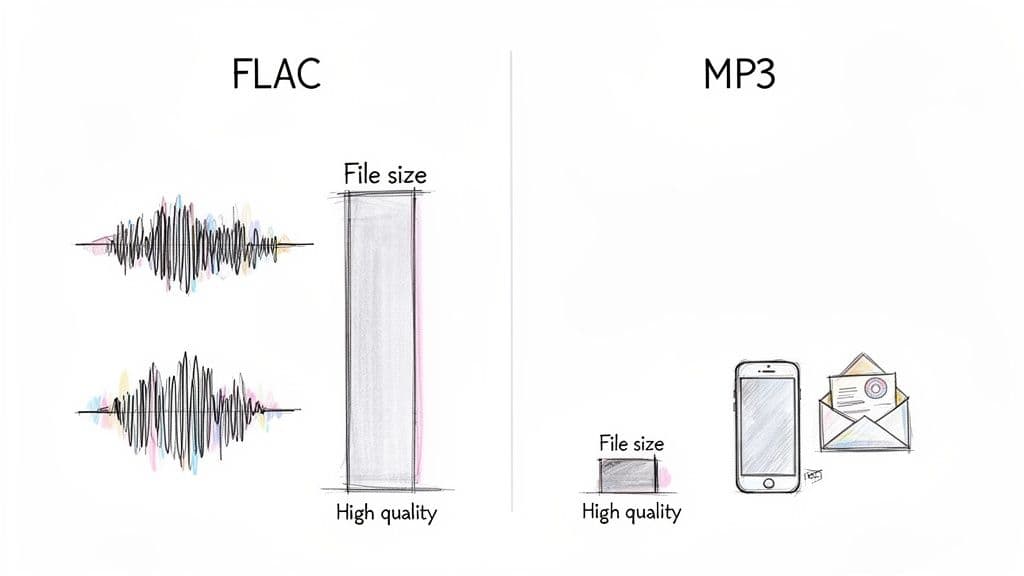
Before we jump into the "how," let's quickly break down the key differences between these two formats.
FLAC vs MP3 At a Glance
Here’s a direct comparison of FLAC and MP3 across the attributes that matter most: file size, quality, and compatibility. This table helps clarify why you would choose one over the other.
AttributeFLAC (Free Lossless Audio Codec)MP3 (MPEG Audio Layer III)Audio QualityLossless: Perfect, identical to the source.Lossy: High-quality but some data is removed.File SizeLarge. A 3-minute song can be 20-30 MB.Small. The same song might be just 5-7 MB.CompatibilityLimited. Needs special software or modern devices.Universal. Plays on nearly every device made in the last 20 years.Best ForArchiving, studio mastering, critical listening.Streaming, sharing, portable music, transcription.
This table makes it clear: FLAC is for preservation, while MP3 is for portability and convenience.
The Trade-off Between Quality and Convenience
The number one reason to convert FLAC files is the huge drop in file size. A standard three-minute song in FLAC might eat up 20-30 MB, but as a high-quality MP3, it shrinks to just 5-7 MB. That's a massive difference.
This efficiency brings some serious real-world benefits:
- Saving Storage Space: Whether it's your phone, laptop, or cloud account, space is finite. Converting a big music or interview library from FLAC to MP3 can free up gigabytes.
- Faster File Sharing: Trying to send a 100 MB FLAC interview file is slow and impractical. A 20 MB MP3 version, on the other hand, uploads and downloads in a fraction of the time.
- Universal Device Compatibility: From car stereos to smart TVs, almost every digital device plays MP3s natively. FLAC support is much spottier and often requires finding a specific app that can handle it.
In a professional setting, this is critical. A journalist on a deadline can’t afford to waste time troubleshooting a file that a colleague can’t open. Converting to MP3 ensures the audio is accessible to everyone, instantly.
Practical Scenarios for Conversion
Knowing how to convert FLAC audio to MP3 is a practical skill that comes up more often than you'd think. It's also vital for content creators who want to promote your podcast by making sure their episodes are easy for anyone to download and listen to.
Here are a few common situations where this conversion is a lifesaver:
- A research team records hours of critical interviews in FLAC to ensure no detail is lost. They later batch-convert them to MP3s to share with transcribers and archive without clogging their servers.
- A field recordist captures high-fidelity ambient sounds but needs to send quick, low-bandwidth samples back to the studio for immediate feedback.
- A contact center archives thousands of customer calls. Storing them as MP3s instead of a lossless format drastically cuts down on long-term storage costs.
This isn’t a new concept. The MP3 format, invented in 1992, revolutionized portable audio by using lossy compression to shrink file sizes by up to 90-95% compared to raw WAV files. At Vatis Tech, we see teams transcribe these compressed MP3s with over 95% accuracy, turning huge audio archives into searchable text in minutes and saving up to 70% on cloud storage. You can explore more about the sound choices between FLAC vs MP3 and how they impact modern workflows.
Now, let's get into the step-by-step methods to make these conversions happen.
Converting Audio on Your Desktop with Free Tools
While online converters are convenient for a quick job, desktop apps give you far more power, privacy, and control over your audio files. The best part? Many of the most trusted tools are completely free and might already be installed on your computer for media playback or editing.
Let's walk through how to convert FLAC to MP3 using three popular, no-cost options: VLC Media Player, Audacity, and foobar2000. These run on Windows, macOS, and Linux, so you're covered no matter what you use. The core process is pretty similar to how you might change a WAV to an MP3—it’s all about picking your output format and dialing in the quality settings.
VLC: The Universal Media Player and Converter
There's a good chance VLC is already on your computer. It’s famous for playing almost any file type imaginable, but it also has a surprisingly capable audio converter built right in. This makes it perfect for quick, one-off tasks without installing anything new.
Practical Example: Imagine you're an office manager who just received a large FLAC recording of a webinar. The file is way too big to email to your team. VLC is the perfect tool for a fast conversion to a much smaller MP3.
Here are the step-by-step instructions for converting with VLC:
- Open VLC.
- In the menu, navigate to Media > Convert / Save... (or press
Ctrl+R). - Click the + Add... button to select the FLAC file you want to convert.
- Click the Convert / Save button at the bottom.
- In the Profile dropdown menu, select "Audio - MP3".
- Click the Browse button to choose where to save the new MP3 file and give it a name.
- Click Start.
VLC’s strength is its simplicity. For straightforward conversions where you just need an MP3 and aren't fussy about the settings, it gets the job done in seconds. And if you're often grabbing audio from online sources, you might find our guide on how to use a YouTube to MP3 converter useful, too.
Audacity: The Podcaster's Go-To Editor
Audacity is a free, open-source audio editor beloved by podcasters, musicians, and audio hobbyists everywhere. While its main job is editing, its export features are incredibly robust, giving you fine-grained control over the final MP3 file. This is the tool you reach for when quality and metadata are non-negotiable.
Practical Example: Think of a podcaster who has just finished editing an hour-long episode saved as a high-quality FLAC. Before publishing, they need to export it as an MP3 with a specific bitrate and—most importantly—all the episode information embedded.
A common frustration with audio conversion is losing all your metadata. Things like track numbers, artist names, album titles, and cover art often get stripped out. Audacity is fantastic at preserving this information, keeping your files organized and professional.
With Audacity, the process offers more control:
- Open Audacity and drag your FLAC file into the main window (or go to File > Open).
- Navigate to File > Export > Export as MP3.
- A window pops up where you can set the bitrate. For a podcast, 192 kbps usually hits the sweet spot between quality and file size.
- Before saving, Audacity lets you edit the metadata tags. This is where you can enter the episode title, podcast name, year, and even add comments.
- Click Save.
This level of precision is what makes Audacity so valuable. You aren't just changing a file type; you're preparing a file for public distribution, ensuring listeners see all the right information in their podcast app.
foobar2000: The Audiophile's Choice for Batch Conversion
For anyone with a massive music library or the need to convert tons of files at once, foobar2000 is a fantastic choice. It's a lightweight, highly customizable audio player for Windows that packs a powerful converter. Its real superpower is handling hundreds or even thousands of files in a single batch job.
Practical Example: Let's say a music lover has their entire collection archived in FLAC but wants to load it onto a portable music player with limited space. Converting each album one by one would be a total nightmare. This is exactly where foobar2000's batch processing shines.
How foobar2000 Manages Bulk Conversions
FeatureHow It WorksWhy It's UsefulBatch ProcessingSelect an entire folder or multiple folders of FLAC files to process.Saves an enormous amount of time by automating the conversion of hundreds of files.Converter PresetsCreate and save your own custom MP3 export settings (like VBR or 320 kbps).Guarantees consistency across your whole library with a single click.Metadata PreservationAutomatically transfers all existing tags from the FLAC files to the new MP3s.Keeps your library perfectly organized without any manual re-tagging.Output StructureReplicates the original folder structure, keeping your albums and artist folders intact.Prevents you from ending up with a chaotic mess of hundreds of unorganized MP3s.
The workflow is straightforward: add your FLAC files to a playlist, right-click them, and select Convert. From there, you just choose your MP3 preset and let foobar2000 do the heavy lifting. It will churn through your entire library, preserving file names, folder structures, and all that crucial metadata. It’s an indispensable tool for anyone serious about managing a large audio collection.
Automating Conversions With Command-Line Magic
When you're dealing with audio files at scale, graphical user interfaces (GUIs) just don't cut it. Clicking through menus to convert dozens or hundreds of files is slow and tedious. This is where the command line, and specifically a tool called FFmpeg, becomes your best friend for automating FLAC to MP3 conversions.
For developers, media pros, or anyone who values efficiency, mastering a few commands turns a repetitive chore into a hands-off, automated workflow.
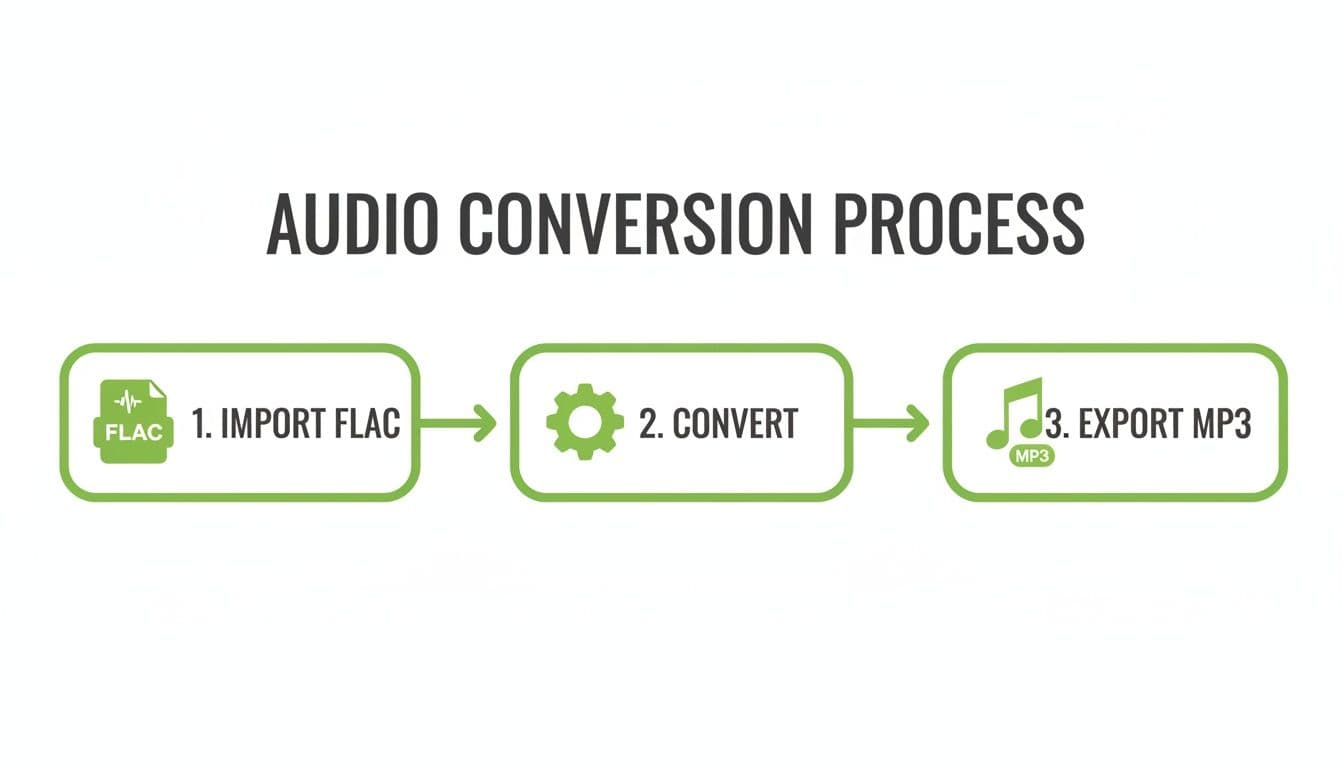
While the command line might seem intimidating, it's surprisingly straightforward. The basic process boils down to pointing the tool at your source file, telling it what you want, and giving it an output name.
Your First FFmpeg Conversion Command
Let's get right to it. Once you have FFmpeg installed (it works on Windows, macOS, and Linux), you can run commands straight from your terminal or command prompt.
Practical Step-by-Step:
- Open your terminal or command prompt.
- Use the
cdcommand to navigate to the folder containing your FLAC file. For example:cd Documents/AudioFiles. - Run the following command to convert a single FLAC file into a high-quality MP3:
ffmpeg -i "input_audio.flac" -ab 320k "output_audio.mp3"
Here’s a quick breakdown of what’s happening:
ffmpeg: This just calls the program to run.-i "input_audio.flac": The-iflag means "input." It tells FFmpeg which file you want to work on.-ab 320k: This is where you set the audio bitrate. We're using 320 kbps, which is a great standard for high-quality MP3 audio."output_audio.mp3": This is simply the name for your new, converted file.
That one line is all it takes. From here, you can start building more powerful and specific commands.
Controlling Quality With Bitrate Settings
FFmpeg gives you granular control over the balance between file size and audio quality. You have two main options: Constant Bitrate (CBR) and Variable Bitrate (VBR).
Bitrate TypeCommand FlagDescriptionBest ForConstant (CBR)-ab [bitrate]kKeeps a steady bitrate through the whole file for predictable quality and size.Music or any audio where you need consistent, high-fidelity sound. Use -ab 320k for the best results.Variable (VBR)-q:a [quality]Adjusts the bitrate on the fly, using more data for complex audio sections and less for simple ones.Podcasts and interviews, where it can save space without a noticeable drop in quality. Quality levels range from 0 (highest) to 9 (lowest).
For voice recordings like interviews or podcasts, VBR is often the smarter choice. You get a smaller file with perceived quality that’s nearly identical to a high-bitrate CBR file.
Try this command to convert using a high-quality VBR setting:
ffmpeg -i "interview.flac" -q:a 2 "interview_final.mp3"
The -q:a 2 setting is a fantastic sweet spot for quality and file size—often smaller than a 320k CBR MP3 but sounds just as good to the human ear.
Batch Processing an Entire Folder
Here's where the command line really shines. Imagine you're a researcher with a folder of 100 interview recordings in FLAC. Converting them one-by-one with a GUI would take ages. With a simple script, you can do it all in seconds.
Below are scripts for both Windows and macOS/Linux. They'll find every .flac file in a folder, convert it to MP3, and drop the new files into a dedicated "mp3" subfolder.
For macOS and Linux (Shell Script):
Create a new file named convert.sh and paste this in:
#!/bin/bashmkdir -p mp3for f in *.flac; doffmpeg -i "$f" -ab 192k "mp3/${f%.flac}.mp3"done
For Windows (Batch Script):
Create a new file named convert.bat with these lines:
@echo offif not exist "mp3" mkdir "mp3"for %%f in (*.flac) do (ffmpeg -i "%%f" -ab 192k "mp3\%%~nf.mp3")
Pro Tip: Before you unleash a script on your entire audio library, always test it on a backup folder with just a few copied files. This lets you confirm everything works perfectly without putting your originals at risk.
This kind of automation saves an incredible amount of time. Plus, the file size reduction is massive—MP3s are typically 60-70% smaller than their FLAC counterparts. A 30-minute FLAC file at 150 MB shrinks down to a lean 36 MB MP3, making it perfect for quick uploads.
This is a game-changer for professional workflows. A legal team, for example, could batch-convert hours of deposition recordings and then feed them into an AI platform like Vatis Tech for fast, accurate transcripts. Integrating this into an automated pipeline is easy with our speech-to-text API.
Choosing the Right Bitrate for Your Audio
So you’ve got the tools to convert your FLAC files. Great. Now comes the most important decision: what quality settings should you use? The answer hinges on one crucial factor: bitrate, which is measured in kilobits per second (kbps).
Think of bitrate as the amount of data dedicated to each second of your audio. A higher bitrate means more data, which translates to richer detail, better quality, and a larger file. But bigger isn't always better. The trick is to find the sweet spot that balances quality with file size for your specific needs.
Matching Bitrate to Your Use Case
There’s no magic number here. The right bitrate depends entirely on what’s in your audio and what you plan to do with it. A music producer archiving a master track has wildly different priorities than a journalist transcribing a quick interview.
Here’s a breakdown of the most common settings I use and recommend:
- 320 kbps (Highest Quality): This is the top tier for MP3s. For most people, the audio is practically indistinguishable from the original source. It’s perfect for archiving your music collection or any audio where pristine quality is non-negotiable.
- 192 kbps (Balanced Quality): This is my go-to for general use. It strikes an excellent balance between file size and clarity, making it ideal for podcasts, audiobooks, and streaming. You get a manageable file without any noticeable drop in quality for spoken-word content.
- 128 kbps (Efficient Quality): When your audio is just voice and the main goal is clarity with a tiny file size, 128 kbps is your best bet. It’s incredibly efficient for transcribing interviews, archiving massive volumes of call center recordings, or sending audio files quickly.
For instance, a contact center processing thousands of calls daily can save terabytes of storage by converting to MP3 at 128 kbps before sending the files off for transcription. The file size shrinks dramatically, but the vocals remain perfectly clear for accurate analysis.
To make this even clearer, here’s a quick guide to help you choose the best bitrate for your specific project.
Recommended MP3 Bitrate Settings for Different Use Cases
Bitrate (kbps)Quality LevelBest ForExample Use Case320HighestMusic archiving, high-fidelity playbackConverting a FLAC music album for listening on high-end headphones.192BalancedPodcasts, audiobooks, general streamingSharing a lecture recording with students.128EfficientVoice recordings, transcription, mass storageArchiving thousands of daily call center recordings for AI analysis.96 or lowerLowVery low-priority voice notes, quick previewsSending a quick voice memo over a slow internet connection.
Ultimately, the best way to be sure is to test it yourself. Convert a short clip at a few different bitrates and see which one delivers the quality you need without wasting space.
Constant vs. Variable Bitrate (CBR vs. VBR)
As you dig into your conversion software, you'll likely run into another choice: Constant Bitrate (CBR) or Variable Bitrate (VBR). Knowing the difference can help you squeeze even more efficiency out of your MP3s.
CBR keeps the bitrate the same from start to finish. It’s predictable and compatible with just about any device, even older ones. VBR, on the other hand, is smarter. It adjusts the bitrate on the fly, using more data for complex parts of the audio and less for simple sections like silence.
For almost any modern use case, especially converting speech from FLAC to MP3, VBR is the superior choice. It intelligently saves space where it isn't needed without sacrificing quality during critical moments. You end up with a smaller file that sounds just as good as a much larger CBR file.
Real-World Impact on Modern Applications
The MP3's efficiency has been a game-changer since the 1990s. Back in 2001, services like Napster facilitated the sharing of over 14 billion MP3 files, and by 2010, 75% of downloaded music was in MP3 format. This legacy of efficiency is more important than ever today.
Developers using Vatis Tech's SDKs, for example, often convert large FLAC files to MP3 for real-time transcription. At 320 kbps, listening tests show negligible quality loss, but this simple conversion can cut API processing latency by 60% and reduce costs by 50%.
In education, converting lecture recordings to MP3 makes them 65% faster to upload and share. When paired with a service like Vatis Tech, those same MP3s can be turned into highly accurate subtitles and transcripts. If you want to dive deeper, this guide on different audio formats explained offers a great overview of how these files are used across the industry.
By making an informed choice on bitrate, you’re not just saving space—you’re ensuring your audio is perfectly tuned for whatever you throw at it.
Optimizing MP3s for Accurate AI Transcription
Converting from FLAC to MP3 isn't just about shrinking file sizes—it's about preparing your audio for a specific job. When that job is turning spoken words into text with an AI like Vatis Tech, a little optimization goes a long way, dramatically boosting the accuracy and speed you get back. Think of it less as file conversion and more as prepping your audio for peak performance.
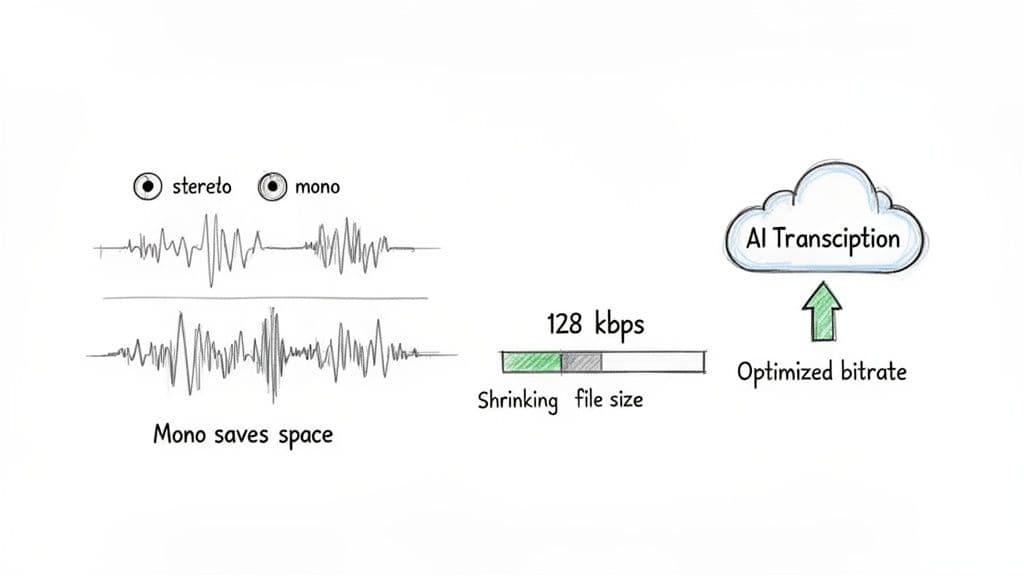
AI transcription engines are trained to listen for one thing: human speech. While a massive FLAC file holds an incredible amount of audio detail, most of it is just noise to an AI trying to parse dialogue. By trimming the fat during your MP3 conversion, you help the AI focus only on what matters.
Smart Conversion Settings for Transcription
Before you even click "convert," a couple of quick tweaks can make a world of difference. These settings are geared toward producing a file that’s small, easy to upload, and perfectly tuned for speech recognition algorithms.
Here are the two key adjustments I always make:
- Downmix to Mono for Single-Speaker Audio: Most interviews, lectures, or meetings are recorded with a single sound source, but the file often ends up in stereo. This means you have two identical audio channels, which doubles the file size for no good reason. Converting to a mono channel instantly cuts the file size in half without losing a single bit of vocal information.
- Choose the Right Bitrate for Voice: While 320 kbps is fantastic for listening to music, it's complete overkill for the spoken word. For voice recordings, 128 kbps is the sweet spot. It delivers more than enough clarity for an AI to get a highly accurate transcript, all while keeping the file size down for faster uploads and processing.
Making these simple changes means you're not wrestling with bulky, inefficient files. Instead, you're feeding the AI a lean, clean audio stream it can process quickly and accurately. If you want a deeper dive, you can learn more about how to convert FLAC files directly to text, which builds on these same principles.
A Real-World Scenario from a Journalist
Let's see how this plays out in a real situation. Imagine a journalist, Sarah, who just recorded a 90-minute interview for a big story. The original recording is a 250 MB FLAC file—way too large to email and painfully slow to upload. Her deadline is looming, and she needs a transcript, fast.
Instead of trying to upload that massive file, she takes two minutes to optimize it first. Here's her step-by-step workflow:
- She opens the FLAC file in a free tool like Audacity.
- She goes to the menu "Tracks" > "Mix" > "Mix Stereo Down to Mono."
- She then exports the audio via "File" > "Export" > "Export as MP3."
- In the export options, she sets the bitrate to 128 kbps and saves the file.
The new file is now a tidy 80 MB MP3. It uploads to Vatis Tech in seconds. Just minutes later, she has a highly accurate, speaker-labeled transcript waiting for her. The AI had no problem understanding the crisp, optimized audio.
This workflow highlights a crucial point: knowing how to convert FLAC to MP3 for transcription isn't about changing the file type. It’s about removing friction from your work, saving valuable time, and getting a clean transcript faster than ever.
Why Optimized MP3s Perform So Well
The reason this works so well comes down to how speech-to-text models are trained. They’re designed to analyze the fundamental frequencies of the human voice, which are perfectly preserved in a 128 kbps MP3. Anything more is usually just extra data that slows down the process.
Key Audio Specifications for Transcription Accuracy
SpecificationRecommendationWhy It Matters for AIChannelsMono (for single-source audio)Reduces file size by 50% and removes redundant data, speeding up processing.Bitrate128 kbps (for voice)Gives you excellent vocal clarity with a minimal file footprint.Sample Rate16 kHzCaptures the full range of human speech without adding extra data that can slow down the analysis.
By tailoring your MP3s to these specs, you're essentially doing the prep work for the AI. This simple step ensures you get the most accurate results in the least amount of time, turning bulky audio files into valuable, searchable text.
Frequently Asked Questions About Audio Conversion
Once you get the hang of converting files, a few common questions always seem to surface. Let's tackle them head-on so you can avoid the usual pitfalls and make sure every conversion is a smooth one.
Can I Convert an MP3 Back to FLAC to Regain Quality?
This is a question I get all the time, and the answer is a hard no. You absolutely cannot regain lost quality by converting a lossy MP3 back into a lossless format like FLAC.
Think of it this way: it’s like saving a blurry, low-resolution JPEG as a massive TIFF file. The file size will balloon, but the image is still just as blurry. You can't add back the audio data that was permanently stripped away during the original MP3 compression.
Will I Lose Album Art and Track Info During Conversion?
That all depends on the tool you're using. Losing your metadata—album art, track numbers, artist info—is a common frustration, but it's completely avoidable if you pick the right software.
Tools like Audacity and foobar2000 are built for this. They have dedicated settings to preserve all the ID3 tags from the original file, or even let you edit them as you export the new MP3.
The key is to always double-check your software's export settings before you start a big batch conversion. A quick look can save you hours of manually re-tagging files later.
What Is the Best Free FLAC to MP3 Converter?
The "best" tool really boils down to what you need to accomplish. There’s no single right answer, but we can break it down by your goals.
- For Automation and Power: If you're comfortable on the command line, FFmpeg is the undisputed champion. It’s unmatched for scripting, batch jobs, and building automated workflows.
- For User-Friendliness: For most people doing quick conversions on a Mac or Windows PC, VLC Media Player is the simplest, no-fuss option. If you need a bit more control for editing or managing metadata, Audacity is an excellent and equally free choice.
Are Online FLAC to MP3 Converters Safe?
You need to be careful with online converters. While they’re incredibly convenient for a single, non-sensitive file, they come with significant privacy risks.
When you use one of these web-based tools, you’re uploading your file to a server you don't control. If that audio contains confidential business meetings, personal information, or private client recordings, you've just created a potential security gap.
For any audio that demands confidentiality, stick with desktop software or command-line tools. That way, your files never leave your computer.
Ready to turn those audio files into actionable text? Vatis Tech provides AI-powered transcription with over 95% accuracy, speaker labels, and searchable summaries. Start your free trial and get your first transcript in minutes.