
Voicemail Transcription iPhone: Your 2026 Guide
Visual Voicemail versus Live Voicemail on iOS, why names transcribe worse than numbers, when a third-party app is worth it, and what to check if none appears.
13 min read
•
May 26, 2026
Written by
Adrian Ispas
You're in a meeting, your phone buzzes, and a voicemail lands. You can't play audio out loud, but you need to know whether it's a client issue, a delivery update, or just a routine callback. That's the appeal of voicemail transcription on iPhone. It turns an audio bottleneck into something you can scan in seconds.
Apple gives you two different paths. The older route is voicemail text tied to Visual Voicemail. The newer route is Live Voicemail, added in iOS 17, which shows a transcript as the caller speaks according to Apple-related guidance summarized by OSXDaily's write-up on voicemail transcripts. For many people, that built-in option is enough. For others, it's only the starting point.
The right method depends on what you need the transcript for. Casual personal use favors convenience. Teams often want searchable archives, forwarding, and inbox sharing. High-stakes work such as legal intake, newsroom workflows, and support escalations needs a cleaner review process and tighter handling of sensitive audio.
Your Guide to iPhone Voicemail Transcription Methods
A voicemail lands while you are in a meeting, on a train, or between client calls. You need the message in text without audio, and the right option depends on whether speed, accuracy, or privacy matters most.
On iPhone, voicemail transcription now covers two jobs. Apple can help you screen or read messages inside the Phone app, and that is the fastest starting point. But built-in transcription is only one tier of the stack. If you need searchable records, easier sharing, better handling of poor audio, or tighter control over sensitive messages, third-party apps and dedicated AI transcription services are often the better fit.
Start with the built-in iPhone path
The native route is still the quickest way to check what a caller said:
- Open Phone.
- Tap Voicemail.
- Select a message.
- Check for transcript text beneath the playback controls.
For Live Voicemail, the setting is usually in the Phone settings area, although the exact path can vary by iOS version.
Use this quick test process before you assume anything is working:
- Confirm Visual Voicemail is set up. If carrier voicemail is only partially configured, transcripts can be inconsistent or missing.
- Turn on Live Voicemail in Settings.
- Leave a real test voicemail from another number.
- Keep calling and data services available while testing, since voicemail features can depend on carrier support and current connectivity.
Built-in iPhone transcription is good for convenience. It is less reliable when callers speak quickly, use industry jargon, leave messages in noisy environments, or mix languages. That trade-off is fine for personal use. It is a problem for legal intake, support escalation, healthcare coordination, or any workflow where one wrong word changes the meaning.
Some businesses avoid the phone-only workflow and send messages into email for easier triage and recordkeeping. If that matches your setup, this guide to Business voicemail to email shows how teams turn voicemail into something they can route, assign, and archive.
If you are comparing options across mobile platforms, this overview of voicemail-to-text apps on Android is useful context because it highlights where native phone features stop and dedicated transcription tools start.
Master Apple's Built-in Voicemail Transcription
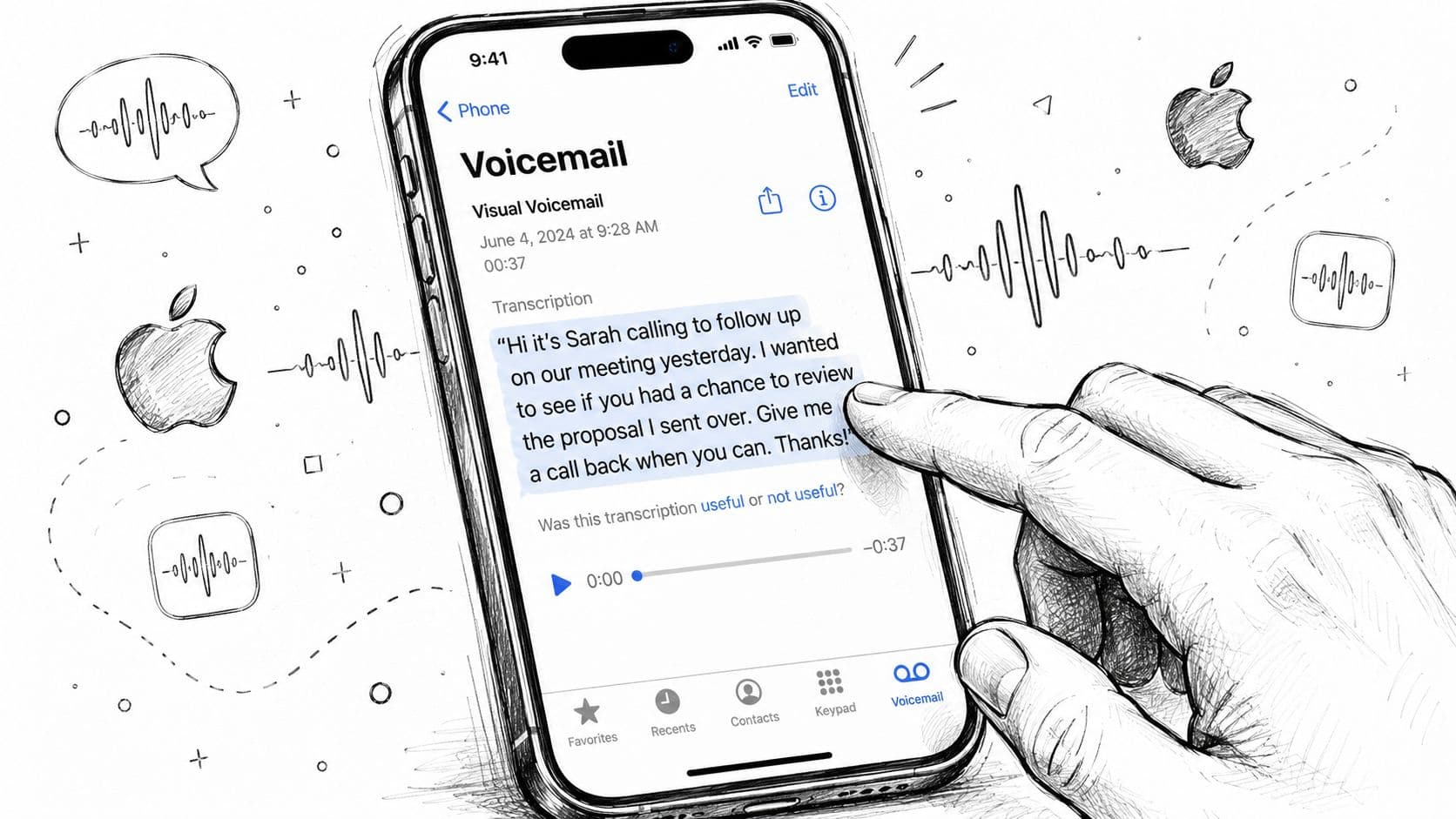
A voicemail lands while you are in a meeting. You need the message fast, but you also need to know whether the text is reliable enough to act on. Apple's built-in transcription handles that first pass well. It is the quickest option on iPhone, but only if the underlying setup is stable.
Get the native setup working consistently
To get good results from Apple's voicemail transcription, focus on dependencies rather than features. The common failure point is not the transcript engine itself. It is the mix of carrier support, device settings, language support, and voicemail configuration behind it.
Use this verification sequence:
- Check voicemail in the Phone app, not by calling your mailbox. If the Voicemail tab is incomplete or missing messages, transcription usually will not behave predictably.
- Confirm Live Voicemail is enabled in iPhone settings if you want real-time screening during an incoming call.
- Test with a fresh message from another phone. Old voicemails are not a reliable benchmark when you are diagnosing setup problems.
- Open the message inside the voicemail list and wait a moment for text to appear. Some messages transcribe after the audio finishes processing.
- Test with a clear, slow speaker first before blaming the feature. Native transcripts break down faster with background noise, fast speech, names, and technical vocabulary.
That last point matters more than many guides admit.
What Apple's transcription is actually good at
Apple's built-in option works best as a triage tool. It helps you decide whether to call back now, flag a message for later, or ignore spam without playing audio out loud.
It also works well for quick personal reference:
- Silent message review in meetings, classrooms, or shared spaces
- Call screening while a caller is leaving a message
- Basic recall when you need the gist of a voicemail without replaying it
- Phone-first workflows where you do not want another inbox or app
If your job only requires a fast summary, this is often enough.
Where experienced users run into limits
The trade-off is accuracy and control. Apple's transcript can be convenient and still be the wrong tool for anything sensitive.
Common limits include:
- Inconsistent availability across carriers and regions
- Missed words in noisy recordings
- Weak handling of proper nouns, product names, and specialized terminology
- Limited auditability, because the transcript lives with the voicemail inside Apple's interface
- Less control over downstream workflow, especially if your team needs review, export, or retention outside the Phone app
For professional use, that last point is usually what forces a change. A support lead, intake coordinator, recruiter, or clinic admin often needs text that can be shared, checked against the audio, and stored in a documented process. Apple's built-in feature does not give much room for that.
Native transcription versus higher-control options
Here is the practical comparison:
| Method | Best for | Strength | Limitation |
|---|---|---|---|
| Apple built-in voicemail transcription | Fast personal use and call screening | Immediate access inside the Phone app | Variable accuracy and limited workflow control |
| Third-party voicemail app | Cross-device voicemail management | Better inbox handling and sharing | Adds another service layer |
| AI transcription service | Messages that need closer review | Higher fidelity and stronger process control | Usually requires export or forwarding steps |
If you want to compare Apple's convenience-first approach with tools built for clearer transcript output, this roundup of audio to text converters for higher-accuracy transcription workflows is a useful reference point. For broader context beyond voicemail, HyperWhisper's analysis of dictation apps shows how different tools trade speed, editing, and transcript quality.
A simple rule works well here. Use Apple transcription to read quickly. Use a dedicated transcription workflow when the exact wording affects compliance, billing, handoff quality, or customer outcomes.
If you want a visual walkthrough before changing settings, this video covers the iPhone side clearly:
Built-in transcription is a convenience feature first. For business records or high-stakes messages, verify against the audio or move the message into a higher-accuracy workflow.
Explore Third-Party Apps for Advanced Features
If Apple's built-in tools feel limiting, third-party voicemail apps are the next logical step. They usually appeal to people who want a voicemail inbox that behaves more like email. Better sorting, easier forwarding, desktop access, and less dependence on the exact quirks of the iPhone Phone app.
The trade-off is simple. You gain workflow features, but you add another service layer between the caller and your transcript.
What third-party apps change
Apps like YouMail and Google Voice are popular because they do more than show text. They can become your main voicemail hub across devices. That matters if you work from a laptop all day, share messages with colleagues, or want old voicemails to stay searchable outside the iPhone interface.
A dedicated app often helps with:
- Inbox organization. Easier to label, sort, and find messages later.
- Cross-platform access. Read voicemails from a browser or another phone.
- Forwarding workflows. Send voicemail content to coworkers or support queues.
- Extra phone features. Some users also want call handling and spam-related features in one place.
For a broader look at voice-to-text tools beyond voicemail-specific apps, HyperWhisper's analysis of dictation apps is a useful comparison point because it highlights how different tools prioritize convenience, editing, and transcript quality.
Voicemail transcription method comparison
| Feature | Native iPhone (Live Voicemail) | YouMail | Google Voice |
|---|---|---|---|
| Built into iPhone | Yes | No | No |
| Real-time on-screen call screening | Yes, when supported | Not the same native iPhone experience | Not the same native iPhone experience |
| Cross-device inbox access | Limited relative to app-based inboxes | Yes | Yes |
| Best use case | Fast personal triage | Power users who want voicemail management features | Users who want a phone-and-voicemail ecosystem |
| Main trade-off | Carrier and settings dependence | Extra service layer | Requires adopting Google Voice workflow |
When to choose an app instead of Apple's native option
Use a third-party app if one of these sounds familiar:
- You read voicemails from a computer more often than from your phone.
- You need to keep messages beyond the life of the phone's voicemail tab.
- You share messages with teammates or assistants.
- You don't trust the iPhone-native experience to appear consistently when needed.
One practical caution. Third-party voicemail apps improve management, but they don't automatically solve every accuracy issue. If a voicemail includes a hard-to-hear name, a street address, or industry terminology, you still need a review step.
That's why many professionals eventually move to a save-and-transcribe workflow rather than relying only on voicemail inbox apps. If you're comparing tools built for actual transcription work, this roundup of audio-to-text converters including free options is a better lens than a voicemail app comparison alone.
If voicemail is part of your job, not just your phone, you want an inbox you can search, share, and review outside the default Phone app.
Achieve Professional Accuracy with AI Transcription Services
There's a point where voicemail transcription stops being a convenience feature and becomes an evidence-handling task. That's common in legal intake, healthcare coordination, journalism, executive support, and customer escalations. At that point, the question isn't “Can I read this voicemail on my iPhone?” It's “Can I trust every important detail?”
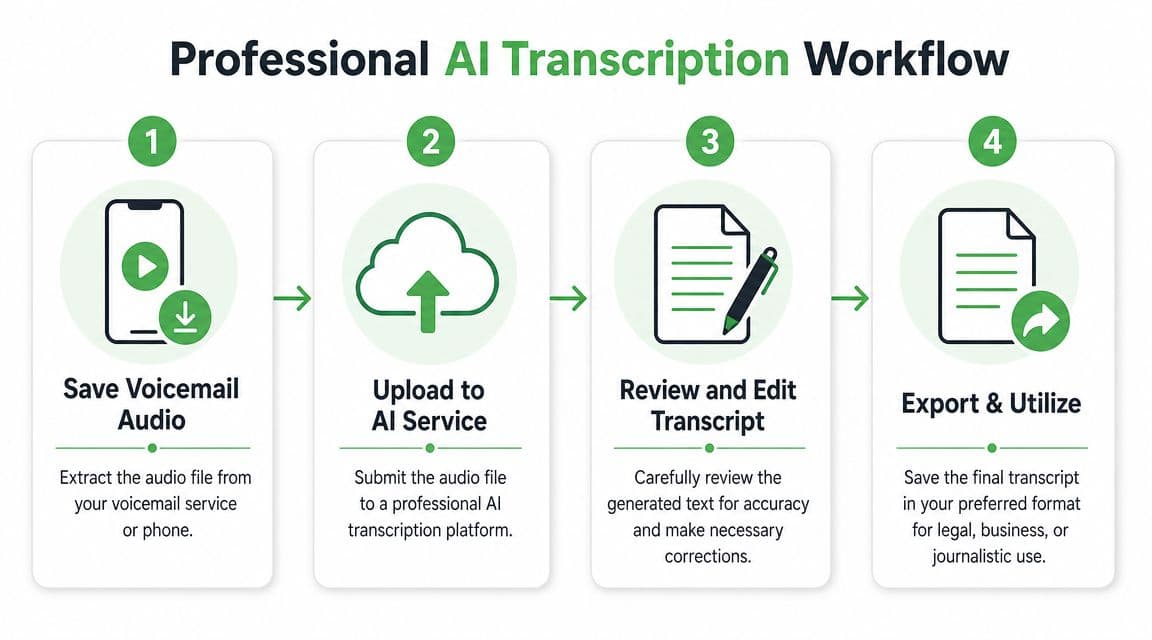
That's where a manual export and AI transcription workflow makes sense.
Why professionals leave the native voicemail screen
General voicemail transcription usually lands in the 80% to 95% accuracy range, while names often fall to roughly 70% to 85%. Callback numbers can do better and may reach up to 99% in some systems because they're a common optimization target, according to GetNextPhone's voicemail transcription analysis. The same source reports a 4.8% average response rate for voicemails, which helps explain why businesses try to convert voice messages into searchable text workflows rather than leaving them trapped in audio.
Those numbers tell you exactly where the risk is. General meaning often comes through. Identity details often don't.
If a message says, “This is Kira from Carraway Legal, call me at...” and the transcript mangles the name or firm, you've got a workflow problem. If the message includes a medication name, a case number, or a delivery code, you need review controls.
A practical professional workflow
The cleanest method is:
- Save the voicemail audio from your iPhone, if your voicemail interface allows sharing.
- Store it in Files, email, or another controlled location.
- Upload the audio into a dedicated transcription workflow.
- Review the transcript against the audio, focusing on names, numbers, dates, and terminology.
- Export the corrected version into the format your team uses.
This process is slower than reading the iPhone's built-in transcript. It's also far more defensible.
What works best in real use
For low-stakes calls, built-in voicemail text is usually enough for triage. For professional use, the review stage is what separates “handy” from “usable.” I'd focus review time on a short list rather than rechecking every word:
- Names and organizations. These are the most frequent miss.
- Callback numbers. Even when the system performs well, verify digit by digit.
- Dates and times. Small errors create scheduling failures.
- Addresses, codes, and case references. These are costly to get wrong.
Review the transcript with the audio open beside it. Don't trust the text alone for proper nouns or anything that triggers action.
Privacy and handling matter as much as raw accuracy
Consumer voicemail interfaces are built for convenience. Professional teams need more than convenience. They need a repeatable process for retention, review, deletion, and controlled sharing. That's especially true if a voicemail can contain client details, health information, legal intake notes, or internal business instructions.
A dedicated AI transcription workflow also makes downstream work easier. You can move the corrected transcript into a CRM note, case file, newsroom log, or support ticket. That is far more practical than asking staff to keep reopening the Phone app and copying fragments by hand.
Who should use this method
This route fits a few clear profiles:
| User type | Why this method fits |
|---|---|
| Legal teams | Voicemails often contain names, dates, and intake details that need checking |
| Journalists | Quotes, names, locations, and spellings need verification |
| Healthcare admin teams | Phone details can affect scheduling and patient communication |
| Support and CX teams | Searchable transcripts improve follow-up and routing |
The main lesson is straightforward. If voicemail is just a message, use the phone. If voicemail creates work, save the audio and run a reviewable transcript workflow.
Understanding Accuracy, Privacy, and Security Risks
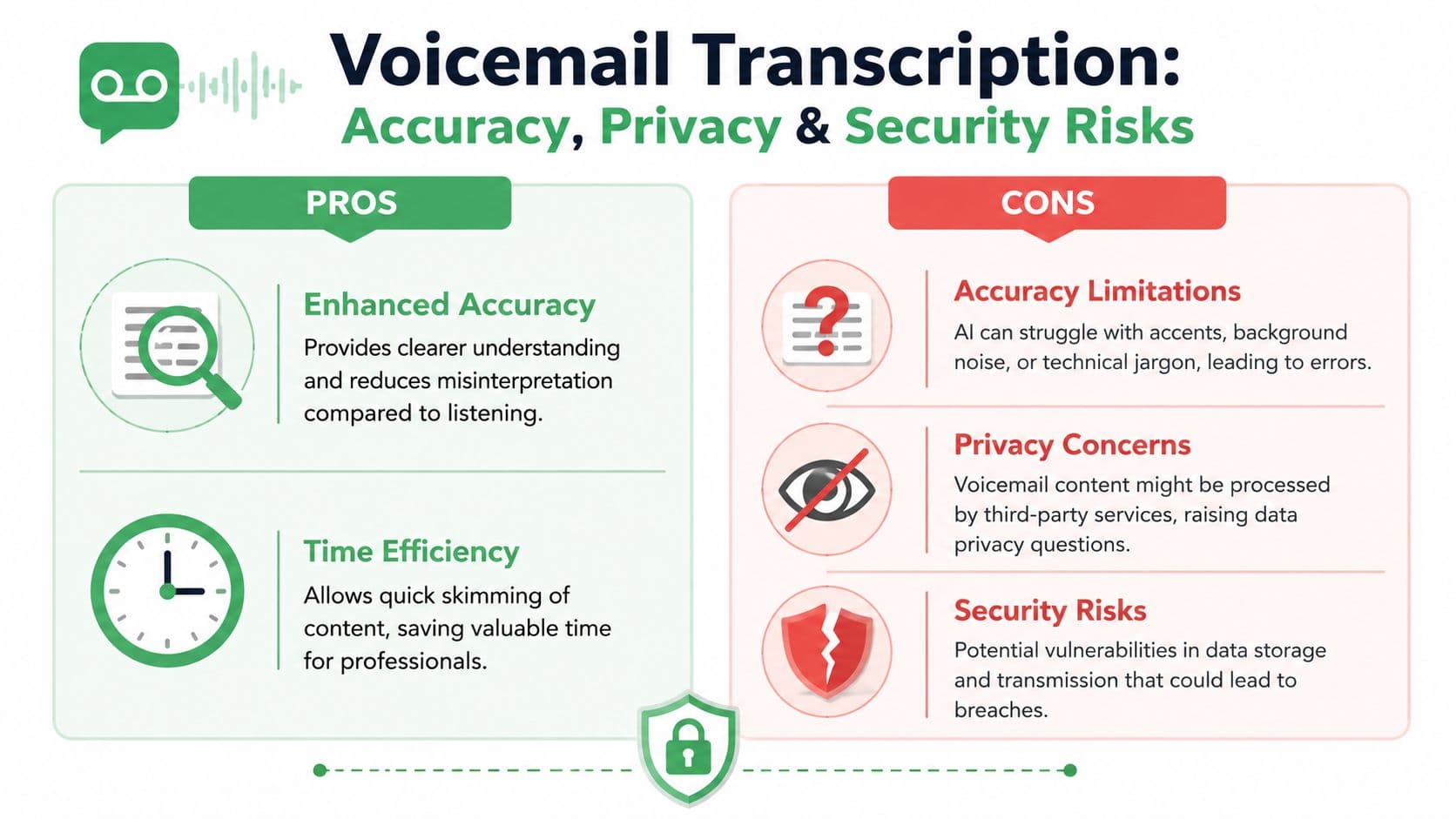
Voicemail transcription feels low-risk until one garbled surname, medication name, or callback number sends the wrong person into action. Accuracy, privacy, and security are not edge concerns. They determine whether iPhone voicemail transcription is a convenience feature or a workflow you can trust.
Accuracy breaks down in predictable places
The transcript usually captures the general message. The failures tend to cluster around the exact details professionals care about.
Verbit's business overview of voicemail transcription notes that performance varies sharply by content type, with names, accents, and noisy recordings causing more errors than plain conversational speech in its overview of voicemail transcription for business use. That tracks with real-world use on iPhone. A clean voicemail from a quiet office can read well. A rushed caller in a car, leaving a project code and a hard-to-spell last name, often will not.
Watch these parts first:
- Proper nouns. Names, company names, street names, and local references fail often.
- Numbers. Callback numbers, extensions, order IDs, and dates need audio verification.
- Domain language. Legal terms, medical wording, internal acronyms, and product names are common miss points.
- Low-quality recordings. Speakerphone, traffic noise, poor reception, and clipped audio reduce transcript reliability fast.
Teams that evaluate transcription quality should also understand what WER means in speech-to-text. Average word error rate can look acceptable while still missing the one detail that changes the outcome.
Privacy depends on the processing path
On iPhone, voicemail transcription sits at the intersection of Apple, carrier support, device settings, and voicemail delivery behavior. That makes privacy harder to reason about than many users expect.
You can see that uncertainty in Apple Community discussion around Live Voicemail controls and behavior. The thread is useful because it reflects the practical problem, not just the feature description. Users want to know what gets transcribed, whether settings behave consistently, and what control they have after text appears.
For business use, that ambiguity matters. A voicemail can include account details, health information, legal intake facts, or internal instructions before anyone has classified the data or limited access to it.
Treat transcripts as records when they contain sensitive content.
If you need a model for the kind of explicit controls teams should look for, Premier Broadband's guide on manage Premier Broadband speech to text is a useful reference. It does not answer every iPhone-specific question, but it shows the level of policy clarity, settings visibility, and administrative control that business users should expect from any speech-to-text system.
Security review should be operational, not theoretical
The practical question is simple. Who can access the transcript, where does it live, and how long does it stay there?
Before relying on voicemail transcription in a professional setting, check:
- Where transcription happens. On-device, through carrier voicemail support, or through a separate service.
- Who can view the text. The individual user only, shared device users, or downstream business systems.
- What deletion removes. The audio, the text, or both.
- Whether the tool fits your obligations. Consumer convenience features do not automatically meet internal retention or confidentiality rules.
- How corrections are handled. If the transcript affects a customer record, case file, or handoff, someone should verify it against audio first.
My rule is straightforward. Use the built-in iPhone transcript to triage and skim. Use a controlled transcription workflow when the message contains names, numbers, instructions, or regulated information. That trade-off keeps the convenience of native voicemail while avoiding false confidence in text that was never designed to be a final record.
How to Troubleshoot Common Transcription Problems
A voicemail transcript usually fails at the worst time. A client leaves a callback number from a noisy street, or a patient says a last name once, quickly, and the iPhone gives you text that looks close enough until you compare it to the audio.
That is the primary troubleshooting job. Figure out whether the problem is feature availability, audio quality, or a workflow mismatch.
If no transcript appears
Start by checking whether the iPhone is eligible to transcribe that voicemail. Apple's built-in transcript depends on Visual Voicemail support, current iOS behavior, and the state of the Phone app. If any of those are off, the transcript may not appear at all.
Work through these checks in order:
- Confirm Visual Voicemail is active on the line.
- Update iOS if the device is behind.
- Wait for the voicemail to finish syncing, then reopen the Phone app.
- Check Live Voicemail settings in the current iOS menu path.
- Restart the iPhone to clear temporary app or service issues.
If those steps do not fix it, treat the issue as a service limitation rather than a settings mistake. Some voicemail environments give inconsistent transcription support. At that point, a third-party voicemail app or a separate transcription workflow is often more reliable than continuing to toggle settings.
If the transcript is wrong
Do not correct every word with the same level of urgency. Triage by risk.
Start with the details that can break a handoff or create a bad record:
- Names
- Phone numbers
- Dates and times
- Addresses
- Medication, legal, or account details
Then compare the transcript against the audio and ask a practical question. Was the caller hard to understand, or is the built-in transcription just not accurate enough for this use case? Road noise, Bluetooth artifacts, speakerphone echo, and fast speech regularly reduce quality. Apple's transcript is helpful for scanning messages. It is less dependable as a final record.
If the voicemail affects scheduling, billing, compliance, or customer history, verify it against the recording or call back for confirmation.
A better fix. Improve the voicemail before transcription starts
Troubleshooting usually focuses on the receiver's phone. The faster win is often improving how the message is left in the first place.
If you control the outgoing greeting for a business line, prompt callers to leave information in a transcript-friendly format:
- State your full name twice
- Say your callback number once, then repeat it slowly
- Spell uncommon last names
- Leave dates one piece at a time, such as “Tuesday, June 18, at 3 PM”
- Avoid speakerphone or heavy background noise
- Put the main request in one sentence
A short greeting can improve transcript quality a lot: “Please leave your name, callback number, and reason for calling. For numbers, say them slowly and repeat them once.”
This matters more than many teams expect. Better source audio reduces review time, lowers callback errors, and makes any transcription method more usable, whether you rely on Apple, an app, or a dedicated AI service.
When troubleshooting stops being worth your time
Use the built-in iPhone transcript for quick review and inbox triage. Use a separate workflow when the voicemail needs to become reliable business data.
That is the dividing line. For personal use, reading voicemails without playing audio is often enough. For professional use, the requirement is different. You may need transcripts that can be reviewed, corrected, stored, and trusted by more than one person.
If your workflow depends on accuracy and control, Vatis Tech is a practical next step. It is built for turning voicemail and other audio into reviewable transcripts that fit operational use, especially when names, numbers, and auditability matter more than convenience inside the Phone app.