Voice to Text
Upload any file to get your transcript with 95%+ accuracy in 50+ languages. Speaker labels and timestamps included, and the first 10 minutes are free with no signup.
- No card required
- No signup required
Rated 4.9/5 by our users
Trusted by hundreds of fast-growing companies


About Voice to Text
Our voice to text converter works with all the audio formats that phones and voice recorders produce: M4A (iPhone), OGG (WhatsApp, Android), MP3, WAV, and more. You don't need to convert files or install any app, everything works in your browser. Record a meeting on your phone, upload it here, and have a written transcript before you finish your coffee. Faster actually, 1 hour is transcribed in 1 minute.
But why use Vatis to transcribe voice to text?
Because it's the most accurate transcription software and you have the proof right in this photo above.
More about voice to text
Voice to text conversion is invaluable for capturing ideas on the go, documenting conversations, and turning spoken content into written form. Doctors use it for clinical notes. Lawyers use it for depositions. Students use it for lecture recordings. Journalists use it for interview recordings. Whatever the use case, Vatis delivers the accuracy and speed you need.
Turn any voice recording into text in minutes. Whether it's a voice memo from your phone, a dictation recording, a voicemail, or a WhatsApp voice message, Vatis Tech's voice to text converter transcribes it accurately. Upload the file from your device and get an editable transcript with speaker labels, timestamps, and AI-generated summaries.
Independent benchmark
Independently benchmarked against Microsoft, Google and Whisper
Researchers at the University of Bucharest scored seven transcription systems on over 126 hours of Romanian speech. Vatis finished top two of the seven overall — first on Antena 1 news and first on podcasts, and more accurate than Google on every single set.
- ~95%
Accurate on Antena 1 news
95.6% on the Antena 1 news set — the highest of all seven systems tested, ahead of Microsoft, Google and every Whisper model.
- ~90%
Accurate on podcasts
89.8% on podcasts — first again on unscripted conversation, and more than 12 points clearer than Google on the same audio.
- 6 of 6
Domains ahead of Google
Vatis transcribed more accurately than Google's Chirp on every set in the study, from studio news to overlapping film dialogue.
| Model | In-domain | Out-of-distribution | ||||
|---|---|---|---|---|---|---|
| ProTV — Broadcast news | Antena 1 — Broadcast news | Audiobooks — Read literary prose | Films — Overlapping film dialogue | Stories — Children's stories | Podcasts — Spontaneous conversation | |
| Wav2Vec 2.0 | 27.7 | 25.6 | 40.8 | 75.4 | 54.1 | 36.3 |
| Whisper Small | 31.6 | 26.8 | 40.0 | 60.0 | 41.1 | 31.9 |
| Whisper Large | 12.3 | 5.9 | 14.8 | 27.3 — best in column | 10.9 — best in column | 11.7 |
| Whisper Small + Echo | 9.4 | 10.1 | 18.8 | 54.1 | 21.0 | 21.6 |
| Microsoft Transcribe | 2.9 — best in column | 4.8 | 10.6 — best in column | 31.1 | 17.6 | 11.5 |
| Google Chirp (USM) | 12.1 | 11.3 | 20.2 | 37.6 | 22.4 | 22.4 |
| Vatis | 5.2 | 4.4 — best in column | 13.0 | 31.2 | 16.0 | 10.2 — best in column |
Figures are Word Error Rate (%) — the share of words a system gets wrong, so lower is better. It is the metric the paper reports, kept here so the table can be checked against it line for line; the headline numbers above are its flip side, accuracy. Vatis at 4.4 WER on Antena 1 is 95.6% of words correct. Every score is zero-shot: no system was tuned on these recordings before it was measured.
Outlined values are the best score in their column.
Vatis is a Romanian commercial ASR service known for its strong transcription accuracy in Romanian. Its models are trained on proprietary data and optimized for production use.
Languages and formats
Transcribe audio to text in these languages and formats
Supported Languages
 English
 Spanish
 German
 French
 Italian
 Romanian
 Portuguese
 Polish
 Indonesian
 Malay
Malay Swedish
 Danish
 Dutch
Dutch Finnish
 Norwegian
 Russian
 Catalan
 Turkish
 Korean
 Thai
Thai Japanese
 Czech
Czech Ukrainian
 Croatian
 Greek
Greek Arabic
 Bosnian
 Hungarian
 Bulgarian
 Serbian
 Macedonian
 Galician
 Cantonese
 Slovak
 Hindi
Hindi Slovenian
 Latvian
 Urdu
Urdu Azerbaijan
 Estonian
 Vietnamese
 Hebrew
 Lithuanian
Formats to transcribe audio to text
Formats to transcribe video to text
Export formats for audio and video transcription
How it works
How to convert Voice to text
- 01
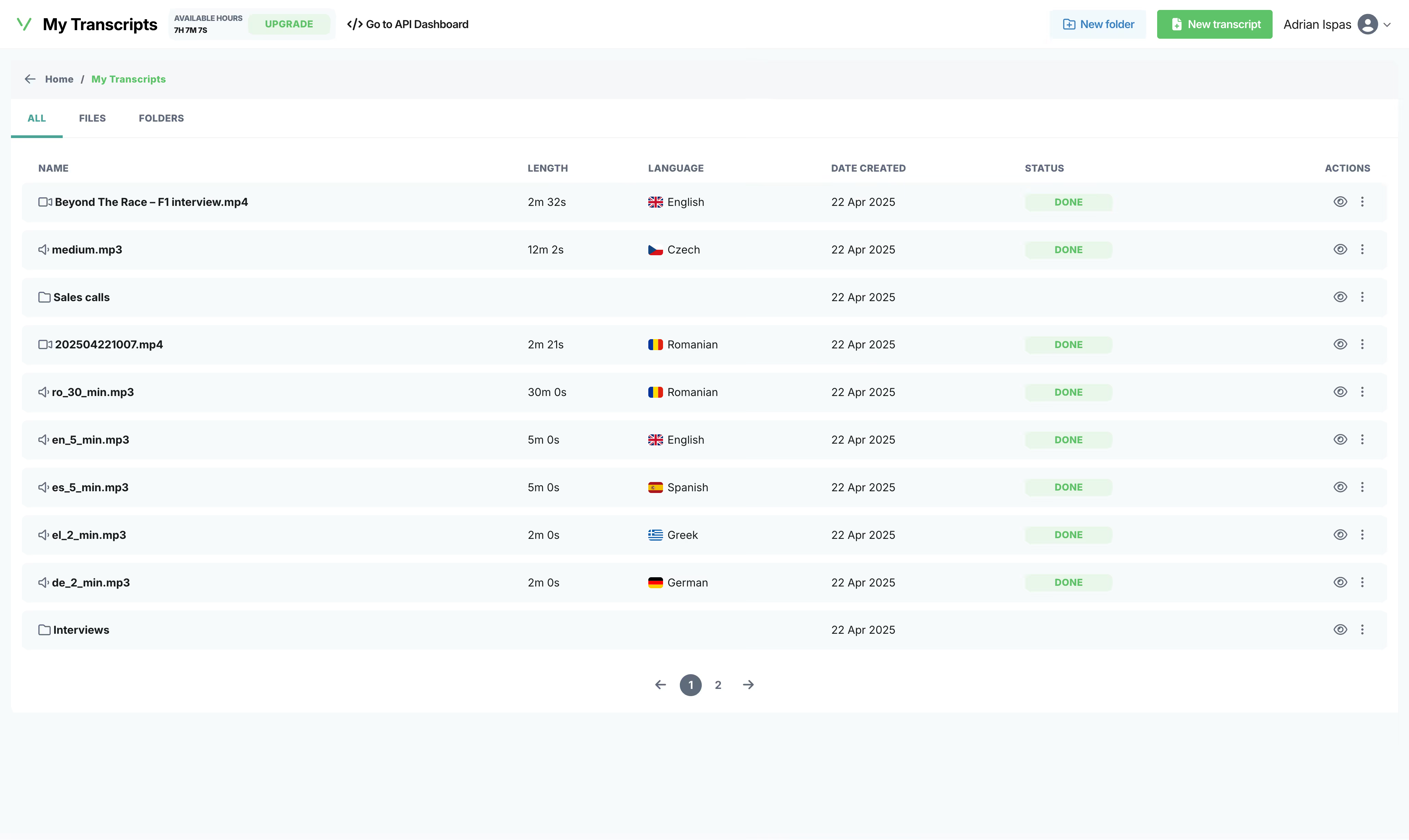
Upload your audio/video file
Drop a file, paste a link, or record live from your browser. We accept formats like MP3, WAV, M4A, FLAC, AAC, OGG for audio and MP4, MKV, AVI, MOV, WebM for video.
- 02
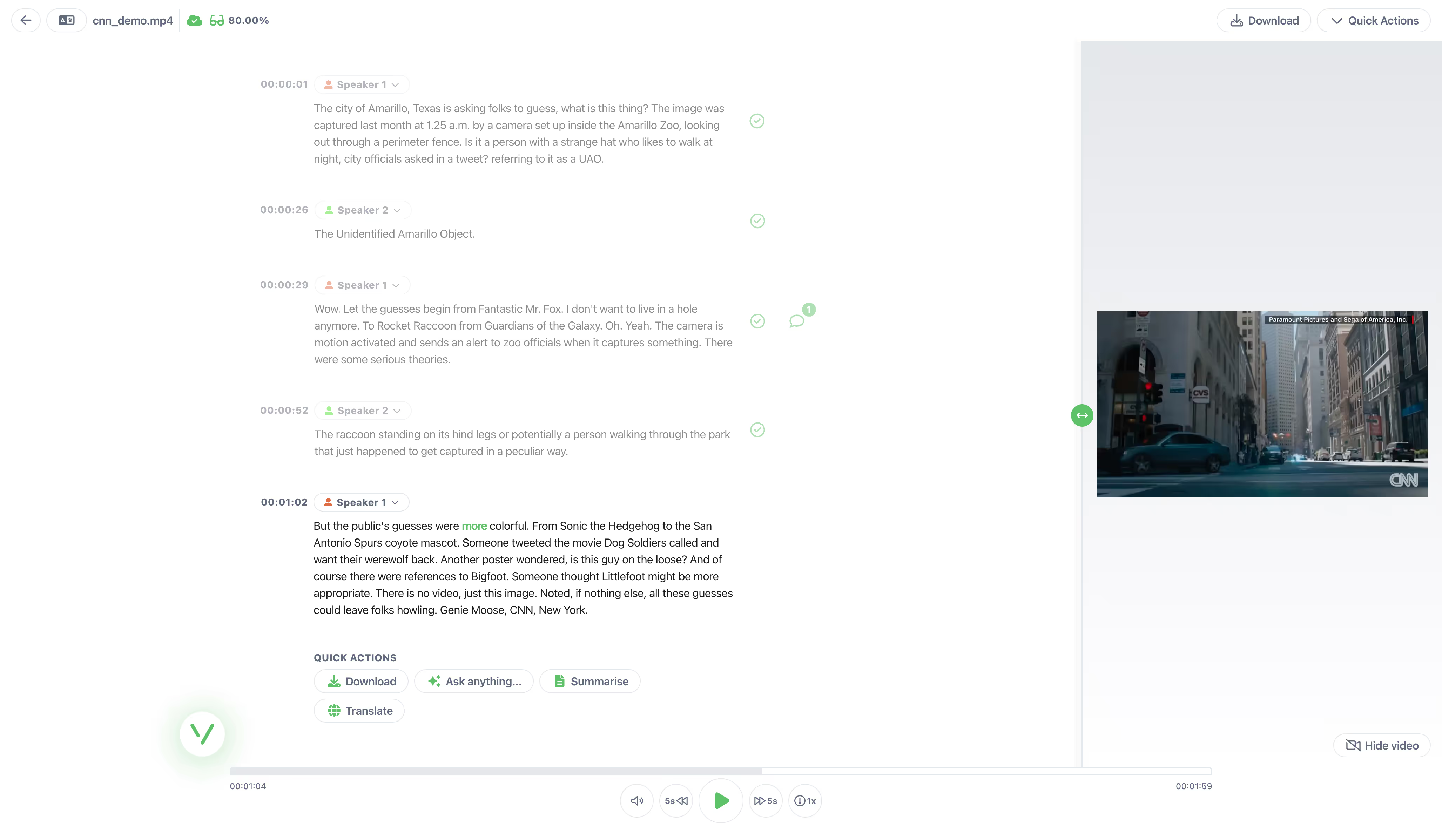
AI transcribes in seconds
Our audio to text converter handles 50+ languages with 95%+ accuracy. It usually takes less than a minute to transcribe a 1-hour file.
- 03
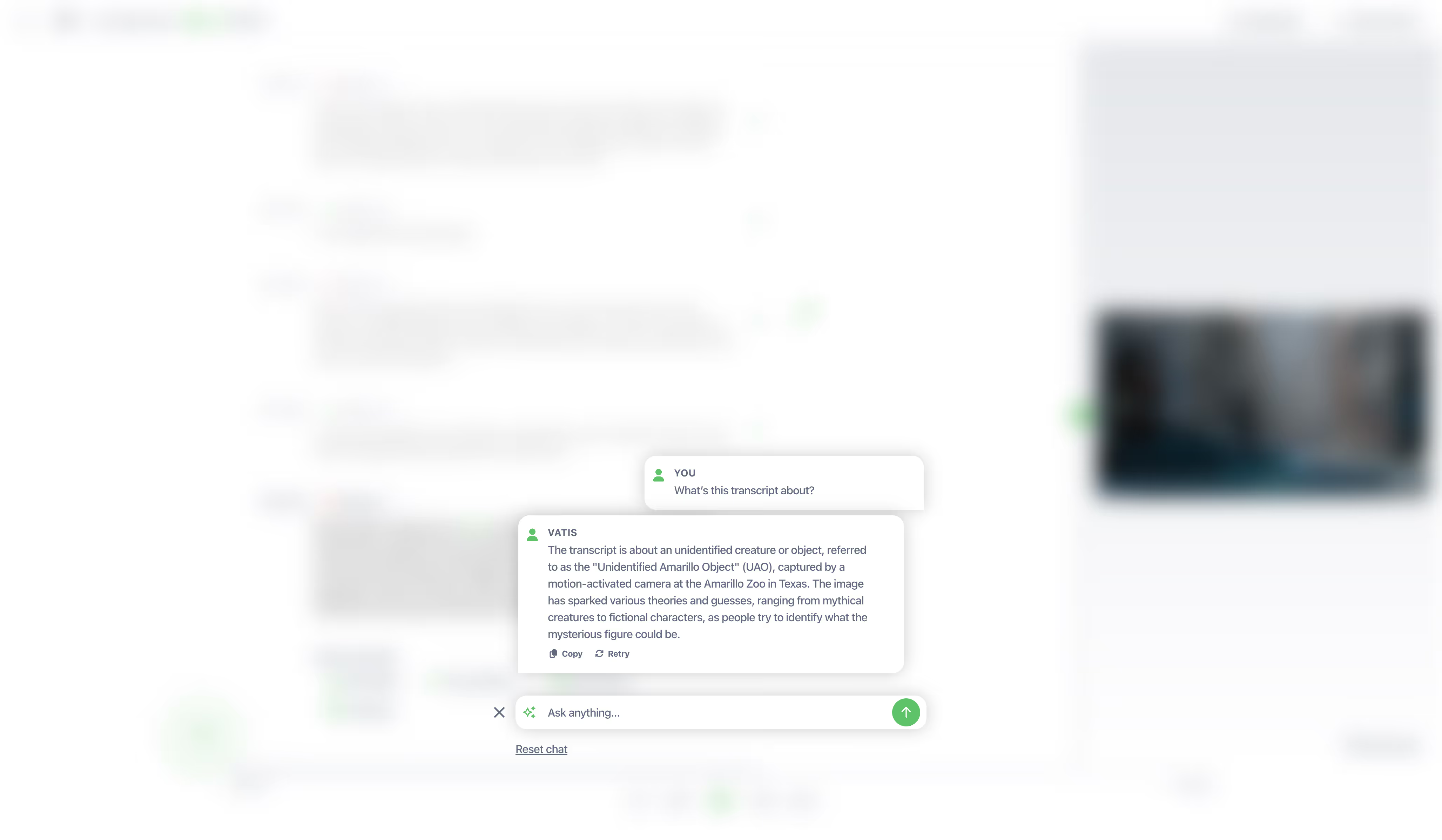
Edit, export, integrate
Get clean text in TXT, DOCX, SRT, VTT, JSON. Or call our API directly.
Frequently asked questions
Can't find the answer you're looking for? Reach out to our support team.
Is the Voice to text converter free?
Yes. Vatis Tech offers 10 minutes of free Voice to text conversion with no signup and no credit card. The free version includes all features: 95%+ accuracy, speaker identification, AI summaries, and export in all formats. Upload your audio file and get a transcript instantly — completely free.
What audio formats can I convert to text?
Our audio to text converter supports 30+ formats including MP3, WAV, M4A, FLAC, AAC, OGG, AIFF, WMA, and OPUS. Files can be up to 5GB and 10 hours long. If you have an unusual format, try uploading it — there's a good chance we support it.
Can I identify different speakers in my Voice file?
Vatis Tech's speaker identification feature automatically adds speaker labels, ensuring you always know who said what.
Can I export Voice transcripts as subtitles?
Yes! You can export your transcript as an SRT subtitle file or plain TXT. Vatis Tech works great for adding subtitles to social videos or publishing audio content with captions.
How do I search and edit within my transcripts?
Our automatic speech recognition (ASR) technology allows you to easily search for keywords and directly edit your text, enabling you to find, review, and refine important information in no time. Press Control + F (or Command + F on Mac) to search for specific keywords or phrases in your transcript. To edit, highlight the desired text directly in the editor and start typing your changes. This makes finding and refining important information quick and easy.
Does Vatis Tech provide timestamps for my transcript?
Yes, our audio to text transcription software includes timestamps with your transcript. This helps you pinpoint specific moments in the original audio or video file.
Does MP3 compression affect transcription accuracy?
Not with Vatis Tech. Our AI models are trained on a wide range of audio qualities, including compressed formats like MP3. We achieve 95%+ accuracy on MP3 files with clear speech, even at lower bitrates (128kbps and above). For the best results, use recordings with minimal background noise.
Is Vatis Tech the most accurate speech to text app?
Vatis Tech achieves 95%+ accuracy on clear audio recordings. For audio with background noise, multiple speakers, or heavy accents, accuracy is typically lower. You can improve results further with custom vocabulary for domain-specific terms. Our AI outperforms most competitors on real-world audio because our models are specifically trained on challenging, noisy recordings. For further proof, the independent benchmark on this page compares our accuracy with Microsoft, Google and every Whisper model on six Romanian test sets.
Can I convert multiple MP3 files at once?
Yes. With a paid plan, you can upload multiple MP3 files for batch transcription. Our infrastructure processes them in parallel so you get all your transcripts back quickly. For high-volume needs, our API lets you automate MP3 to text conversion at scale.
Is WAV better than MP3 for transcription?
Yes. WAV is uncompressed audio, so it retains all the original sound information. This gives transcription AI the cleanest possible input, which typically results in slightly higher accuracy than compressed formats like MP3. If you have both formats available, WAV will produce a better transcript.
Can I transcribe iPhone Voice Memos?
Yes. iPhone Voice Memos are saved as M4A files. Just upload the M4A file to Vatis Tech and get a full transcript in minutes. You can access Voice Memos via iCloud Drive, AirDrop to your computer, or share the file directly from the Voice Memos app.
Do I need to convert M4A to MP3 first?
No. Our converter handles M4A files natively. No format conversion needed, just upload the M4A file directly and get your transcript. Converting to MP3 would actually reduce quality and could lower transcription accuracy.
Can I convert WhatsApp voice messages to text?
Yes. Export the voice message from WhatsApp (long-press the message, tap Share, then Save to Files or send to your computer). Upload the audio file to Vatis Tech and get a transcript in seconds. WhatsApp voice messages are saved as OGG files, which our converter handles natively.
Does voice to text work with phone recordings?
Yes. Our converter supports all phone recording formats: M4A (iPhone Voice Memos), OGG (Android), MP3, AAC, and WAV. Just upload the file from your phone or cloud storage (iCloud, Google Drive) and get a transcript.
More from Vatis
Transcription Software
Learn more about how Vatis Tech helps teams and individuals streamline their transcription workflow.
Learn moreSpeech-to-Text API
Supercharge your apps with Vatis Tech's accurate, accessible and affordable Speech-to-Text API.
Learn moreAudio Intelligence
Extract actionable audio insights in minutes from your transcription API.
Learn more