Your Guide to Closed Captioning Amazon Prime
Turn Prime Video captions on across TV, phone and web, and see what Prime Video Direct asks of creators: UTF-8 SRT, SCC, iTT or TTML, plus FCC caption rules.
15 min read
•
April 11, 2026
Written by
Adrian Ispas
You start a movie on Prime Video, the soundtrack is muddy, someone in the room is talking, and one line of dialogue carries the whole plot. You reach for captions.
On the other side of the platform, a producer uploads a finished title, gets a rejection notice, and finds out the issue isn't the film. It's the caption file.
That split is what makes closed captioning amazon prime more complicated than many expect. For viewers, it feels like a simple playback setting. For publishers, it’s a technical delivery requirement with real compliance consequences. Amazon requires English closed captions for U.S. distribution, and those captions must meet FCC standards for completeness, accuracy, synchronicity, and placement, according to Rev’s breakdown of Amazon Prime Video standards.
Good captioning work sits in the middle. It has to be readable for the person watching on a phone in a noisy airport, and it has to be structured correctly enough for Prime Video Direct to accept it on the first pass.
The Two Sides of Amazon Prime Captions
Amazon Prime captions fail in two very different moments. One happens during playback. The other happens during delivery.
A viewer presses play and gets captions that drift out of sync, drop off halfway through an episode, or never appear on one device even though they worked on another. A publisher submits a title, passes video review, and still gets blocked because the caption asset does not meet platform requirements. Both point to the same fact. Captions are part of the viewing experience and part of the delivery package.
On the viewer side, captions affect comprehension in seconds. If dialogue is hard to hear, if the text appears late, or if line breaks are awkward, the problem feels like a Prime Video problem because that is where the failure shows up.
On the creator side, the standard is stricter. U.S. deliveries to Amazon Prime Video need English closed captions that meet FCC expectations for completeness, accuracy, synchronicity, and placement, as noted earlier. Passing that bar is not just an accessibility checkbox. It determines whether a title goes live cleanly and whether it remains readable once Amazon renders it across apps, TVs, phones, and streaming devices.
What viewers need
Viewer priorities are usually simple and immediate:
- A clear way to turn captions on
- Text that is easy to read on the screen they are using
- Timing that stays aligned with speech and sound cues
That sounds basic. In practice, it exposes a lot of bad caption work. A file can be technically valid and still feel poor to watch if the reading speed is too fast, the segmentation is messy, or the timing slips during scene changes.
What creators have to deliver
Publishers work from a different checklist:
- A caption file Amazon will accept
- Coverage that meets accessibility requirements
- Formatting that holds up across devices, languages, and playback environments
Those goals connect more tightly than they first appear. I see this in delivery QA all the time. A file that passes a desktop spot check can still break on a living room device, and a well-edited transcript can still fail submission if the format, timing, or packaging is wrong.
Practical rule: Build captions for two approvals. First, the viewer has to be able to follow the program without friction. Second, Amazon has to be able to ingest and render the file correctly.
Teams that treat captions as a last-step export usually run into avoidable rejections. Teams that treat captions as both accessibility content and a technical asset catch problems earlier and ship faster.
For Viewers Mastering Captions on Any Device
Captions aren't a niche setting anymore. A CBS News poll found that 55% of Americans watch TV with subtitles or closed captions on, including 63% of people under 30, according to CBS News reporting on subtitle use.
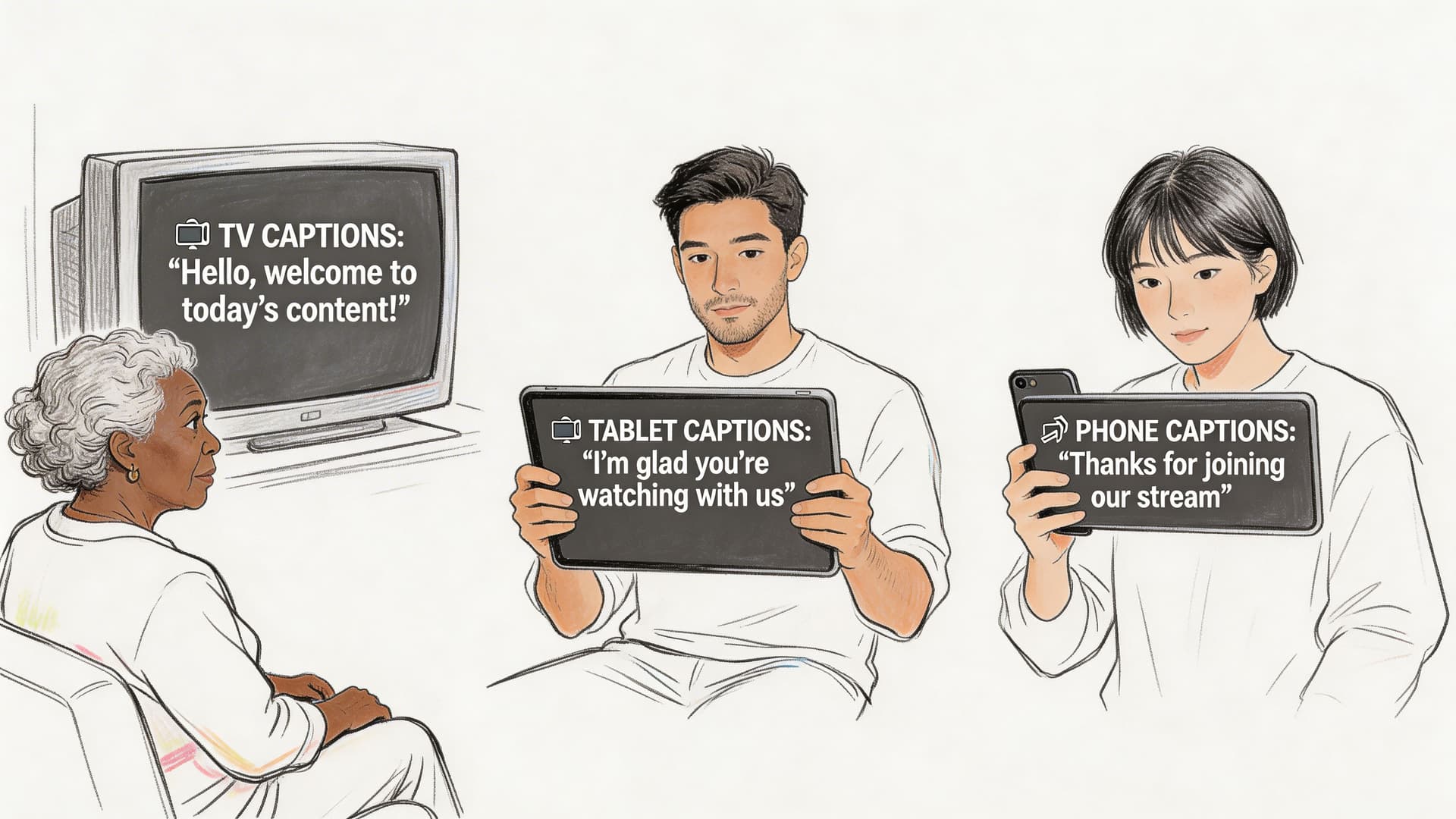
That tracks with what many people already notice at home. Dialogue is often quiet, music is often loud, and modern streaming mixes don't always favor clarity on built-in TV speakers.
The quickest way to turn captions on
On most devices, the reliable method is the same. Start playback first. Then open the in-player controls.
Use this sequence:
- Play the title first
Prime usually hides subtitle controls until video playback begins. - Open the playback menu
On TVs and streaming boxes, this usually means pressing up, down, or OK on the remote. On mobile, tap the screen. - Find Subtitles or CC
The label can vary by device. Sometimes it appears as a speech bubble icon, sometimes as “Subtitles,” and sometimes as “CC.” - Choose the caption track
Select English, SDH, or another available language, depending on the title. - Resume playback and confirm
Watch for the first few lines. If captions don't appear, back out and reselect the track.
On Amazon Prime’s mobile interface, captions can be accessed through the lower-left subtitle menu during playback, but that interface can be awkward to use and may lead to accidental restarts if you miss the tap target.
What changes by device
The part that frustrates viewers is inconsistency. Prime Video behaves differently on a Smart TV app, Roku, Apple TV, Fire TV Stick, browser player, tablet app, and phone app.
Here’s the practical version of what usually happens:
- Smart TVs often rely on the app’s own subtitle menu, but some styling behavior may also be influenced by TV-level accessibility settings.
- Roku and Apple TV usually make subtitle selection easy during playback, but style options can be limited or handled outside the app.
- Fire TV Stick tends to make on/off control straightforward, but style customization isn't always flexible at the title level.
- Mobile apps are convenient for turning captions on, but style and persistence can be inconsistent between sessions.
- Browser playback is often the easiest place to test whether a title has a caption track available.
How to improve readability
Turning captions on is only half the job. Bad styling can make usable captions feel unusable.
Try these adjustments where your device allows them:
- Increase text size if you watch from across the room.
- Choose higher contrast such as white text with a dark background or outline.
- Avoid decorative fonts if your device gives you a choice.
- Test line breaks by watching a dialogue-heavy scene rather than judging from a quiet opening shot.
Captions that are technically present but hard to read don't solve the viewing problem.
When settings don’t stick
This is one of the most common complaints. You enable captions for one episode, and the next title starts with them off. Or the language changes when you switch content.
If that happens, work through the basics in this order:
- Close and reopen the app because playback preferences sometimes fail to save mid-session.
- Restart the device rather than only backing out of the video.
- Check for per-title differences because not every title offers the same caption tracks.
- Verify app updates if the subtitle menu behaves oddly or disappears.
- Test another title to tell the difference between a title-specific issue and a device issue.
When captions are available but still disappointing
Viewers often assume the problem is only whether captions exist. In practice, the bigger issue is quality.
A title may have captions that are:
- slightly delayed
- missing speaker labels
- too compressed into one screenful
- translated awkwardly
- inconsistent across devices
When that happens, there isn't always a viewer-side fix. Sometimes the only useful test is to try the same title on a second device. If the captions work in a browser but not on a TV app, the problem is probably playback implementation, not your account.
For Creators A Guide to Prime Video Captioning
If you publish to Prime Video, captions aren't the last task to squeeze in before launch. They belong in post-production planning from the start.
Amazon’s preference matters here. When both options are available, Amazon prefers Closed Captions/SDH over standard subtitles because they include sound effects, speaker identification, and music cues, as explained by CaptioningStar’s overview of Amazon caption requirements.
That preference has practical implications. A subtitle track that only transcribes spoken words may help some viewers, but it doesn't fully support deaf and hard-of-hearing access.
Why SDH usually beats standard subtitles
A standard subtitle might say:
We're leaving now.
An SDH-style caption can carry more meaning:
[Door slams]
SARAH: We're leaving now.
That extra context matters whenever the soundtrack carries story information.
Creators sometimes resist this because it feels like more editorial work. It is. But it's also the difference between translation support and accessibility support.
Why automated output isn't enough by itself
Automatic transcription tools are useful at the start of the workflow. They save time on raw dialogue capture and rough timing.
They usually fall short in the places Amazon cares about most:
- Speaker identification
- Sound effect labeling
- Music description
- Copyediting for clarity
- Final timing review
That’s why teams that take accessibility seriously treat automation as a draft generator, not the final caption master.
Compliance is bigger than the platform
If your team handles digital accessibility across video, websites, and apps, it helps to understand the broader framework behind these requirements. A plain-language guide to What is WCAG is useful for connecting captioning decisions to accessibility work beyond streaming delivery.
That perspective changes how teams budget and review captions. They stop asking, “What’s the cheapest way to generate text?” and start asking, “What does a viewer need to fully understand this scene?”
What works in production
The most reliable workflow looks like this:
- Start with a transcript draft from a trusted tool or service.
- Edit for accessibility, not just dialogue accuracy.
- Review timing in a real player with actual scene pacing.
- Export in an accepted format and validate before submission.
- Keep a versioned archive so revisions don't overwrite approved files.
For teams building subtitle output internally, a dedicated video subtitle generator is usually more practical than trying to force a generic text workflow into caption production.
The teams that struggle most are usually the ones that treat captions as a sidecar asset. On Prime, they aren't sidecar. They're part of release readiness.
Amazon's Technical Caption File Requirements
Many Prime caption rejections aren't caused by language quality alone. They're caused by file hygiene.
Amazon Prime Video Direct accepts several caption formats, including SRT, SCC, SMPTE-TT, STL, DFXP Full/TTML, and iTT, and all caption files must be UTF-8 encoded. For SRT, Amazon expects a strict repeating structure of a counter, correctly formatted timecodes, caption text, and a blank line, as outlined by 3Play Media’s summary of Prime Video caption specs.
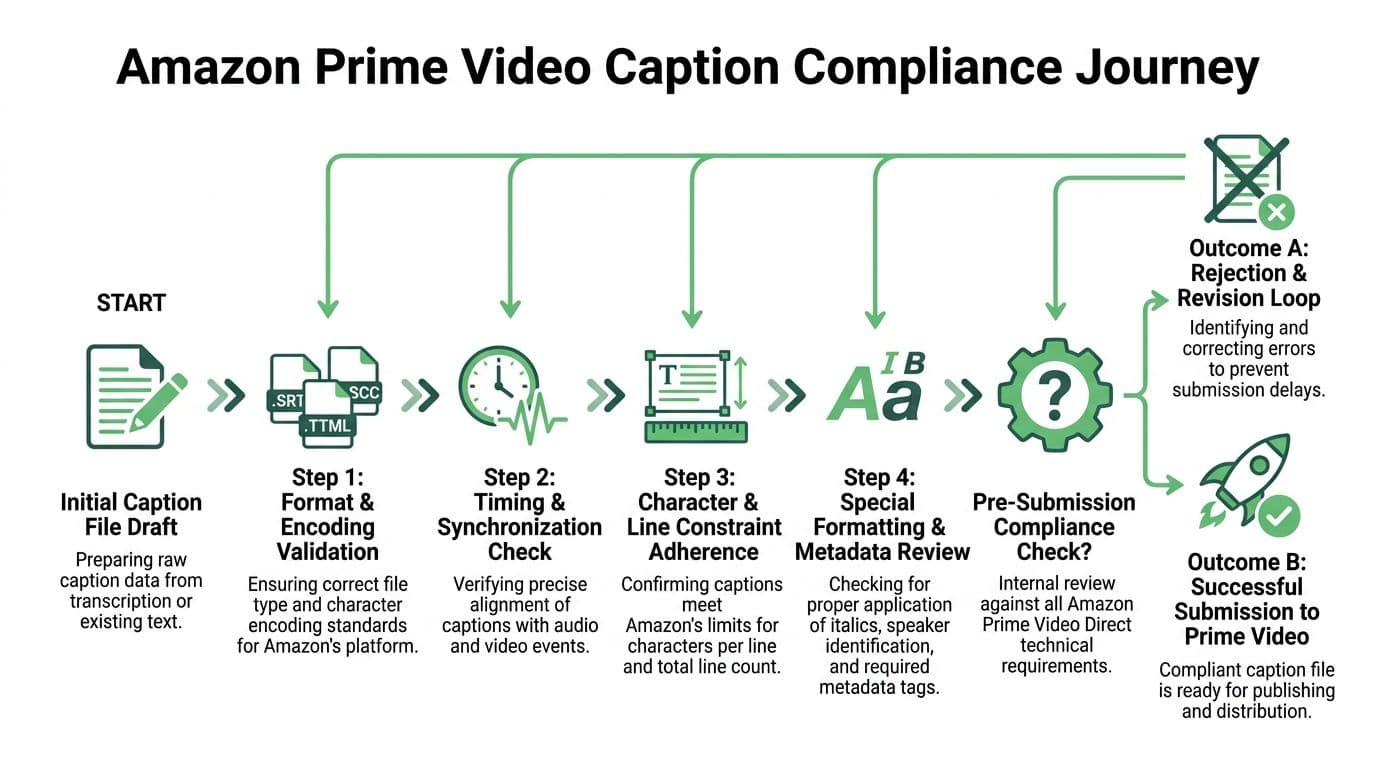
Amazon Prime Video Caption Format Comparison
| Format (Extension) | Type | Key Features | Best For |
|---|---|---|---|
| SMPTE-TT (.xml) | XML-based timed text | Broadcast-oriented structured captioning | Professional media pipelines |
| STL (.stl) | EBU standard file | Common in some broadcast workflows | Legacy and regional broadcast delivery |
| DFXP Full / TTML (.dfxp) | XML timed text | Rich timed-text structure | Teams using XML subtitle workflows |
| iTT (.iTT) | iTunes Timed Text | Apple-oriented timed text format | Workflows already built around iTunes specs |
| SCC (.scc) | Scenarist closed caption format | Traditional closed-caption delivery format | Broadcast and legacy caption ecosystems |
| SRT (.srt) | Plain text subtitle format | Simple, common, easy to inspect manually | Many creators and fast-turnaround delivery |
SRT is a format many teams reach for first because it’s readable and easy to debug. That also makes it the format people break most often.
The anatomy of a valid SRT
A valid SRT block has four parts, repeated all the way through the file.
\1. A sequential number
Example:
1
\2. A start and end timecode
Example:
00:00:05,000 --> 00:00:07,200
\3. One or two lines of text
Example:
I didn't hear the last line.
\4. One blank line
That blank line matters. If it’s missing, parsers can fail.
Here is a clean example:
1
00:00:05,000 --> 00:00:07,200
I didn't hear the last line.

2
00:00:08,100 --> 00:00:10,400
[Door closes]
The two biggest failure points
UTF-8 encoding
This is the issue many teams overlook because the file may still open locally.
If the caption file isn't UTF-8 encoded, special characters can break. Accents, punctuation, and non-English text are especially vulnerable. Prime may reject the file, or worse, render unreadable symbols.
Practical check:
- Open the file in a proper text editor such as VS Code, Sublime Text, or Notepad++.
- Inspect encoding before export rather than assuming the default is correct.
- Re-save explicitly as UTF-8 if your tool gives multiple Unicode options.
Timecode syntax
The punctuation has to be exact. SRT uses:
- two digits for hours, minutes, and seconds
- three digits for milliseconds
- colons between hour, minute, second
- a comma before milliseconds
So this is correct:
00:01:12,450
And these are common mistakes:
- 0:1:12,45
- 00:01:12.450
- 00;01;12,450
Why timing errors survive early review
Caption files often look fine in an editor because the text is there and the numbers appear close enough. Prime is less forgiving.
A few common causes of downstream sync problems:
- Files that don’t begin at the correct project start
- Manual retiming after an edit without full review
- Caption text pasted from another deliverable version
- Frame-rate assumptions that changed during finishing
If your team works from transcripts before final lock, review every timing pass against the final exported master. Don't trust inherited timecodes.
Accessibility compliance and technical compliance overlap
A lot of teams separate legal accessibility review from caption formatting review. That's a mistake.
A useful primer on broader ADA website compliance requirements helps frame why caption structure and readability belong in the same conversation. On Prime, a file can fail because it’s inaccessible in substance or because it’s malformed in delivery.
What to validate before upload
Use a preflight checklist, not gut feel.
- Encoding check
Confirm the file is UTF-8. - Structure check
Make sure every block contains index, timecode, text, blank line. - Line review
Keep captions to one or two lines as required. - Spot sync review
Test at the beginning, middle, and end of the program. - Version control
Label approved files clearly so editors don't upload the wrong revision.
If you're building or reviewing timed media, a practical reference on video timestamps helps teams standardize how they think about sync before the final caption export stage.
Preflight beats rework: The cheapest caption fix happens before upload, not after a rejection email.
Generating Compliant Captions with Vatis Tech
Manual captioning breaks down fast on real production schedules.
A short promo clip can be manageable by hand. A documentary, webinar archive, interview series, or newsroom video library is not. The bottleneck isn't only typing dialogue. It's reviewing timing, handling speaker changes, and exporting a file that won't break when someone uploads it.
Vatis Tech fits this part of the workflow because it turns audio or video into an editable transcript with timestamps and speaker separation, then lets teams export subtitle-ready formats for further QA.
A practical workflow that saves time
Use the platform in this order:
- Upload the media file or submit a link
Start with the exact version tied to your delivery master, not a rough cut. - Generate the transcript draft
The first pass gives you structured text with timing and speaker diarization. - Edit for caption quality
Here, teams add missing punctuation, split long lines, fix names, and insert non-dialogue cues such as music or sound effects when needed. - Review timing against playback
Readability matters as much as raw transcript accuracy. Adjust awkward breaks and crowded screens. - Export in the needed subtitle format
Use SRT, VTT, or another format that fits the destination workflow.
What to fix before export
Even strong automated output still needs a human pass.
Focus your review on the parts that affect viewer comprehension:
- Speaker changes when dialogue overlaps or cuts quickly
- Sound cues if they carry story meaning
- Line length so captions don't become dense walls of text
- Proper nouns including brand names, place names, and character names
- Scene rhythm so text appears early enough to read without lagging visually
Where teams usually lose time
The slowest part of captioning isn't always transcription. It's cleanup after using tools that weren't built for subtitle work.
That shows up as:
- text copied from a document into an SRT editor
- missing timestamps that require manual rebuild
- no speaker separation in interview content
- formatting errors introduced during export
- repeated revision cycles between editorial and delivery
For engineering teams or media products that need speech workflows at scale, the speech to text API is the more durable setup. It supports programmatic ingestion and transcript generation instead of forcing staff to recreate the same process title by title.
The right mindset for AI-assisted captions
The useful way to think about AI captioning is simple. Let the system handle speed. Let humans handle judgment.
That division works well because the machine is good at producing draft text and timings fast. Editors are better at deciding whether a laugh, a pause, or a sound cue should be captured for the viewer.
Fast captions aren't the goal. Reliable, readable, submission-ready captions are.
When teams apply that standard, AI stops being a shortcut and becomes a production tool.
Troubleshooting Common Amazon Prime Captioning Issues
A viewer sees captions drift halfway through a movie and assumes Prime is broken. A delivery team gets the same title kicked back because the caption file passed local playback but failed on ingest. Those two problems look similar on screen, but they usually come from different parts of the workflow.
That distinction saves time.
Start with the failure pattern
Troubleshooting goes faster when you classify the symptom before trying fixes.
| Symptom | More likely viewer-side | More likely creator-side |
|---|---|---|
| Captions missing on one device only | Yes | No |
| Captions broken on every device | No | Yes |
| Menu option disappears randomly | Yes | No |
| Text contains obvious wrong words throughout | Sometimes | Yes |
| Captions drift later and later through the title | Sometimes | Yes |
If a problem follows one title across devices, inspect the source asset or caption file. If it stays on one device or app version, treat it as a playback issue first.
Viewer problems usually fall into three buckets
Rendering issues show up as captions that vanish, reappear late, or ignore your style settings. That usually points to the app, device firmware, or a temporary playback fault.
Track-selection issues happen when Prime switches between subtitle and SDH tracks, or resets the active track after autoplay starts the next episode. The caption file may be fine. The player is calling the wrong track.
Title-specific issues are the ones viewers cannot solve locally. If one film has persistent timing errors and other titles look normal on the same device, the source captions for that title need correction upstream.
For viewers, the practical goal is diagnosis, not endless trial and error. Confirm whether the problem is limited to one title, one device, or one track. That tells you whether to keep troubleshooting locally or report the title.
Creator problems are usually file, timing, or version-control failures
Prime rejections often trace back to the caption file looking acceptable in a media player while still being invalid for delivery. SRT files are especially deceptive here because a player may tolerate formatting that a platform ingest system rejects.
Common causes include:
- incorrect file encoding
- broken cue numbering
- malformed timecode syntax
- extra hidden characters from copy-paste workflows
- overlapping or out-of-order cues
- missing blank lines between caption blocks
The harder class of failure is the file that uploads successfully but performs badly in Prime playback. In production, I see this more often than outright ingest failure. The usual cause is mismatch between the captions and the final master.
That happens when:
- captions were timed against a proxy cut, not the delivery master
- editorial changed runtime after the caption pass
- the wrong revision was exported
- forced narrative, subtitles, and SDH files were mixed up
- line breaks were approved on desktop and never checked on TV playback
A file can be technically valid and still be poor for viewers. Prime will expose that quickly.
What to check before blaming the platform
For creators, the fastest review is a three-part check:
- Open the caption file in a plain text editor. Confirm structure, numbering, spacing, and encoding.
- Run timed playback against the final delivered video. Check sync at the start, middle, and end, not just the first minute.
- Review readability on a TV-sized screen. Dense line breaks and late cue entry often look acceptable on desktop and fail in living-room viewing.
This is also where AI-assisted workflows help and hurt. They help by producing draft text and timings quickly. They hurt when teams assume the first export is delivery-ready. Auto-generated captions still need human QC for timing drift, speaker changes, sound cues, and line treatment.
A short visual walkthrough
The practical rule
If the problem appears in one app, diagnose playback. If it appears in one title across environments, inspect the caption asset. If it appears after a new export, inspect your workflow before you inspect Prime.
That split prevents a lot of wasted effort on both sides.
Frequently Asked Questions About Prime Video Captions
Are closed captions and subtitles the same thing on Amazon Prime
Not always.
On Prime, viewers may see “Subtitles,” “CC,” or “SDH” in the menu. Standard subtitles usually focus on spoken dialogue. Closed captions or SDH add accessibility detail such as speaker labels, sound effects, and music cues. If both are available and you need fuller context, SDH is usually the better choice.
Why do captions work on one Prime title but not another
Caption availability and quality can vary by title.
Some titles have stronger caption tracks than others. Some offer multiple language options. Others may behave differently across devices even when the same account settings are used. If one title works and another doesn’t, test the second title on a browser or different device before changing all your settings.
What’s the safest caption format for creators submitting to Prime Video
For many teams, SRT is the safest starting point because it’s widely supported, easy to inspect manually, and accepted by Prime when formatted correctly.
That only works if the file is built properly. Check these points before upload:
- UTF-8 encoding so characters render correctly
- Correct timecode format using HH:MM:SS,ms
- Sequential numbering with no skipped or broken entries
- One or two lines of text per caption block
- A blank line between each block
If your workflow is more broadcast-oriented, formats like SCC or TTML may be a better fit. For many independent creators and media teams, though, a clean SRT remains the simplest route.
If your team needs to turn audio or video into editable transcripts and caption files without slowing production, Vatis Tech is worth a look. It helps media, legal, healthcare, newsroom, and product teams generate accurate transcripts, review timestamps, and export subtitle-ready files in formats that fit real delivery workflows.