Master MP4 to AVI Conversion in 2026
Convert MP4 to AVI in VLC for one file or FFmpeg for a whole folder, pick codecs that do not inflate the output, and keep subtitles and audio sync intact.
13 min read
•
April 9, 2026
Written by
Adrian Ispas
You downloaded a clean MP4 from a newsroom feed, a court archive, or a client portal. It looks fine on a modern laptop. Then the handoff fails because the target system only accepts AVI, or the editor on the receiving end is running older software that handles AVI more predictably than MP4.
MP4 to AVI conversion still matters. Not as nostalgia. As a compatibility job that keeps production moving.
The mistake most guides make is treating conversion like a one-click cosmetic change. In practice, the container is only part of the story. Codec choice, audio format, subtitle handling, and metadata preservation decide whether the converted file is usable in editing, review, transcription, or archival workflows.
Why Convert MP4 to AVI in 2026
A common failure point is not the source file. It is the destination. An MP4 that plays perfectly in a browser, on a current NLE, or on a review laptop can still fail once it hits an older ingest station, a fixed-function playback device, or a transcription pipeline built around AVI-era assumptions.
AVI has been around since Microsoft introduced it in 1992 as part of the Video for Windows architecture, documented in Microsoft's AVI RIFF File Reference. That age is exactly why it still appears in production. Old Windows software, legacy appliances, and long-lived institutional systems were built around AVI, and many of them were never updated because they already passed validation, budget review, or legal signoff.
MP4 remains the better delivery container for modern distribution. That does not help much if the receiving system only accepts AVI, indexes AVI more reliably, or breaks when an MP4 carries features the target tool does not parse cleanly. Teams dealing with archived edit bays, evidence review workstations, or offline signage still run into this.
Where conversion still matters
MP4 to AVI work usually shows up in jobs like these:
- Legacy editing environments: Older Windows editors and utility tools often expect AVI input or behave more predictably with it.
- Embedded playback systems: Kiosks, signage boxes, and industrial PCs may accept AVI with a narrow codec set and reject newer MP4 combinations.
- Archive and review workflows: Some older asset management and review tools ingest AVI more consistently than MP4, especially when the software stack has been frozen for years.
- Forensic, legal, and compliance setups: Validated systems are often left untouched. If the approved player expects AVI, conversion becomes part of chain-of-custody handling rather than a convenience step.
One practical point gets missed in basic guides. The conversion is not only about getting video on screen. In professional handoffs, you also need to account for what happens to subtitle streams, alternate audio tracks, timecode-related metadata, and channel layouts. If the AVI file will feed transcription, legal review, or QC, dropping a commentary track or burning in subtitles by accident can create downstream errors that are harder to catch than a simple playback failure.
What conversion solves
Decoder compatibility is the core task. AVI is only the container. The result still depends on the codec choices inside it.
In practice, that usually means:
- choosing a video codec the target system can decode reliably
- pairing it with conservative audio, often MP3 or PCM for older setups
- checking whether the workflow needs multiple audio tracks preserved, mixed down, or split out
- deciding how subtitles should survive, because AVI support for modern subtitle formats is limited
- testing the converted file in the destination software, not just in a forgiving media player
That last point matters. A quick local playback test can give false confidence. VLC may open a file that an old capture appliance, court playback station, or transcript prep tool refuses to ingest.
If you need a quick refresher on why the container is only part of the equation, this breakdown of the difference between MP4 and MKV frames the same compatibility problem from another angle.
AVI is still a working bridge format. For modern viewing, keep the MP4. For legacy ingest, fixed hardware, or downstream processes that depend on predictable audio and subtitle handling, converting to AVI is still a routine shop-floor task.
Choosing Your Conversion Method A Quick Comparison
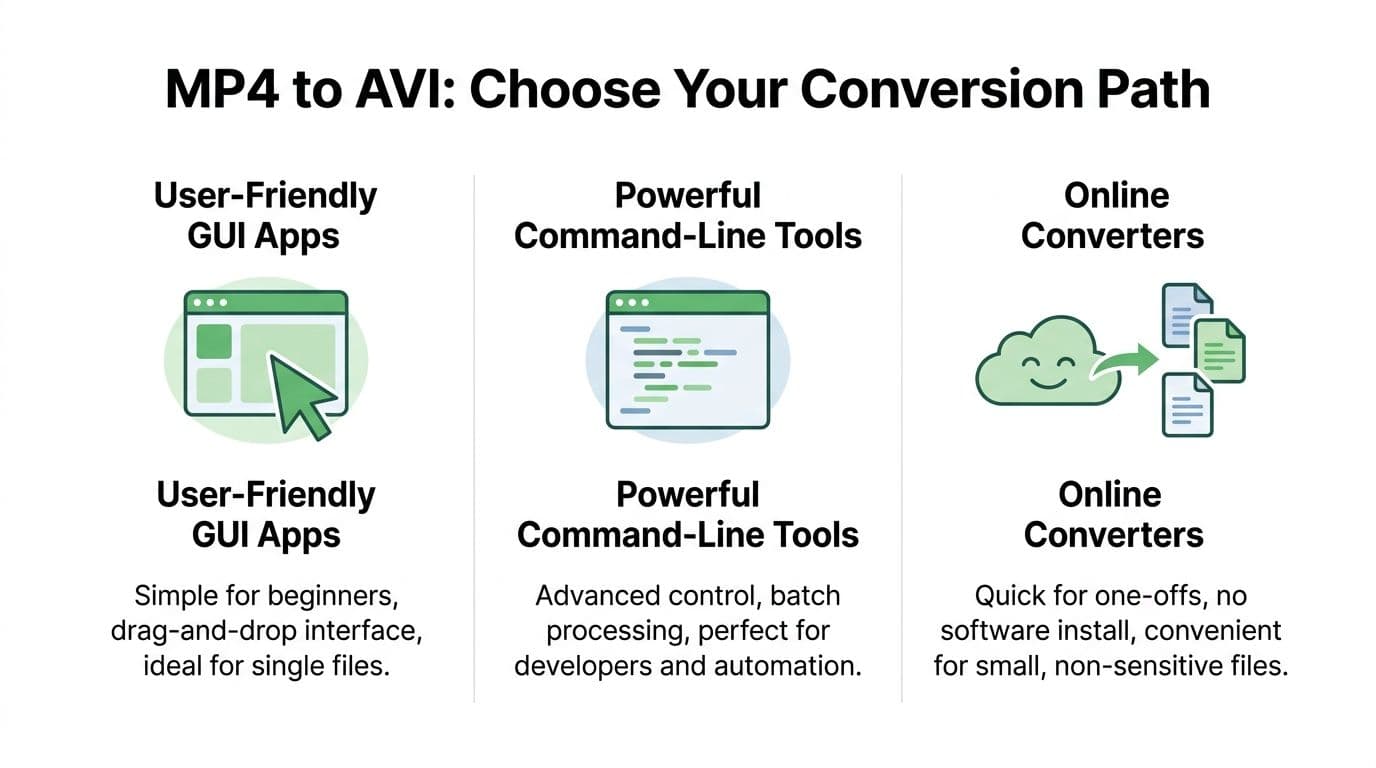
There are three realistic paths for mp4 to avi work. Desktop apps with a graphical interface. FFmpeg at the command line. Online converters in the browser.
Each can do the job. The right choice depends on what you care about most: speed, control, repeatability, or data handling.
The fast decision
If you only convert occasional files and want minimal setup, use a GUI app like VLC.
If you handle folders of footage, need repeatable outputs, or must pin exact codecs, use FFmpeg.
If you only have one small non-sensitive file and cannot install software, an online converter is fine, with caution.
One detail worth remembering: users often confuse container issues with codec issues. That is also why guides comparing formats can help before you convert. If you need a quick refresher on how containers shape compatibility, this breakdown of the difference between MP4 and MKV is useful because it frames the same core question. What is inside the container matters as much as the extension.
MP4 to AVI conversion methods compared
| Method | Best For | Quality Control | Security | Ease of Use |
|---|---|---|---|---|
| GUI apps such as VLC | Occasional manual conversions | Moderate. Good enough for standard jobs | Local processing is preferable for sensitive media | High |
| FFmpeg | Batch work, automation, precise codec control | High. You can define codecs and quality flags directly | Strong when run locally inside your own environment | Medium to low |
| Online converters | One-off jobs on non-sensitive files | Limited compared with desktop and command-line tools | Depends on provider and workflow | Very high |
Trade-offs that matter in practice
GUI tools
VLC and similar apps are the easiest to hand to a colleague. The trade-off is limited transparency. If something fails, the interface does not always tell you whether the issue is the input codec, the selected profile, or a stream inside the file.
FFmpeg
FFmpeg is the method I trust for high-stakes jobs because every choice is explicit. You can batch, script, test, and log everything. The downside is that the first run feels less friendly than a desktop app.
Online tools
Browser-based tools are convenient, but they are not my first choice for newsroom footage, legal exhibits, medical recordings, or anything proprietary. They are useful when convenience matters more than fine control.
Key takeaway: Choose the method based on the target system and the sensitivity of the source material, not just on convenience.
The Easy Path Converting with VLC Media Player
A common shop-floor scenario is getting an MP4 from a current phone or mirrorless camera and needing an AVI that still opens on an older review station, archive tool, or transcription handoff system. VLC is useful here because it is already on many machines and it can get a single file converted fast without installing a separate encoder suite.
How to do it without guessing
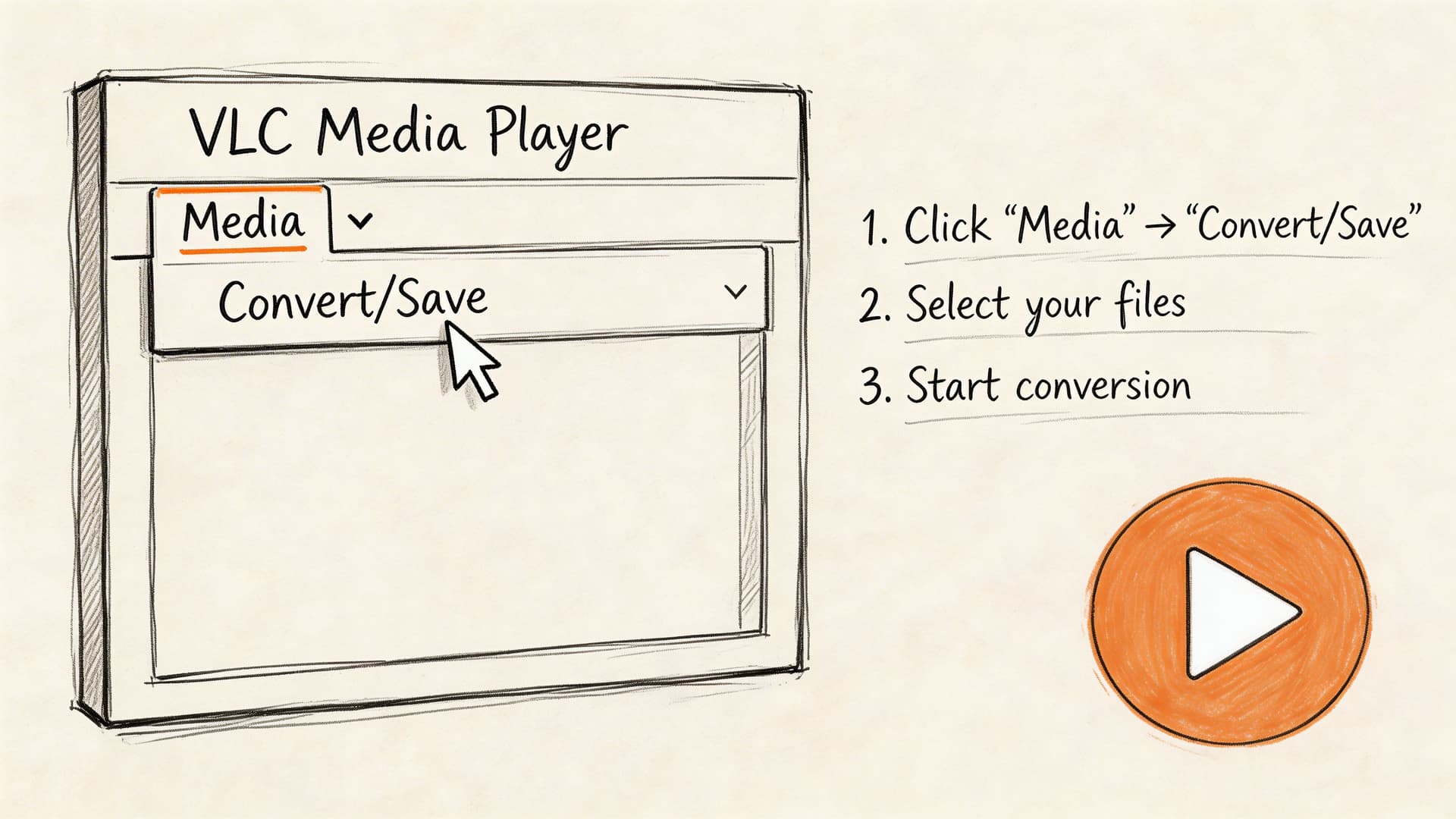
Open VLC and go to Media > Convert / Save. Add the MP4, click Convert / Save, then stop at the profile screen long enough to inspect what VLC is about to write.
That profile choice decides whether the AVI will only play in VLC or work in the target system.
For older playback targets, edit the profile if VLC allows it and keep the file simple:
- Encapsulation: AVI
- Video codec: a broadly supported legacy codec such as Xvid or MPEG-4 Part 2
- Audio codec: MP3, which is still a safer choice than AAC in many AVI-based workflows
This matters more than many basic guides admit. AVI is an old container. It can hold combinations that look valid on paper but fail in old NLEs, embedded players, evidence review tools, and transcription pipelines that expect plain video plus plain audio.
A practical VLC workflow
Use VLC for one-file or low-volume jobs where speed matters more than auditability.
- Start with one representative clip. Use the file with the same frame rate, audio layout, and subtitle setup as the rest of the batch.
- Create the AVI and save it with a new name. Keep the MP4 unchanged for rollback.
- Test the AVI in the destination software. VLC is not the test environment. The target system is.
- Check audio and timing before you send it on. For transcription or review, verify that speech starts where it should and stays in sync.
I also check whether the source MP4 contains more than one audio track, embedded captions, or subtitle streams before using VLC. Those details are easy to miss, and they matter later if the AVI goes into logging, transcription, or compliance review.
Tip: If the downstream task depends on captions, alternate language tracks, or exact stream mapping, treat VLC as a quick compatibility tool, not as the final preservation method.
Where VLC fits well
VLC is a sensible choice for:
- a one-off client delivery to an older playback system
- a quick ingest fix for a newsroom or post room
- a manual conversion on a machine where FFmpeg is not installed
- simple source files with one video stream and one audio stream
It is weaker for jobs that require exact stream handling, repeatable batch processing, or dependable subtitle retention. If the next step is speech work rather than playback, use a separate audio-first step with this guide on extracting the sound from a video. That keeps the transcription workflow cleaner than assuming every AVI export preserved the source tracks the way you expected.
For a visual walk-through, this demo helps if you want to follow the interface in real time.
Common VLC mistakes
Leaving the default profile untouched
Default presets are convenient, but they are not tuned for every legacy target. Check the codec settings before you click Start.
Assuming subtitles and extra audio tracks will survive
That assumption causes avoidable downstream failures. VLC can flatten a file into a playable AVI while dropping subtitle streams, reducing multiple audio tracks to one, or changing stream behavior in ways that break later transcription and review steps.
Converting the whole folder before validating one sample
Run one file first. Confirm playback, sync, and any subtitle or audio-track requirements, then convert the rest.
The Power User Path Batch Convert with FFmpeg
If VLC is the quick fix, FFmpeg is the production method. It is the option for technicians who need output they can explain, repeat, and automate.
The standard command for mp4 to avi is:
ffmpeg -i input.mp4 -c:v libxvid -q:v 2 -c:a libmp3lame -q:a 4 output.avi
According to this FFmpeg conversion reference, that approach delivers broad AVI compatibility with a 95-98% success rate on standard H.264 MP4 inputs, though file sizes can grow by 2-5x compared to the source.

Why this command works
-i input.mp4 tells FFmpeg which source file to read.
-c:v libxvid selects Xvid for video. That is a practical compatibility choice for AVI. It is easier for older systems than trying to force newer codec combinations into an old container.
-q:v 2 sets high video quality using FFmpeg’s quality scale for this codec.
-c:a libmp3lame encodes audio as MP3, which helps avoid playback failures on older software.
-q:a 4 sets audio quality to a solid middle ground.
Batch conversion for folders
When the job is “convert everything in this folder,” use a loop instead of repeating commands by hand:
for f in *.mp4; do ffmpeg -i "$f" -c:v libxvid -q:v 2 -c:a libmp3lame -q:a 4 "${f%.mp4}.avi"; done
That pattern is useful for archive migration, field ingest cleanup, or prepping handoff copies for old systems.
What FFmpeg does better than desktop apps
Repeatability
Every operator gets the same output when they run the same command.
Auditability
If a file fails, you can inspect the logs and identify whether the issue came from the input stream, the codec, or a bad target choice.
Batch scale
A command loop saves hours when working through a directory of source files.
Tip: Keep a tested command template for each legacy destination. One for old Windows playback, one for archive handoff, one for edit import.
What to watch out for
The same source notes that mismatched codecs can cause playback problems on older systems, so sticking to Xvid video and MP3 audio is the safer route in AVI-focused workflows. Avoid unusual hybrids unless you already know the destination can handle them.
The other trade-off is size. AVI is less efficient than MP4 in many cases, so the converted file can become much larger. For short review copies that may not matter. For daily archive production, it matters a lot.
A practical rule is simple:
- use FFmpeg when consistency matters
- use tested codec pairs
- assume file growth
- verify one output on the target system before batch processing the full set
Quick Conversions Using Online Tools
A producer sends you a last-minute MP4 from a hotel Wi-Fi connection, and the receiving system only accepts AVI. You do not have admin rights to install software, and you only need a quick output to keep the job moving. That is the narrow case where an online converter earns its place.
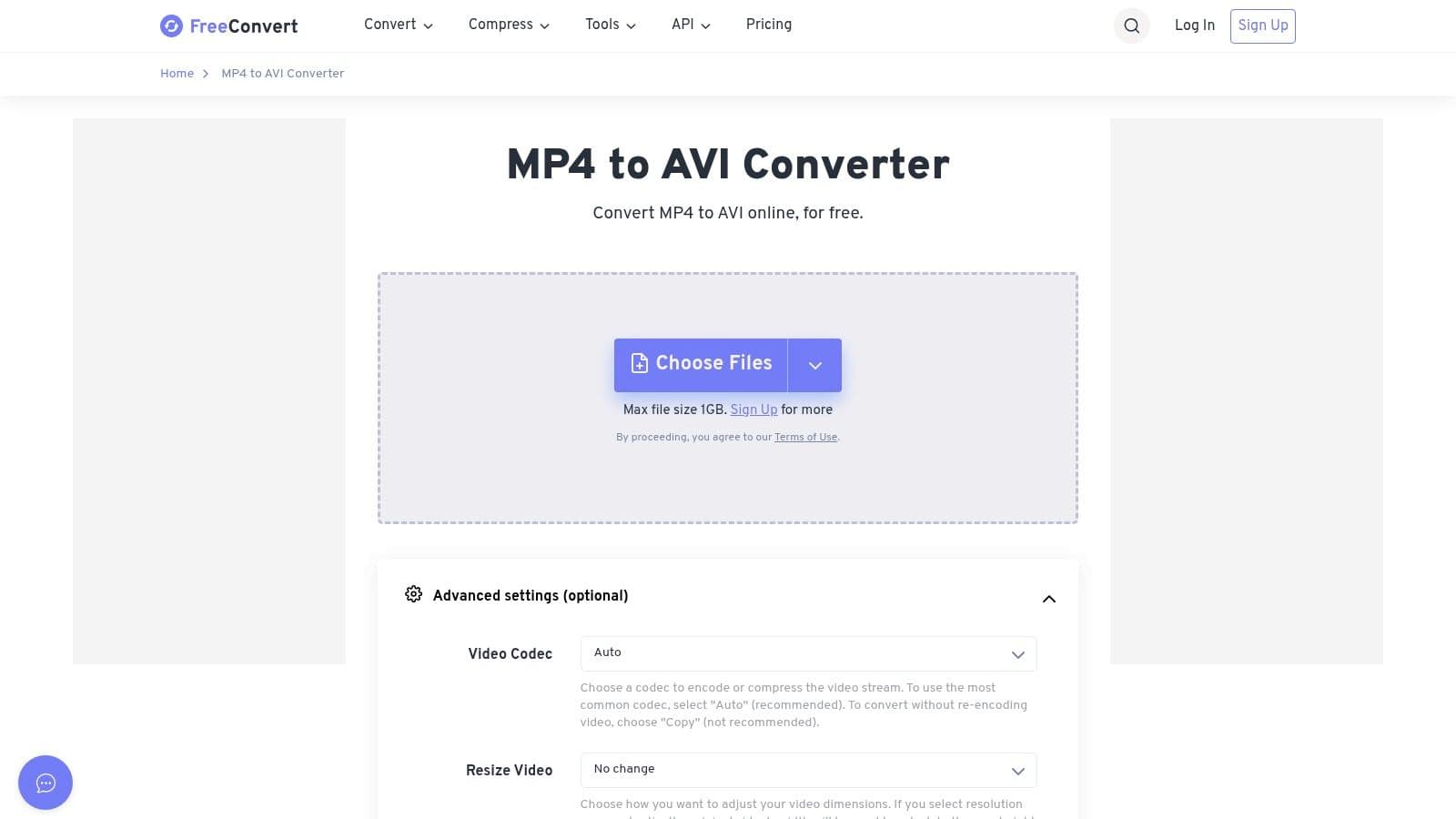
The workflow is straightforward. Upload the MP4, select AVI, convert, then download the result.
Where online converters fit
Use them for a one-off file, a short review clip, or a quick sample needed to test whether an older player will open AVI at all.
They are a poor fit for protected media, interview masters, legal recordings, or any asset that feeds a transcription or subtitle pipeline. Browser tools rarely tell you enough about what happened to extra streams inside the file. A conversion can look successful while dropping a second audio track, flattening channel layout, or ignoring subtitles that someone downstream expected to keep.
That trade-off matters more in professional handoffs than basic guides admit.
Trade-offs
Privacy depends on the processing model
Some services convert in the browser. Others upload the file to a remote server. Those are different risk categories. If the site does not clearly explain which model it uses, treat the file as if it leaves your device.
File and queue limits are common
Large camera originals, long interviews, and screen recordings can hit upload caps or timeout limits fast. A short test clip is usually fine. A 90-minute source file is where these tools start wasting time.
Format control is limited
Online tools often hide codec choices behind a simple interface. That is convenient, but it also means less control over Xvid vs other AVI-compatible video codecs, audio format, bitrate, and stream handling. If the destination system is picky, fewer settings usually means more guesswork.
Stream integrity is a key risk
For downstream transcription, subtitling, or review, the question is not just whether the AVI plays. The question is whether the output still contains the material your next step depends on. If you need captions after conversion, prepare them separately with an AI subtitle generator for subtitle workflow prep and verify whether the target system expects burned-in text or a sidecar file. Do not assume an online AVI conversion will preserve subtitle data cleanly.
A practical rule for teams
Use online converters for convenience and speed, not for controlled media workflows.
For internal review copies or a quick compatibility check, they are fine. For archive handoff, transcription prep, multilingual audio, subtitle retention, or any ingest path that has already failed once, use a local tool and verify the output streams before you send it on.
Key takeaway: Online converters work for low-risk, short-form jobs. If audio tracks, subtitles, or metadata need to survive the trip to AVI, handle the conversion locally.
Advanced Conversion Preserving Subtitles and Quality
At this point, basic guides usually stop helping. They show how to create an AVI file, but not how to keep the file useful after conversion.
That matters when your source MP4 contains subtitles, multiple audio tracks, timestamped metadata, or other information used by editors, reviewers, and transcription teams.
A gap analysis of 50+ conversion tutorials found that only 8% discuss subtitle passthrough, while searches for “MP4 to AVI subtitles” rose 35%, according to this research summary. The same source notes that 90% of guides leave out specific FFmpeg flags needed to avoid data loss.
Why subtitles get lost
AVI is not as flexible as MP4 for extra streams and modern packaging. A file can convert successfully while dropping subtitles, chapters, or sidecar-friendly structures.
That is why “it plays” is not enough as a success check.
For subtitle-heavy workflows, decide which outcome you need:
- Burned-in subtitles for guaranteed visual playback
- Separate subtitle files for editing or accessibility workflows
- Embedded streams only if the target system can read them
If you need to generate or clean subtitle files before conversion, an AI subtitle generator can help upstream. Then you can choose whether to burn those captions into the AVI or manage them as separate assets.
FFmpeg flags that matter
The source above specifically calls out -c copy -bsf:v h264_mp4toannexb as a flag combination often omitted in tutorials. In practice, this kind of explicit handling matters when you are trying to preserve streams or avoid unnecessary quality loss during remux-style operations.
That said, AVI is not always the right destination for advanced subtitle retention. In many professional workflows, the safer move is:
- convert the video and audio into an AVI-compatible pair for the legacy system
- keep subtitles as separate SRT or VTT files
- document the association clearly in filenames and handoff notes
Audio tracks and sync issues
Multiple audio tracks are another weak point. MP4 can carry alternate languages, commentary, or clean feeds more gracefully than AVI in many setups. If the target software only expects one audio stream, select the needed track before conversion rather than hoping the tool picks the right one.
Watch for:
- audio drift after re-encoding
- missing secondary tracks
- unexpected channel layout changes
- subtitle timing mismatches after frame-rate changes
A safer professional workflow
Start with inspection
Check what is inside the MP4 before converting. Video track, audio tracks, subtitle streams, and any chapters or time data.
Convert only what the target system needs
If the legacy player only needs one video stream and one stereo audio stream, build exactly that.
Keep originals and sidecars
Do not treat the AVI as your new master. Keep the source MP4 and any subtitle sidecars intact.
Tip: For archival or transcription-related work, preserve the original MP4 as the reference file and treat the AVI as a compatibility deliverable.
Frequently Asked Questions
Does converting mp4 to avi improve quality
No. AVI is usually a compatibility deliverable, not a quality upgrade. If the MP4 already uses a compressed source, converting it to AVI often keeps the same quality or lowers it if you re-encode with the wrong settings.
Why is my AVI much larger than the MP4
AVI often ends up larger because the codecs commonly paired with it are less efficient than modern MP4 workflows. That trade-off is normal on legacy ingest systems, older NLEs, and transcription handoff chains that reject newer containers but still expect predictable video and PCM or MP3 audio.
Can AVI keep subtitles
Sometimes, but it is one of the first things to break in a real production handoff. Closed captions, embedded subtitle streams, language variants, and timing metadata do not survive every MP4 to AVI path cleanly.
For jobs where captions matter downstream, keep the original MP4, export subtitles as sidecar files, and verify them before delivery. If you need a lightweight browser tool to add subtitles to videos, use it for simple prep work, not as your only preservation step.
Should I use VLC or FFmpeg
Use VLC for a manual one-off conversion. Use FFmpeg for exact codec control, repeatable output, batch processing, and cases where you need to choose the right audio stream and confirm subtitle handling instead of accepting the default behavior.
What if my end goal is transcription, not playback
Build the conversion around the transcription system’s requirements. That usually means clear audio, the correct language track, stable timebase, and subtitles preserved as separate assets if the transcript needs to reference them later. If the primary task is speech-to-text, start with this guide on how to convert MP4 to text.
Why does the AVI play in VLC but not in the client’s software
VLC accepts a wide range of codecs, broken indexes, and unusual stream combinations. Older client software is usually stricter. The file may still be AVI, but the video codec, audio codec, bit depth, or interleaving can still fall outside what that system accepts.
Test on the target machine, not just your workstation. That check catches a lot of avoidable rework.