How to Add Text to Video: A Complete Guide (2026)
Styled overlays and timed captions are two different jobs. Compare mobile, desktop and browser editors, then automate SRT and VTT subtitles for a whole library.
14 min read
•
May 3, 2026
Written by
Adrian Ispas
You exported a clean video. The framing works, the pacing feels right, and the edit says exactly what you wanted it to say. Then it lands in a feed where the viewer never turns the sound on.
That’s where a lot of videos fail.
When people search how to add text to video, they’re usually trying to solve one of two problems. First, they need styled on-screen text: titles, lower thirds, callouts, emphasis words, and brand elements. Second, they need captions or subtitles: timed text that follows the spoken audio accurately enough to be useful, accessible, and platform-ready.
Those are related jobs, but they are not the same job.
The mistake I see most often is treating text like decoration. In current video workflows, text is part of delivery. It carries the message when audio is muted, it helps viewers track what matters, and it often determines whether a clip feels polished or amateur.
The Silent Majority Why Your Video Needs Text
A short clip can lose its entire point in the first second if the screen shows only a person talking. In a feed, that usually looks like dead air. The viewer sees motion, but no clear reason to stop scrolling.
That changes the moment text appears.
Captions tell the viewer what’s being said. Overlays tell them why it matters. A headline like “3 mistakes in your onboarding flow” gives context instantly. A lower third identifies the speaker. A highlighted phrase like “contract clause” or “breaking update” pulls attention to the exact beat that matters.
The performance impact isn’t subtle. Viewers are more likely to stay when they can read as well as watch. Research cited in this guide reports that 80% of viewers are more likely to finish a video when subtitles are present, and 85% of all videos on Facebook are watched with sound off in this video reference on caption performance.
Two kinds of text that serve different jobs
Styled overlays are editorial and visual. They include:
- Titles and hooks: “What changed in the policy”
- Lower thirds: speaker names, roles, locations
- Emphasis text: one phrase pulled from a longer sentence
- Step labels: “Step 1”, “Step 2”, “Step 3”
- Brand framing: recurring templates across reels, shorts, and promos
Captions and subtitles are functional. They need to be synced, readable, and complete enough to represent the spoken content faithfully.
Practical rule: If removing the text makes the video hard to understand, that text isn’t optional.
A product demo is a good example. If the clip opens with a dashboard and a narrator saying, “Here’s the issue with manual QA review,” a silent viewer gets nothing. Add one line of text on screen and the clip becomes understandable before a single second of audio plays.
What works and what fails fast
Good video text is specific, timed correctly, and restrained. Bad video text tries to do too much at once.
Here’s what usually works:
- Short phrases: Enough to clarify the point, not enough to become a paragraph.
- Predictable style: Same font family, same motion behavior, same placement logic.
- Intentional timing: Text appears when the viewer needs it, not after the moment passed.
What usually fails:
- Center-screen clutter: It blocks faces, products, and demos.
- Tiny fonts: Fine on a desktop preview, unreadable on a phone.
- Over-animated text: Every word flying in from a different direction looks cheap fast.
If you want people to watch, understand, and remember your video, text isn’t a finishing touch. It’s part of the edit.
Beyond Views Accessibility and SEO Gains from Video Text
A support team publishes a strong product tutorial, the audio is clear, the edit is clean, and the page still underperforms. The usual problem is not the footage. It is that too much of the value lives only in speech, so part of the audience cannot fully use it and search systems have very little readable context to index.
Text fixes both problems, but only if the workflow treats it as production infrastructure instead of decoration.
Accessibility reaches far beyond autoplay
Captions make video usable for people who are deaf or hard of hearing. Wave.video notes in its guide to video text and transcripts that hundreds of millions of people worldwide experience hearing difficulties. That alone justifies doing the work properly.
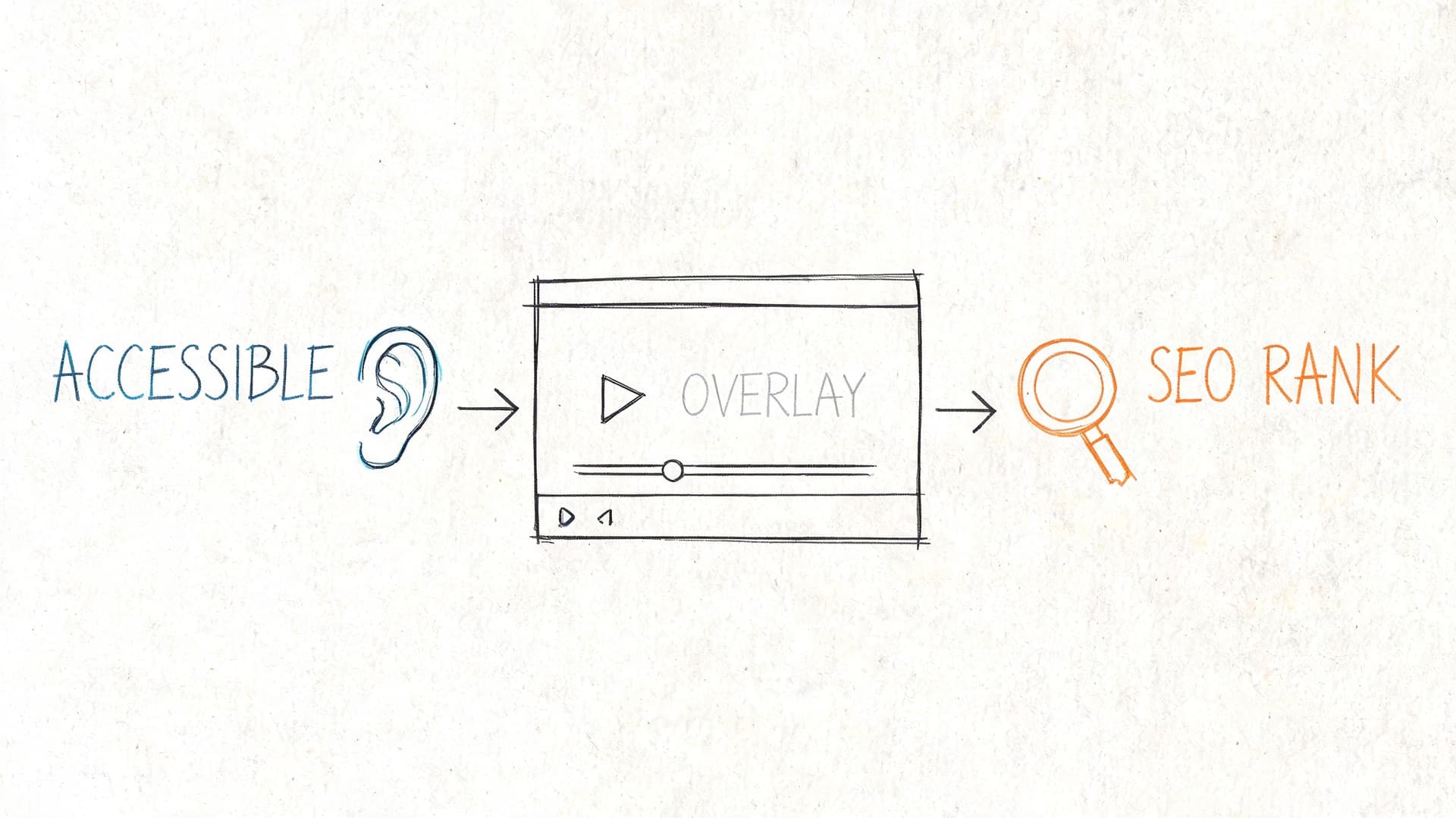
The practical benefit is even broader. Captions help viewers in offices, on trains, in shared homes, in waiting rooms, and anywhere audio is muted or inconvenient. In day-to-day publishing, that means fewer drop-offs in the first seconds and better comprehension across mixed viewing conditions.
For media teams, universities, healthcare organizations, and customer support groups, this is also an operations issue. Captions support accessibility standards, reduce misunderstandings, and make archived video usable months later. Manual captioning works for a handful of clips. Once the library grows, teams need repeatable transcription, review, and export workflows.
Search works better when spoken content becomes readable text
Search engines do not interpret video the way a human editor does. They rely on transcripts, titles, metadata, surrounding copy, and structured page context to determine what a video covers.
That changes the value of captions. A transcript is not just a viewer aid. It gives your site a text layer that can be indexed, quoted, surfaced for long-tail queries, and reused across help centers, resource libraries, and product pages. For short-form social teams, the same principle shows up in engagement and discoverability. These benefits of reel captions for Instagram carry over to almost any platform where viewers scan before they commit.
I see this split clearly in production. Editors often focus on the visible overlay, while content teams care about the transcript file, subtitle export, and page copy. The high-performing workflow handles both. Styled text improves the watch experience. Accurate captions and transcripts improve findability, accessibility, and downstream reuse.
The compounding return is operational, not just editorial
Small teams usually feel this first through efficiency. One approved transcript can feed platform captions, subtitle files, on-page transcript blocks, internal knowledge bases, clipped quote assets, and search-friendly article copy. That is a better use of effort than rewriting the same spoken content from scratch in three different places.
If you are working on boosting SME growth with social media, this is one of the highest-return process fixes available. It improves audience access immediately, and it gives every published video a better chance of contributing to search traffic and content reuse later.
Accessibility and SEO are often discussed as separate outcomes. In production, they come from the same decision. Turn speech into accurate, usable text, then make that text available where viewers, teams, and systems can use it.
How to Add Styled Text Overlays Platform by Platform
Adding overlays manually is still the right move for a lot of work. If you’re building hooks for Shorts, labeling interview speakers, calling out product features, or creating branded lower thirds, you want direct visual control.
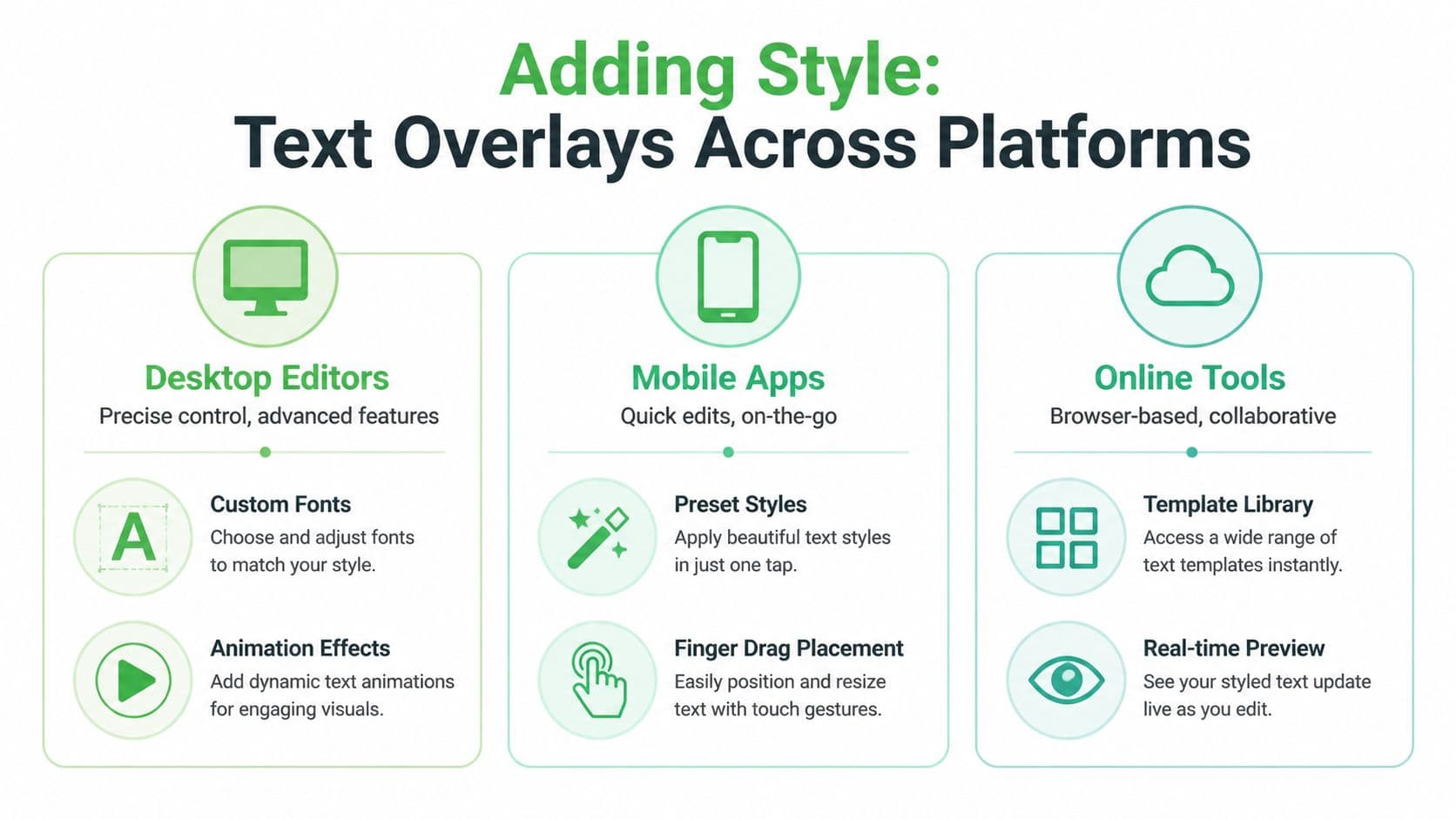
The best tool depends on the job. Quick mobile edits, serious desktop timelines, and browser-based team workflows all handle text differently.
Start with the overlay before the software
Before opening CapCut, Premiere Pro, Final Cut Pro, Canva, or VEED, decide what the text is doing.
Use overlays for jobs like these:
- Hook text: A headline in the first seconds to stop the scroll
- Instructional labels: “Open settings”, “Tap export”, “Choose template”
- Speaker ID: Name and role in an interview or panel
- Emphasis moments: One phrase from a sentence, not the whole sentence
- Section dividers: Useful for list videos or training modules
That clarity changes the design. A hook should be bold and immediate. A lower third should be quiet and reliable. A feature label on a product demo should sit near the object it refers to.
Mobile apps for speed and social-first edits
CapCut is the obvious example here because it’s fast, template-heavy, and designed around vertical video habits. If you need to add text to video on your phone, it’s one of the easiest places to start.
A basic mobile workflow looks like this:
- Import your clip and confirm aspect ratio first.
- Add a text layer from the text menu.
- Choose a preset style only as a starting point.
- Trim the text layer on the timeline so it matches the spoken or visual beat.
- Reposition manually with your finger, then preview on full screen.
- Duplicate recurring styles instead of redesigning each text element from scratch.
Mobile tools are best when the turnaround matters more than deep precision. A social manager clipping a podcast for Instagram can move fast. A creator publishing daily tips can keep everything inside one app.
What they don’t handle as well is consistency at scale. Once you have multiple contributors, more complex brand rules, or detailed keyframing needs, mobile starts to feel limiting.
If most of your output is short-form social, it’s worth studying how reel captions improve Instagram performance because vertical video text has its own pacing and layout demands.
Desktop editors for precision and repeatability
Premiere Pro, Final Cut Pro, and DaVinci Resolve are better when text needs to align with an editorial system, not just a single post.
Use desktop editors when you need:
- Accurate placement: Fine control over margins, guides, and safe areas
- Animation control: Keyframes, easing, opacity, and motion presets
- Template reuse: Branded lower thirds, title packages, and reusable mogrts
- Layer discipline: Multiple text elements interacting with graphics and footage
A dependable desktop workflow usually looks like this:
- Build a master text style first. Pick one sans-serif font and define size, weight, shadow or background treatment, and color use.
- Create one lower-third template and one emphasis template.
- Snap overlays to speech or action beats on the timeline.
- Preview at device scale, especially if the final destination is mobile.
The big advantage of desktop work is consistency. Once the style system exists, editors can move quickly without reinventing every text layer.
Web-based tools for collaboration and convenience
Canva, VEED, and similar browser tools fit teams that need easy access, lightweight review, and minimal training. They’re especially useful for marketing departments, internal comms teams, and small businesses making explainers or promotional edits.
The strengths are practical:
- Template libraries: Fast starts for promos, testimonials, and announcements
- Brand kits: Shared colors, fonts, and logo usage
- Quick review loops: Easy for non-editors to comment and approve
- Low setup burden: No heavy software deployment
The trade-off is control. Browser editors are convenient, but they often hit a ceiling when timing gets intricate or when text animation needs to feel polished rather than preset-driven.
Design rules that matter more than the tool
The software matters less than the readability discipline. The best practices that prevent overlay text from becoming annoying are the same across platforms.
A useful benchmark from VidChops’ text overlay guidance is to keep text within a 20 to 30% screen coverage rule, use at least a 4.5:1 contrast ratio, and keep text on screen for 3 to 5 seconds when readability is the priority.
Editing note: If a viewer has to pause to read it, it’s too dense. If they miss it entirely, it’s too brief.
A few practical rules hold up across formats:
- Choose sans-serif fonts: Arial, Helvetica, Inter, and similar faces stay cleaner on small screens.
- Use high contrast: White text over a darkened background strip is boring and effective.
- Avoid the center by default: Lower thirds and upper corners usually protect the frame better.
- Animate lightly: Simple fades and subtle slides age better than flashy motion presets.
- Respect vertical crop zones: Text that looks safe in 16:9 may get clipped or crowded in 9:16.
Comparison of Video Text Editing Platforms
| Platform Type | Best For | Learning Curve | Typical Cost |
|---|---|---|---|
| Desktop Editors | Branded productions, interviews, promos, broadcast packages | Higher | Subscription or licensed software |
| Mobile Apps | Reels, Shorts, quick social edits, field publishing | Lower | Free tier or app subscription |
| Online Tools | Team collaboration, templated marketing videos, lightweight editing | Lower to medium | Free tier or browser subscription |
What usually goes wrong with manual overlays
Most weak overlay work fails in predictable ways.
- Too many text styles: Every new font or animation weakens the system.
- Bad placement: Text covers faces, UI elements, or product details.
- Reading overload: Full sentences dumped on screen when a phrase would do.
- No hierarchy: Hook text, subtitles, and labels all compete equally.
Manual overlays are still valuable. They’re just not the whole answer. Once the job shifts from graphic emphasis to spoken-word accuracy, you’re in caption territory.
Generating Accurate Captions and Subtitles
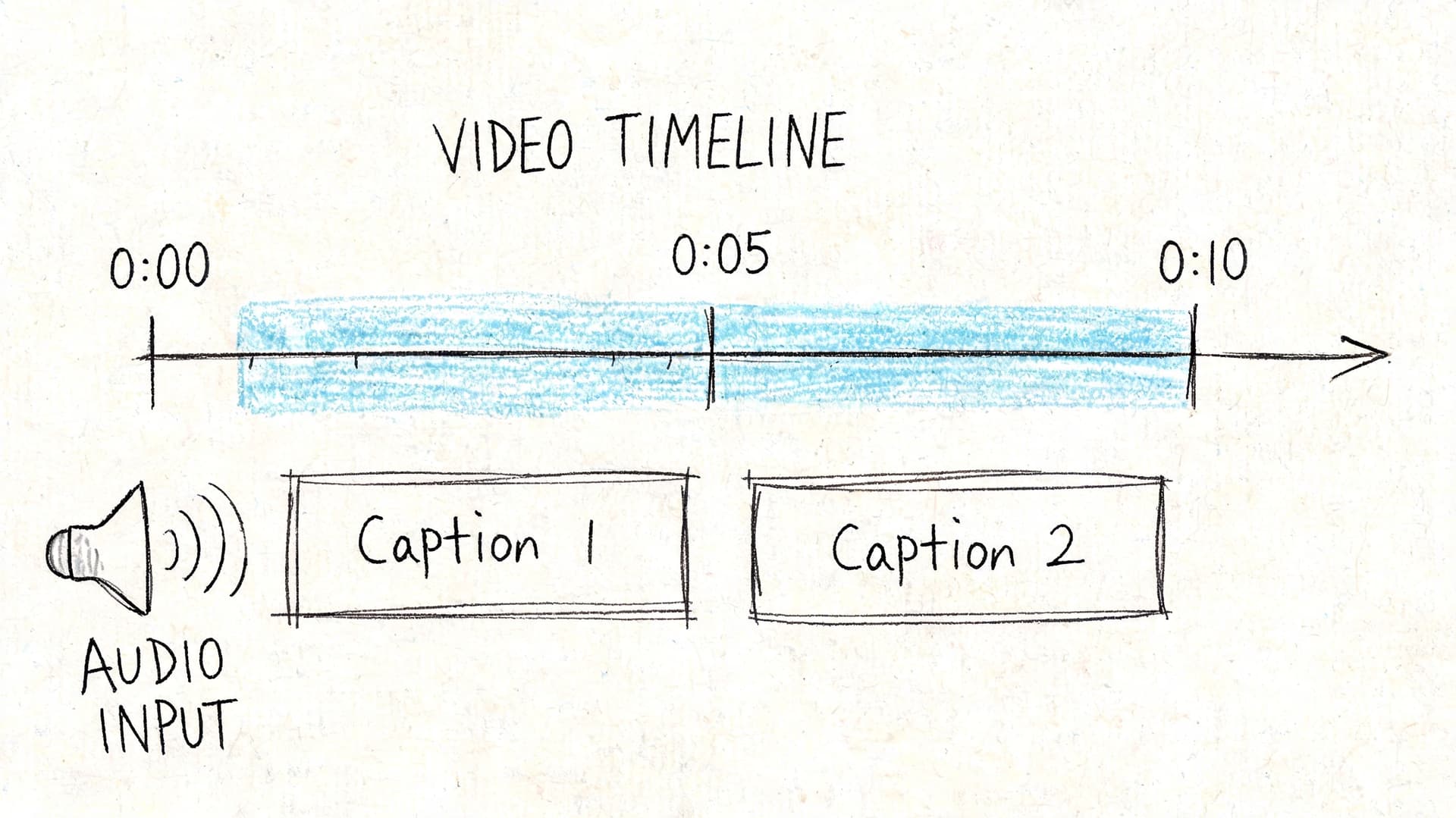
Captions aren’t just “text on video.” They are timed language assets. That distinction matters because what makes a strong overlay doesn’t automatically make a strong caption.
A bold title card can be flexible. A subtitle file can’t. If the words are wrong, late, or broken in the wrong place, the viewing experience degrades immediately.
Open captions and closed captions are different delivery choices
Open captions are burned into the picture. The viewer can’t turn them off. These are common in social clips where silent autoplay is expected and where platform control over caption rendering is limited or inconsistent.
Closed captions are separate caption tracks. The viewer can toggle them on or off, and the platform or player displays them dynamically. This is the better fit for websites, hosted video libraries, training portals, and many accessibility workflows.
If you need a practical walkthrough focused specifically on that process, this guide on how to add closed captions to videos is a useful companion for platform-level implementation.
Why SRT and VTT matter
The most common caption file formats are SRT and VTT.
SRT files are simple. They contain caption numbers, timestamps, and text. They’re widely supported and easy to inspect in a text editor. That makes them a common exchange format across editing tools, video hosts, and publishing platforms.
VTT files serve a similar role but are more web-oriented and can support additional display behavior depending on the environment.
Here’s the practical distinction:
- Choose SRT when you want maximum compatibility and straightforward handoff.
- Choose VTT when the target player or web workflow expects it.
- Keep both if you publish across multiple systems and want fewer surprises later.
For a broader walkthrough of formats, review workflows, and export decisions, this caption generator guide is useful as a reference.
Accuracy and sync are the real quality test
A caption file can be technically valid and still be poor.
What breaks trust fastest:
- Mismatched timing: Captions appear before or after the spoken line.
- Incorrect words: Especially names, product terms, legal language, and technical vocabulary.
- Weak segmentation: Long blocks of text that force the viewer to race the screen.
- Speaker confusion: In interviews or panels, viewers lose track of who said what.
Good captions feel invisible. The viewer follows the video without thinking about the caption system at all.
Manual captioning can work for short clips or occasional use. But the workload grows quickly. Once you’re handling interviews, webinars, archives, multilingual content, or frequent publishing, editing every timestamp by hand becomes the bottleneck.
That’s where automation starts to matter, not as a shortcut for sloppiness, but as the only realistic way to scale caption quality.
Automating Video Text with AI Transcription
Manual captioning is fine until volume arrives. One video becomes five. Five becomes a weekly pipeline. Then someone asks for speaker labels, multilingual subtitles, searchable archives, and versioned exports for different platforms.
At that point, the question isn’t whether you can add text to video manually. It’s whether you should.
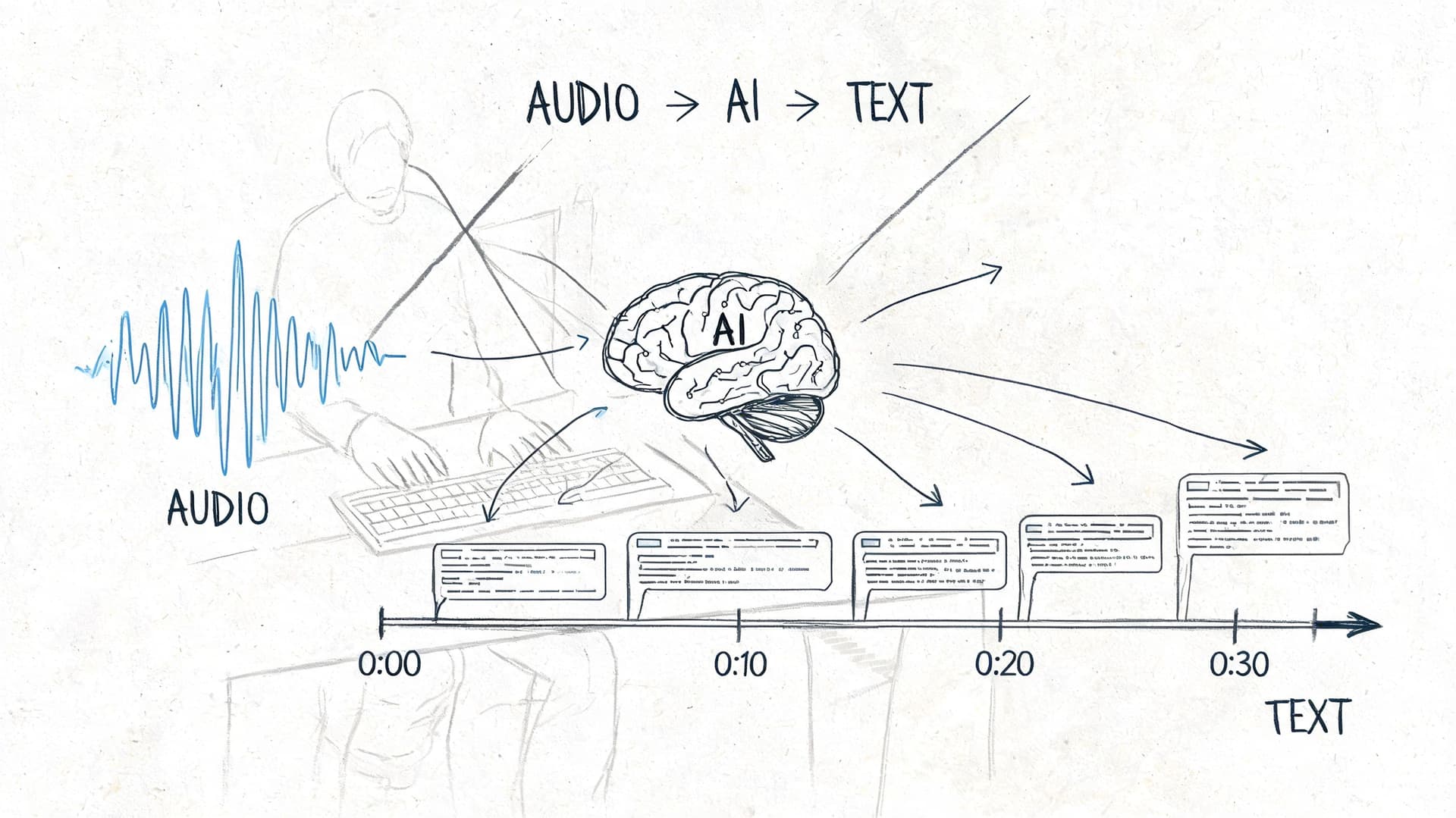
The gap in most tutorials is obvious. They explain how to type text into CapCut or drag a subtitle block in Premiere, but they stop before the workflow media teams, legal teams, journalists, and developers need.
According to this reference on AI captioning adoption and workflow gaps, 72% of viewers abandon videos without captions, while only 15% of creators use AI automation due to poor sync in free tools. The same source notes that professional AI transcription workflows can deliver 98%+ accuracy, plus speaker diarization and multilingual support.
What AI transcription actually changes
Automatic speech recognition turns spoken audio into text with timestamps. In a strong production workflow, that output becomes the foundation for more than captions.
It can support:
- Subtitles for delivery
- Transcripts for publishing
- Speaker-separated review
- Searchable archives
- Compliance workflows
- Faster repurposing into articles, clips, and summaries
That’s the difference between “captioning tool” and “media infrastructure.” Good AI transcription doesn’t just save keystrokes. It creates a reusable text layer across your video operation.
A practical workflow that holds up in real production
A solid AI-driven caption workflow usually looks like this:
- Upload the source file or provide the media link
Start with the cleanest source you have. Exported masters are better than screen-recorded reposts. - Generate the transcript with timestamps
The system identifies the spoken content and aligns it to time. - Review for critical terms
Proper nouns, acronyms, legal phrases, clinical terms, and branded language deserve a quick pass even when the base transcript is strong. - Check speaker separation if the content includes multiple voices
This matters in interviews, meetings, podcasts, hearings, and panel formats. - Export in the delivery format you need
Usually SRT or VTT for captions, with text or document exports for editorial and archive use. - Decide whether to burn captions in or publish them as a separate track
Social clips often want open captions. Hosted libraries often benefit from closed captions.
Workflow rule: Automate the first pass. Reserve human review for the words that carry risk.
That review step is where many teams overcorrect. They either trust the transcript blindly or re-edit the entire thing manually. The efficient middle ground is better. Let the system do the heavy lifting, then apply editorial attention where mistakes would prove damaging.
A quick visual walkthrough helps here:
Where automation beats manual methods decisively
The biggest wins show up in environments with repetition, volume, or high stakes.
Newsrooms need fast turnaround and searchable transcripts from interviews, briefings, and live hits.
Healthcare teams care about accuracy, terminology, and sensitive information handling.
Legal teams need timestamps, speaker separation, and reliable exports.
Media companies need consistent captioning across large libraries and recurring shows.
Free auto-caption features inside consumer apps can be useful for rough social work. They’re often less useful when sync drifts, speaker changes matter, or terminology accuracy affects trust.
What not to automate blindly
AI transcription is not a license to stop editing.
Use caution with:
- Noisy recordings: Street audio, crosstalk, and low-quality remote calls
- Heavy accents or code-switching: Review becomes more important
- Dense jargon: Product names, medicine, law, and finance need vocabulary awareness
- Quoted speech and compliance content: Minor wording errors can become major editorial problems
The right use of automation is disciplined, not lazy. You automate for scale and speed, then review where context matters most.
Developer Workflows for Batch and Real-Time Captions
Once transcription moves beyond a one-off upload flow, developers usually want two things. They want to process a lot of media without manual intervention, and they want caption data to move through the rest of the product or publishing stack automatically.
That’s where API-based workflows become more useful than any editor interface.
Batch processing for archives and scheduled pipelines
Batch transcription is the right pattern for media libraries, podcast networks, newsroom archives, course catalogs, support centers, and compliance repositories. A system can ingest files, request transcription, receive timestamped text, then route outputs to storage, search indexes, CMS entries, or subtitle delivery.
According to Pictory’s discussion of text-to-video and API-based text workflows, developers can use timestamped transcripts to automatically sync text overlays, apply custom vocabularies, support PII redaction, and work across 50+ languages.
A simple batch flow looks like this:
job = transcribe.create_job(
    media_url="video-file-url",
    language="en",
    diarization=True,
    custom_vocabulary=["Vatis", "oncology", "deposition"]
)
result = transcribe.wait_for_result(job.id)

captions = result.export(format="srt")
transcript = result.export(format="txt")

storage.save("captions/interview-001.srt", captions)
search.index(document_id="interview-001", text=transcript)
That pattern is useful because it separates concerns cleanly. Editors get captions. Product teams get searchable text. Compliance teams can layer review rules on top.
If you’re comparing implementation options, this roundup of free speech-to-text APIs is a practical place to start.
Real-time captions for live streams and events
Streaming transcription is a different problem. The system receives audio continuously, emits partial and final text segments, and the application decides how to render them on screen or store them downstream.
A lean JavaScript-style sketch looks like this:
const stream = transcription.connect({
  language: "en",
  diarization: true,
  redactPII: true,
});

stream.on("caption", (segment) => {
  player.renderCaption({
    start: segment.start,
    end: segment.end,
    text: segment.text,
    speaker: segment.speaker,
  });
});

audioSource.pipe(stream);
This works well for live broadcasts, webinars, call monitoring, virtual events, and internal meeting products where immediate readability matters.
Features that matter in production
The API itself is only part of the story. The useful production features are the ones that reduce cleanup or risk later.
- Custom vocabulary: Helps technical names and branded terms land correctly.
- Speaker diarization: Essential for interviews, hearings, and multi-speaker sessions.
- PII redaction: Useful in legal, healthcare, and customer-support contexts.
- Multilingual support: Important when one workflow serves multiple regions or audiences.
The strongest developer workflows don’t just add text to video. They turn speech into structured data that other systems can use.
Frequently Asked Questions About Adding Text to Video
Is SRT better than VTT
Neither is universally better. SRT is the safer default when you want broad compatibility across editors and platforms. VTT is often the better fit for web players and browser-based environments.
Should I use open captions or closed captions for social media
For short social clips, open captions are often more reliable because the text is burned into the video and always visible. For websites, course libraries, and hosted media players, closed captions are usually the better long-term choice because viewers can toggle them.
How do I handle multiple speakers
Use a workflow that supports speaker diarization. That keeps interviews, podcasts, webinars, and panel discussions readable. Without speaker separation, captions can be technically correct but still confusing.
Can I just use text overlays instead of subtitles
Not if the goal is accessibility or faithful speech representation. Overlays are selective and stylized. Subtitles and captions are timed records of the spoken content.
What’s the fastest way to add text to a lot of videos
For a handful of clips, manual tools are fine. For recurring publishing, archives, or multi-team operations, AI transcription with timestamped exports is usually the fastest and most maintainable approach.
If you need to add text to video at scale, not just style a few clips by hand, Vatis Tech is built for that jump. It helps teams turn audio and video into accurate transcripts, captions, and subtitle files with speaker labels, multilingual support, editable exports, and developer-ready APIs for batch or real-time workflows.