How to Add Subtitles to Video: A Complete Guide (2026)
Three routes compared: AI subtitles with a review pass, hand-timed SRT and VTT files, and burned-in captions. Plus the steps for YouTube, TikTok and Premiere.
15 min read
•
April 30, 2026
Written by
Adrian Ispas
A lot of teams still treat subtitles as a finishing touch. That’s backwards. If you publish video without them, you’re often making the content harder to watch, harder to follow, and less usable across platforms.
The practical question isn’t whether you should subtitle. It’s how to add subtitles to video in a way that matches the job. A social clip, a newsroom segment, a product demo, and a compliance-sensitive medical recording all need different handling. Sometimes the right move is a fast AI workflow with a review pass. Sometimes it’s manual timing and line editing because the pacing has to be exact.
What matters is picking the workflow that fits the content, the audience, and the risk level. The sections below focus on that decision, then walk through the actual work.
Why Adding Subtitles Is No Longer Optional
The strongest argument for subtitles isn’t accessibility alone. It’s viewer behavior.
A joint study by Verizon and Publicis Media found that 80% of viewers are more likely to finish a video when subtitles are added, and 85% of videos on Facebook are watched with sound off according to Kapwing’s roundup of subtitle statistics. If people are watching with sound off, subtitles stop being a nice extra and become part of basic message delivery.
That changes how you should think about production. When a producer says, “We’ll caption it later if we have time,” what they’re really saying is, “We might publish a version many viewers won’t fully understand.”
Subtitles solve more than one problem
Subtitles help in at least four common situations:
- Silent playback on mobile: People watch in transit, at work, and in public spaces.
- Messy audio mixes: Dialogue can get buried under music, effects, or remote-call audio.
- Attention and retention: Reading while listening helps many viewers stay with the content.
- Accessibility and compliance: Some audiences depend on captions, not just prefer them.
That’s why subtitle work belongs in the production workflow, not the final hour before publish.
Practical rule: If your video needs to communicate without guaranteed audio, subtitles are part of the edit, not post-launch cleanup.
This is especially obvious in short-form content. A creator pulling clips from free recording options for budget gamers still needs to plan for silent-first viewing if those clips are headed to social. The recording tool matters less than whether the final video remains understandable with the sound muted.
What this means in practice
For producers, subtitles affect scripting, shot pacing, and edit rhythm. Fast jump cuts leave less room for readable captions. Slang, names, and acronyms need cleaner transcription handling. Dense talking-head sections need good line breaks so viewers can follow them without staring at text instead of faces.
Teams that build subtitles in early usually get cleaner results. Teams that bolt them on at the end often ship captions with awkward timing, overlong lines, and mistakes in names or terminology.
That difference shows. Viewers may not compliment subtitle timing when it’s done well, but they notice immediately when it isn’t.
How to Add Captions to Video
How to Add Captions to Video
Captions and subtitles are often used interchangeably, but they do different jobs. Subtitles assume the viewer can hear the audio and mainly transcribe or translate the dialogue. Captions are written for accessibility and sound-off viewing: they include speaker labels and non-speech cues such as [music] or [applause]. With around 85% of social video watched on mute, captions have become essential for reach, not just compliance.
Steps to add captions to a video
- Generate a timed transcript with AI by uploading the video file or pasting a link — Vatis Tech produces captions in 50+ languages with speaker labels.
- Add speaker labels and non-speech cues so the captions meet accessibility standards.
- Export as SRT or VTT and upload to your platform, or hardcode the captions for short-form social where guaranteed display matters.
Choosing Your Path Automatic AI vs Manual Creation
Before you start clicking through tools, choose the workflow. Most subtitle jobs fall into two lanes: automatic AI generation or manual creation.
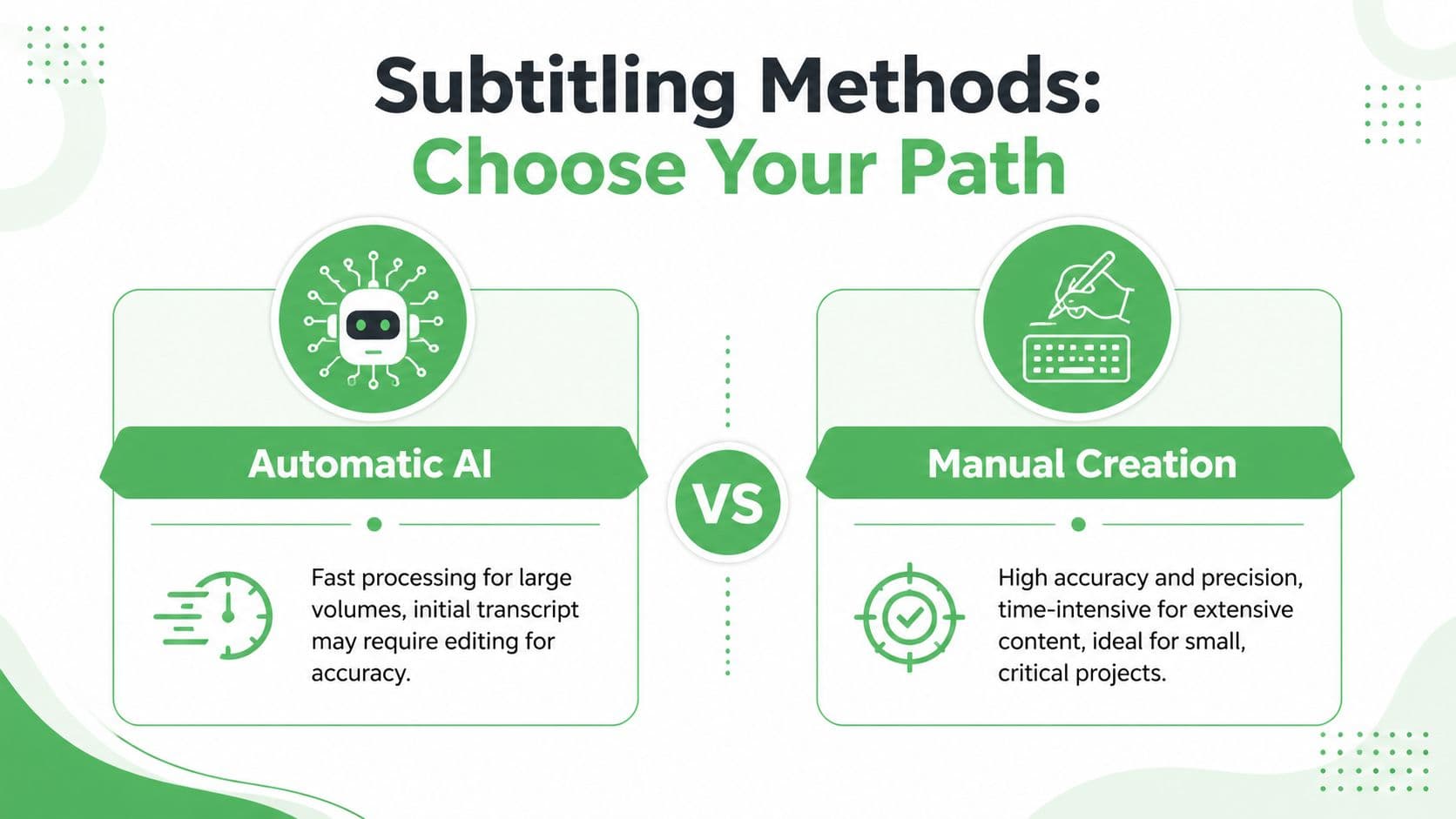
The wrong choice creates avoidable pain. If you manually subtitle a backlog of interviews, you’ll lose days. If you trust raw auto-captions on a sensitive legal or medical file without review, you’ll create a different problem.
When automatic AI is the better choice
Use AI when the priority is speed, scale, and a workable first draft. This is the default for webinars, interviews, podcasts on video, lecture content, training libraries, and media archives.
AI subtitling works best when you need to:
- Process a lot of footage: Long-form content is where automation pays off fastest.
- Generate timestamps quickly: Most modern tools produce subtitle-ready timing alongside transcription.
- Create a reviewable draft: Editors can spend time fixing edge cases instead of typing every line.
- Repurpose content: The transcript can also support clips, summaries, and search.
If you’re evaluating tools, it helps to review options built for integration as well as one-off uploads. A good starting point is this guide to free speech-to-text APIs for developers and product teams.
When manual creation still makes sense
Manual subtitling is slower, but it gives you maximum control over language, rhythm, and display.
It’s a better fit when:
- The video is short and high-stakes: Brand films, ad spots, festival shorts, and executive messaging.
- Timing is part of the storytelling: Comedic beats, dramatic pauses, and stylized reveal text need precision.
- Audio is difficult: Heavy accents, crosstalk, archival sound, or unusual vocabulary may need hand work.
- You need exact editorial judgment: For example, deciding whether to clean up speech or preserve filler words for tone.
Manual work isn’t old-fashioned. It’s just expensive in time, so it should be reserved for places where that control actually matters.
A quick side-by-side view
WorkflowStrongest use caseMain benefitMain drawbackAutomatic AILarge libraries, recurring production, long-form spoken contentFast first draft and scalable outputNeeds review for names, timing, and readabilityManual creationShort, polished, timing-sensitive contentFine control over every cueSlow and tedious at volume
A lot of professional teams use both. They generate the first pass automatically, then switch to manual editing where the content deserves extra care. That hybrid approach is usually the most practical one.
The Automatic Method Generating Subtitles with AI
Automatic subtitling is the workflow often recommended for starting out. It’s faster, easier to scale, and usually good enough to get you from raw footage to a reviewable caption file in one pass.
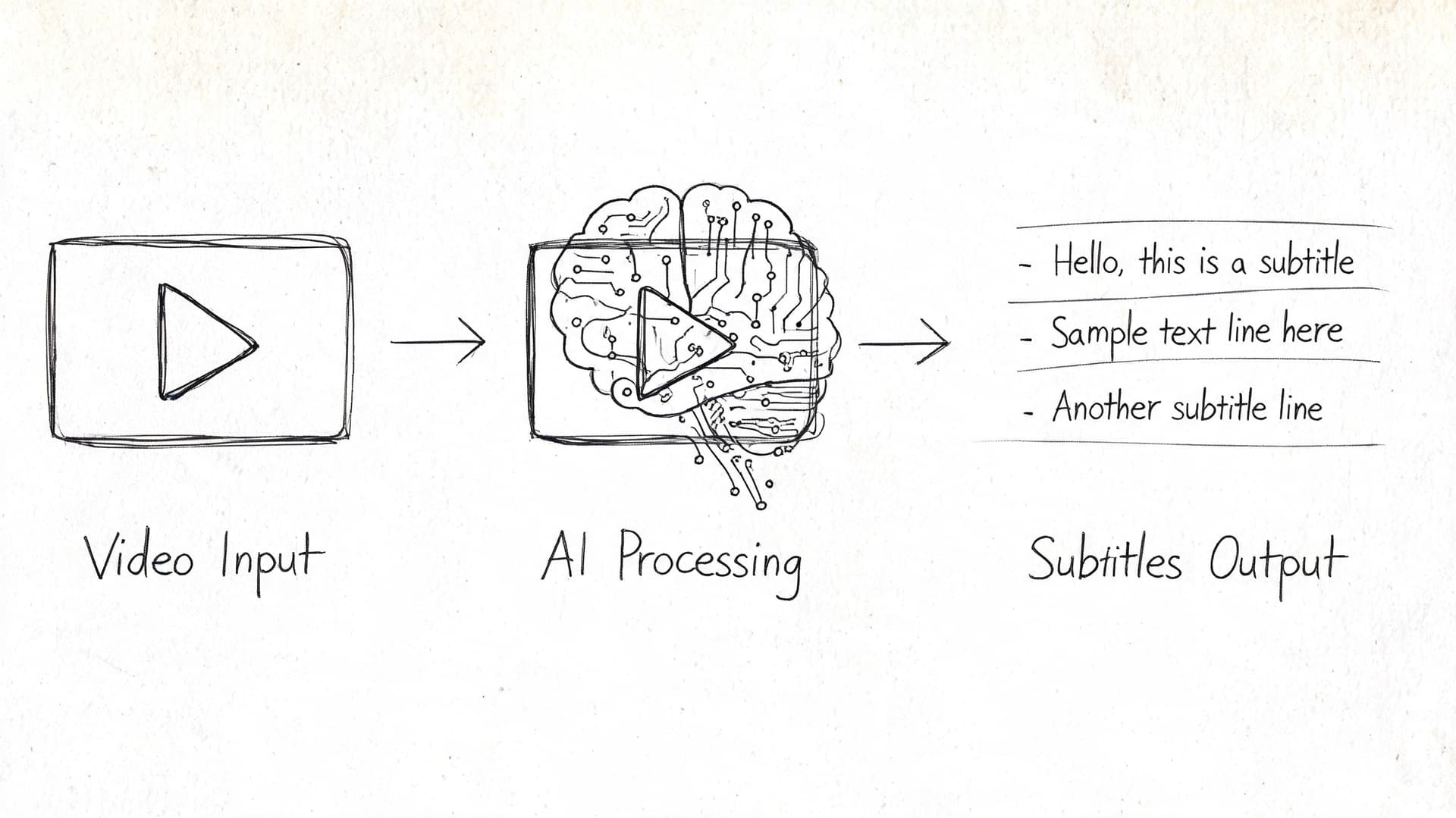
The key is understanding what the machine should do and what a human still needs to check. According to Verbit’s expert guide to adding captions, professional AI speech-to-text tools can reach 98%+ accuracy, generate a timestamped transcript in minutes, and save up to 40% of the time compared with manual transcription. That’s a major gain, but it doesn’t remove editorial responsibility.
Step 1 Upload the source file or connect a source
Most AI subtitle workflows begin the same way. You upload a video or audio file, or paste a public link if the platform supports URL ingestion.
For producers, this stage is more important than it looks. Your source affects the transcript quality before the software ever starts working. If the file has clipped dialogue, overlapping speakers, or a music bed that sits on top of the voice, the transcript will need more cleanup later.
Good inputs usually have:
- Clear dialogue levels: Speech should sit above music and effects.
- Consistent speaker capture: Lavs, headsets, or clean interview mics help.
- Stable exports: Avoid strange frame-rate issues or damaged audio tracks.
- Obvious file labeling: Especially when processing batches.
One useful side effect of this workflow is content reuse. If you’re already turning spoken video into text, it’s easy to branch that into notes or study materials. That’s the same logic behind tools for creating summaries from YouTube videos, where the transcript becomes a second asset rather than a hidden byproduct.
Step 2 Let the system generate a timed transcript
After upload, the system typically does three jobs at once: transcription, timestamping, and speaker separation if diarization is enabled.
That means you’re not just getting text. You’re getting text linked to timecode, often with speaker labels and editable subtitle segments. If you want a technical overview of what happens behind the scenes, this breakdown of how automatic speech recognition works in the ASR pipeline is useful.
What I tell junior editors is simple: don’t review the output like a transcript first. Review it like an audience member. Ask whether the captions read naturally at playback speed.
Step 3 Edit for readability, not just correctness
This is the part people rush, and it’s where professional quality becomes evident.
AI can identify words accurately and still produce subtitles that are annoying to read. The most common problems are bad line breaks, subtitle chunks that stay on screen too long or disappear too fast, and punctuation that doesn’t match the speaker’s cadence.
Look for:
- Line breaks that split phrases awkwardly: Keep related words together.
- Overstuffed caption blocks: If the text feels dense, break it earlier.
- Timing drift around pauses: Subtitles should match the rhythm of speech.
- Names and terms: Product names, places, and specialist vocabulary often need correction.
The fastest subtitle workflow is not “generate and export.” It’s “generate, review where it matters, then export.”
A built-in editor makes this pass much easier because you can scrub the timeline, fix wording, and retime segments without opening a separate subtitle app. One example is Vatis Tech, which supports file upload or link-based transcription, editable transcripts, timestamps, speaker diarization, and export to SRT or VTT.
Here’s a quick demo format if you want to see the general shape of an AI caption workflow in action:
Step 4 Export the right subtitle format
Most platforms want either SRT or VTT. If you just need a broadly compatible file, export SRT. If the destination supports web-native playback and styling features, VTT is often the better option.
At this point, keep version control tight. Save one clean master subtitle file, then create platform-specific variants only when needed. Don’t keep editing random copies with names like final-final-fixed-2.
What works and what doesn’t
AI subtitling works well for recurring production. News clips, training videos, support content, conference sessions, and interview programs are all good candidates.
It works poorly when teams treat the raw output as publish-ready in every case. You still need a human pass for tone, terminology, and pacing. That isn’t a weakness of the method. It’s normal production QA.
A reliable pattern is:
- Generate the first draft automatically
- Review high-risk sections manually
- Export the file format the platform expects
- Do one playback check after upload
That last playback check catches more mistakes than people think. Subtitle files can be correct on disk and still behave differently once a platform ingests them.
The Manual Method Crafting SRT and VTT Files
Manual subtitle creation is slower, but it teaches you how subtitle files work. Once you understand the structure, you can fix sync issues, clean up auto-generated captions, and build subtitle files from scratch when you need exact control.
The two formats you’ll see most often are SRT and VTT. Both are plain text files. You can open them in Notepad, TextEdit, or any code editor.
What an SRT file looks like
An SRT file is simple. Each subtitle block contains:
- A sequence number
- A start and end timestamp
- The subtitle text
Example:
100:00:01,000 --> 00:00:03,500Welcome back to the channel.200:00:04,000 --> 00:00:06,500Today we're fixing subtitle timing.
The commas in the timestamp matter. So does the spacing around the arrow. If you get the syntax wrong, some platforms will reject the file or import it badly.
What a VTT file looks like
VTT is close to SRT, but not identical. It starts with a header and uses periods in timestamps.
Example:
WEBVTT00:00:01.000 --> 00:00:03.500Welcome back to the channel.00:00:04.000 --> 00:00:06.500Today we're fixing subtitle timing.
VTT is common in web video workflows because it handles extra metadata and styling more gracefully than SRT in some environments.
If you can read a subtitle file in a text editor and understand where timing begins and ends, you can fix most common caption problems without reopening the original edit.
SRT vs VTT Feature Comparison
FeatureSRT (.srt)VTT (.vtt)Basic compatibilityVery widely supportedWidely supported in web workflowsFile headerNo header requiredRequires WEBVTT headerTimestamp styleUses commas for millisecondsUses periods for millisecondsSequence numbersCommonly includedNot required in the same wayStyling and metadataLimitedBetter support for web-related featuresBest use caseGeneral upload to many platformsBrowser-based and web player workflows
How to build one from scratch
If you want to know how to add subtitles to video manually, this is the cleanest way to start:
- Transcribe the spoken lines: Write out the dialogue first. Don’t worry about timing yet.
- Add timestamps in short chunks: Break speech into readable units, not giant paragraphs.
- Check playback while editing: Read each subtitle at normal speed and trim anything clumsy.
- Save with the correct extension:
.srtor.vtt, not.txt.
For timing work, a dedicated editor is easier than a plain text app, but plain text is still useful for cleanup and quick repairs. If you’re manually aligning cues, a guide on how to time stamp video accurately helps with the logic behind subtitle timing.
Practical rules for manual subtitling
The file format is the easy part. The editorial part is harder.
A manual subtitle file usually improves when you follow these habits:
- Keep lines readable: Don’t force viewers to parse dense text blocks.
- Break on natural speech units: Split at pauses, clause endings, or sentence boundaries.
- Respect what the speaker means: Don’t edit so aggressively that tone changes.
- Watch for visual clashes: Avoid placing a long subtitle over important lower-screen graphics.
Manual work is still the right call when timing carries meaning. A joke landing one beat early in subtitles can flatten the joke. A documentary quote appearing too late can make the viewer choose between reading and watching a reaction shot.
That’s the trade-off. Manual creation gives you precision, but you earn it line by line.
Applying Subtitles Hard vs Soft and Platform Workflows
Once you have subtitles, you still need to decide how they’ll travel with the video. This aspect often leads to decent caption work being mishandled.
The basic split is hard subtitles versus soft subtitles.
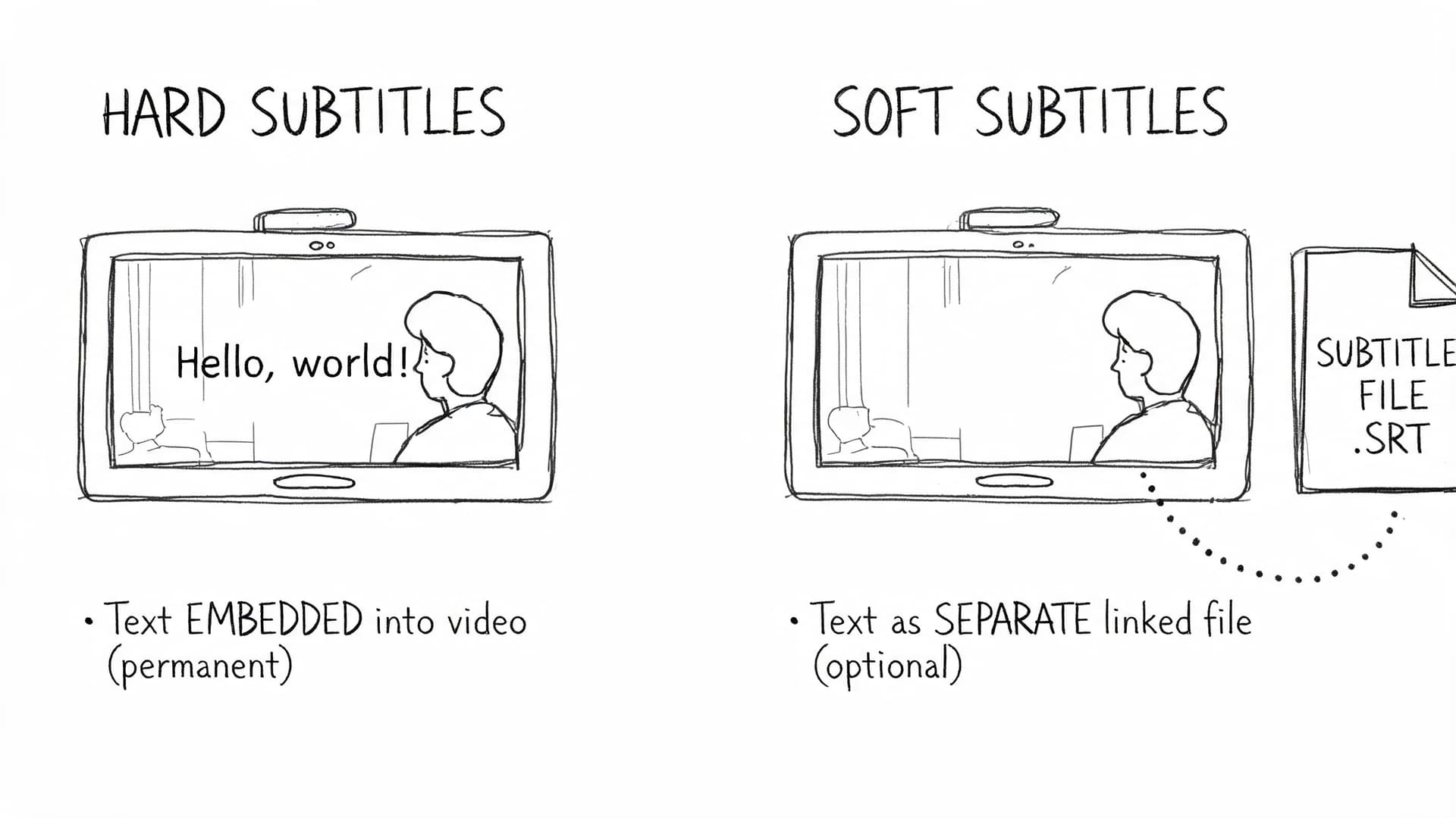
Hard subtitles are burned into the image. They can’t be turned off. Soft subtitles remain separate, usually as an SRT or VTT file linked to the video player.
Hard subtitles when compatibility matters most
Hard subtitles are useful when the platform is hostile to subtitle files or when you need total visual consistency across every playback environment.
Typical use cases include:
- Instagram Reels and some TikTok workflows
- Client review copies sent as plain video files
- Promo clips that will be reposted across accounts
- Situations where you don’t control the destination player
The benefit is obvious. If the subtitles are in the image, nobody has to upload, enable, or configure anything.
The downside is just as obvious. You lose flexibility. You can’t switch languages easily, can’t correct a typo without re-exporting the video, and can’t let the viewer turn captions off.
Soft subtitles when flexibility matters more
Soft subtitles are usually the better professional choice for platforms that support them well.
Use soft subtitles when you want:
- Multiple language tracks
- Cleaner accessibility support
- Easy post-publish fixes
- A reusable subtitle asset across platforms
YouTube is the standard example. Uploading a subtitle file keeps the text editable and separate from the visual image. That’s usually better than burning captions into every frame unless the look of the captions is itself part of the creative.
Field note: Burned-in captions are a distribution tactic. Separate subtitle files are an editorial asset.
Platform by platform workflow choices
YouTube
For YouTube, upload an SRT or VTT file through the subtitle interface rather than hardcoding captions into the master whenever possible.
That gives you cleaner management later. If you spot a product-name mistake, need to update wording, or want additional languages, you can fix the subtitle track without re-exporting the full video.
A practical YouTube workflow looks like this:
- Export a clean master video
- Export an SRT or VTT file
- Upload the subtitle file in YouTube Studio
- Preview sync after processing
- Correct any timing edge cases inside YouTube if needed
Instagram and TikTok
Short-form social is less forgiving. A lot of creators still hardcode captions because it guarantees visibility inside autoplay feeds and repost chains.
That’s often the right call for clips, commentary videos, reaction content, and mobile-first edits. Just remember that subtitle styling becomes part of the creative. Font size, placement, and contrast all matter because you don’t get a second accessibility layer after publish.
Premiere Pro and Final Cut Pro
NLEs let you do both jobs. You can import subtitle files as caption tracks, edit them inside the timeline, and either export them as sidecar files or burn them into the final render.
Use the separate-file route for platform delivery and archive masters. Use burn-in for social variants, review copies, or any version where guaranteed display matters more than flexibility.
If you’re still choosing an editor for this kind of work, this list of top beginner video editor picks is useful for understanding which tools make subtitle handling less painful at the start.
What usually goes wrong
Subtitle application problems tend to be operational, not technical.
Common failures include:
- Uploading the wrong version: Old subtitle file, newer video cut
- Burning in too early: Then discovering a typo after export
- Ignoring safe areas: Captions collide with lower thirds or app UI
- Using one caption style everywhere: What reads well on YouTube may look oversized on vertical video
A clean production setup usually keeps three outputs:
OutputUse caseWhy it helpsMaster video without burned captionsArchive, republishing, long-term reuseKeeps the source flexibleSoft subtitle fileYouTube, web players, multilingual deliveryEasier to update and localizeBurned-in social versionReels, TikTok, distributed short clipsEnsures captions are always visible
That structure saves a lot of rework later. It also stops the common mistake of treating one export as if it fits every platform.
Advanced Subtitling Accessibility Translation and APIs
At a certain point, subtitling stops being a creator task and becomes an operations task. That happens when you’re handling multilingual output, regulated data, live feeds, or recurring publication across teams.
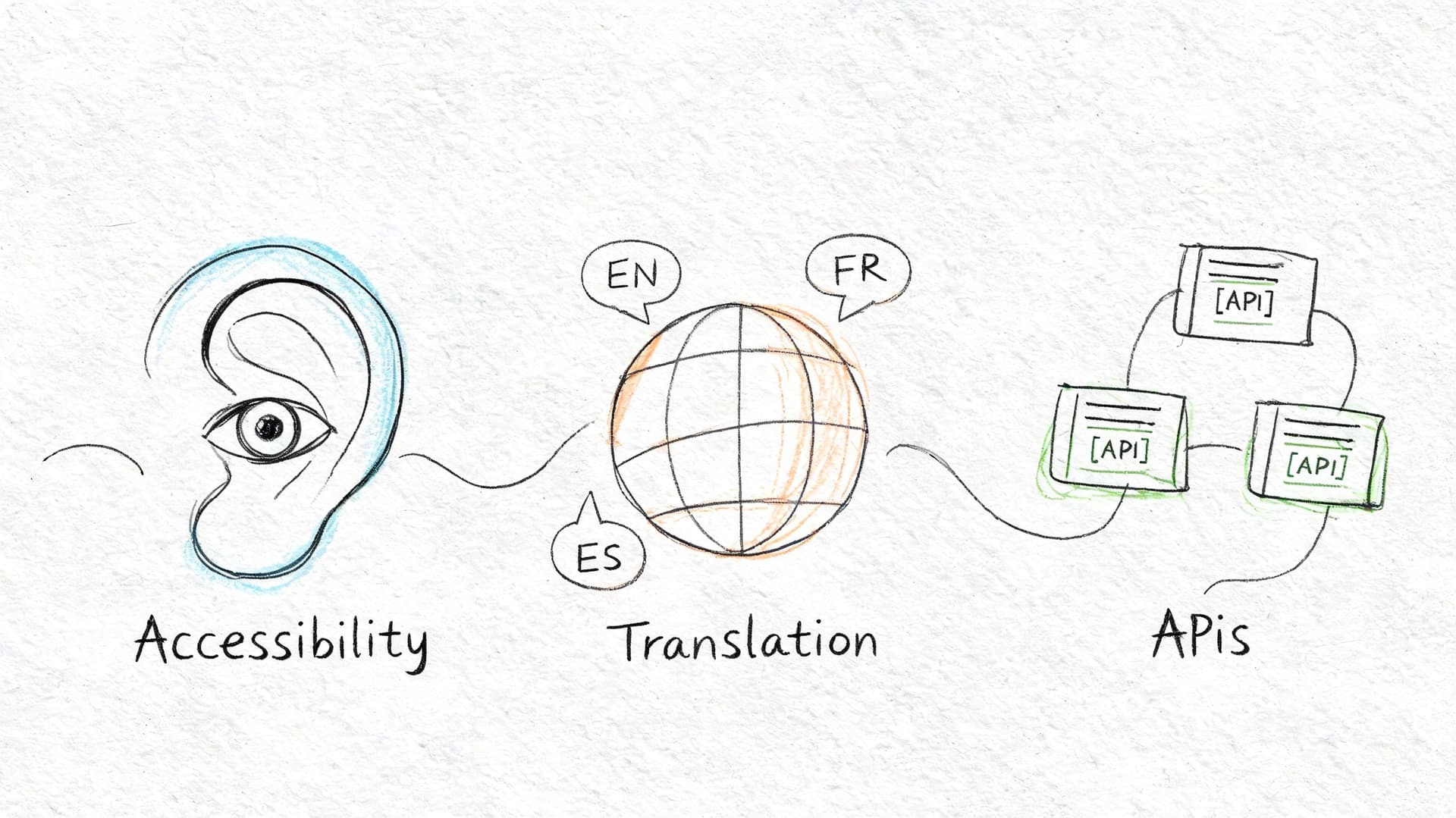
The workflow changes here. You’re no longer just asking, “How do I add captions?” You’re asking, “How do we do this repeatedly, safely, and across languages without creating new risks?”
Accessibility is a formatting job, not just a checkbox
Subtitle quality depends on readability. Younger viewers are a big reason this matters beyond traditional accessibility needs. Research summarized by CaptioningStar’s report on subtitle adoption notes that 63% of 18 to 29-year-olds watch content with subtitles in their native language, and 42% cite concentration as a reason.
That means subtitle styling affects user experience directly. If your captions are badly broken, too fast, or poorly placed, viewers feel the friction even if the words are technically correct.
A few practical habits improve readability fast:
- Use consistent casing and punctuation: Random formatting makes subtitles harder to scan.
- Break lines by meaning: Don’t split names, verbs from objects, or short connected phrases.
- Avoid covering essential visuals: Especially lower-thirds, demo interfaces, and faces.
- Match tone carefully: Corporate training, live news, and short-form comedy need different editorial handling.
Translation is not just export and pray
Multilingual subtitling looks easy from the outside. Export English subtitles, run them through translation, upload new files. In practice, translation shifts line length, reading speed, and timing pressure.
A reliable translation workflow usually includes:
- Lock the source subtitles first
- Translate from the approved text, not the raw audio
- Review line length in the target language
- Check timing where translated text expands
- Do native-speaker QA for sensitive content
This matters most in journalism, education, support content, and product explainers. A translation can be linguistically correct and still read poorly on screen because the subtitle timing no longer fits the sentence length.
Clean source subtitles make every later language track easier to manage.
APIs matter when subtitling becomes infrastructure
If you’re building a media workflow, a contact-center application, or an internal publishing system, manual upload tools won’t scale cleanly. Under these conditions, API-driven subtitling begins to make sense.
An API-based workflow can automate:
- File ingestion from storage or CMS tools
- Speech-to-text generation
- Timestamped subtitle creation
- Speaker labeling
- Translation
- Export to subtitle formats
- Routing into review queues
For regulated teams, security and compliance become part of the subtitle conversation. Standard consumer tutorials usually stop at “upload your file and edit the captions.” That’s not enough for healthcare, legal, government, or enterprise media work. According to VEED’s tool page as cited in the verified data, standard tutorials don’t address PII redaction, GDPR and SOC 2 concerns, or secure deployment models, and 78% of healthcare providers cite data security as a top barrier to AI adoption.
That changes tool selection. If a team handles patient conversations, legal testimony, internal investigations, or unpublished broadcast material, the subtitle pipeline needs review controls, secure processing, and a clear data-handling model. In those environments, “easy captions” isn’t the actual requirement. Controlled captions are.
Frequently Asked Questions About Video Subtitles
How do I fix subtitles that are out of sync
Open the subtitle file in a subtitle editor and apply a time offset. If every caption is early or late by the same amount, a global shift usually fixes it. If sync drifts over time, check whether the video was re-exported at a different cut or frame-rate setup after the subtitle file was created.
What’s the best free option for a one-off project
For a simple one-off job, a basic subtitle editor or a platform with built-in auto-captioning is usually enough. The main thing is to review the result before publishing. Even when the transcript looks mostly right, timing and line breaks often need cleanup.
Can I add subtitles to a video I didn’t create
Usually yes, if you have the legal right to publish or edit that video. The subtitle process itself is the same. What changes is the editorial risk. If you didn’t produce the source, double-check names, terminology, and whether the final subtitles alter the intended meaning.
Should I use hardcoded captions or upload an SRT file
Use an SRT or VTT file when the platform supports it and you want flexibility. Hardcode captions when guaranteed display matters more than editability, especially on short-form social.
Why do subtitle design choices matter so much now
Because subtitles aren’t only serving accessibility needs anymore. Younger audiences use them by preference. As noted earlier in the research on subtitle adoption, 63% of 18 to 29-year-olds watch native-language content with subtitles and 42% use them for concentration, which makes readability and styling part of the core viewing experience rather than an afterthought.
If your team needs a workflow that goes beyond one-off caption uploads, Vatis Tech is built for turning audio and video into editable transcripts and subtitle files with support for multiple languages, timestamps, speaker diarization, and API-based automation. It’s a practical fit for teams that need subtitles as part of a repeatable production process, not just an occasional manual task.