VLC Media Player Subtitles A Complete Guide (2026)
Nudge timing live with the G and H keys, fix garbled accents by switching encoding, restyle text in Preferences, and burn subtitles in for locked-down players.
10 min read
•
April 10, 2026
Written by
Adrian Ispas
You open a video, the dialogue starts, and the text is wrong in one of three ways. It is missing, out of sync, or unreadable against the scene.
That is where vlc media player subtitles either feel effortless or become a small battle. VLC is still my default player for subtitle work because it handles a wide range of formats, lets you fix timing while the video is playing, and gives you enough control to make bad subtitles usable without leaving the player.
The trick is knowing which tool to use for which problem. Quick playback fixes belong in the keyboard shortcuts. Permanent styling changes belong in Preferences. Strange edge cases usually come down to file naming, encoding, or a platform-specific rendering bug.
Loading and Selecting Subtitles The Right Way
The easiest subtitle setup in VLC is still the oldest one. Put the video file and subtitle file in the same folder and give them the same name, changing only the extension.
Example:
| Video file | Subtitle file |
|---|---|
interview.mp4 | interview.srt |
training-video.mkv | training-video.vtt |
When you do that, VLC usually picks up the subtitle file automatically. This works well for SRT and VTT, and VLC supports over 50 subtitle formats including SRT and VTT according to this VLC shortcut reference: https://www.instructables.com/Keyboard-Shortcuts-for-VLC-Media-Player
When auto-loading works best
Auto-loading is the cleanest option when you already have a subtitle file from a transcript export or caption workflow. If you need an SRT file first, a practical starting point is this SRT subtitle generator.
This setup is especially useful when you are reviewing lots of files. News clips, lecture recordings, interview rushes, and training videos all benefit from a consistent naming habit.
Tip: If VLC is not loading a subtitle file you know exists, check the filename before changing any settings. A naming mismatch causes more subtitle headaches than often occurs.
Manual loading for external subtitle files
Sometimes the subtitle file arrives later, lives in another folder, or has a completely different name. In that case, load it manually.
Use one of these methods:
- Menu method
Open the video, then go to Subtitle > Add Subtitle File and select the subtitle file. - Drag-and-drop method
Drag the subtitle file directly onto the playing VLC window. - Open both together
In some workflows, opening the video first and then adding the subtitle file is more reliable than dragging both in at once.
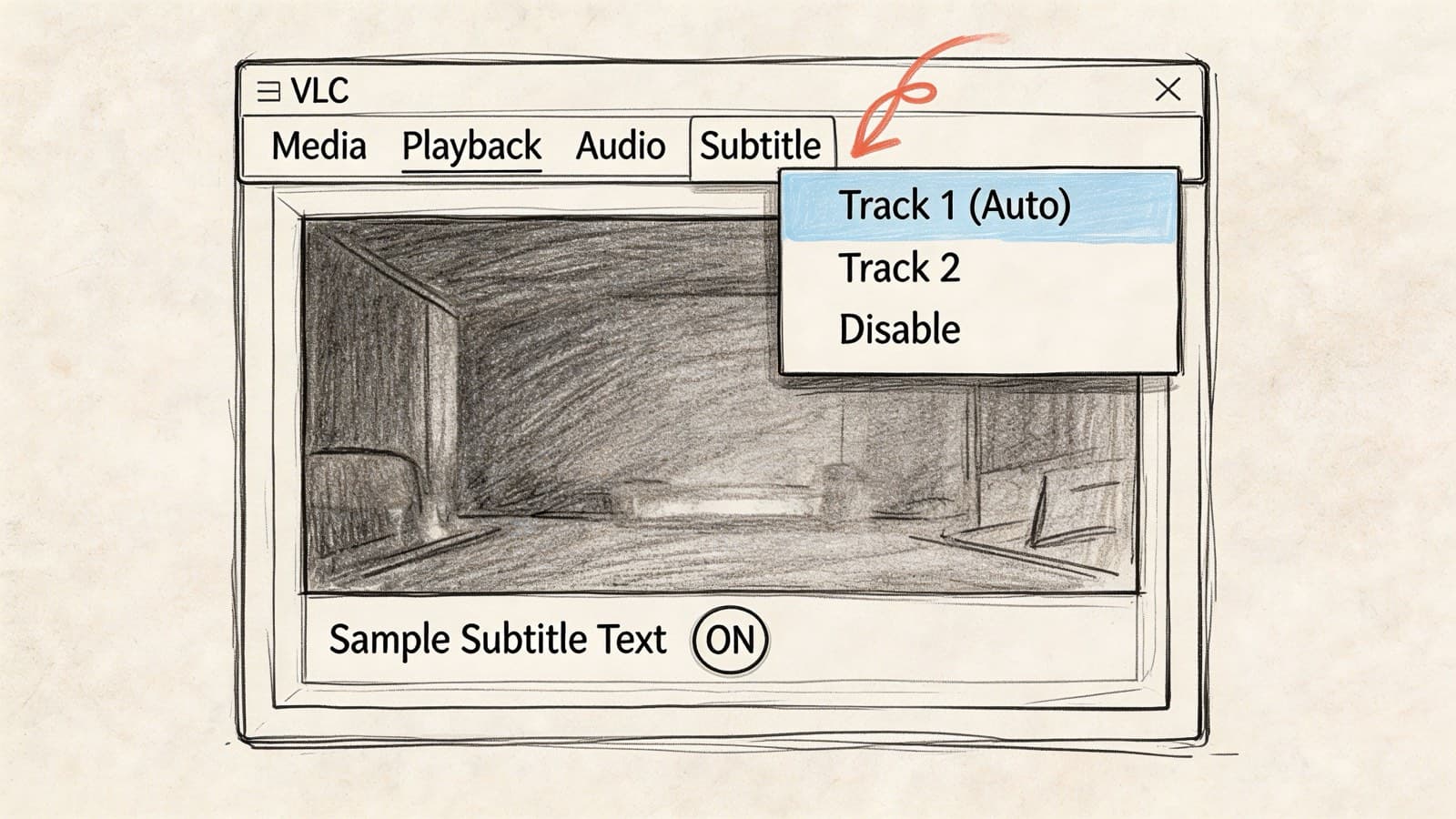
If the subtitle appears but the wrong language is selected, switch tracks from the Subtitle menu.
Choosing embedded subtitle tracks
A lot of MKV, MP4, and DVD-derived files contain subtitle tracks inside the media itself. VLC can show those without any extra file.
Look for:
- Subtitle menu: Lists available embedded tracks.
- V key: Toggles subtitle tracks quickly during playback.
- Multiple languages: Common in films, screeners, training assets, and archived broadcast files. This is important to note, as users often think “subtitles are broken” when VLC shows the wrong embedded track, or none at all.
If a file includes commentary captions, forced subtitles, and full dialogue subtitles, check each track instead of assuming the first one is correct. Embedded subtitle sets are often poorly labeled.
How to Fix Subtitle Sync and Timing Issues
Bad subtitle timing is a problem many users want to solve immediately. The good news is that VLC gives you a fast fix while the video is running.
The fast fix during playback
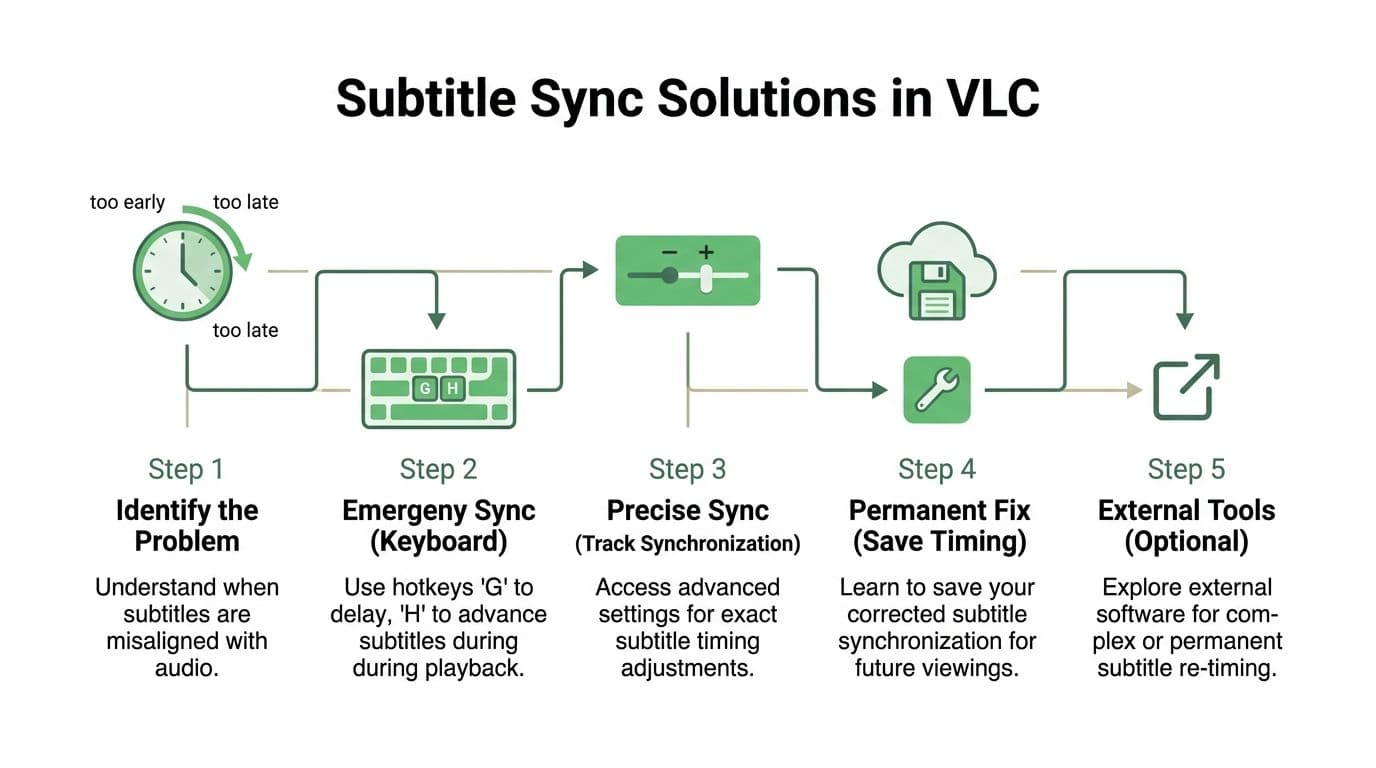
If the subtitles are late or early by a small amount, use the keyboard:
- G adjusts one way
- H adjusts the other way
VLC supports 50ms precision with these sync adjustments, a feature documented as a core part of VLC since the 0.9.x era circa 2006, and that same reference notes this real-time method can reduce manual editing time in subtitle review workflows by up to 80%: https://www.winxdvd.com/play-video/vlc-subtitles-delay.htm
In practice, this is the move when:
- a subtitle starts a little too soon
- the text drifts slightly behind the voice
- you need a quick correction for a one-off viewing session
Press the key a few times, watch a line with a clear spoken cue, then stop when it feels natural. Do not try to overcorrect on the first line. Wait for a few subtitle changes and judge the rhythm.
Key takeaway: Use keyboard sync when the subtitle file is basically correct but offset. Use deeper timing controls when the whole subtitle track is structurally wrong.
A short video walkthrough helps if you prefer to see the controls in action:
The precise fix in Track Synchronization
When the subtitles are badly offset, or when the drift gets worse over time, go to Tools > Track Synchronization.
Inside that panel, focus on these controls:
| Setting | What it does | When to use it |
|---|---|---|
| Subtitle track synchronization | Applies a time offset | The whole subtitle track is early or late |
| Subtitle speed | Changes timing behavior relative to frame rate | The subtitles drift more as playback continues |
| Subtitle duration factor | Changes how long lines stay on screen | Display duration feels cut off or stretched |
A practical example helps. If every subtitle appears too late, enter a positive or negative offset and preview a few lines. VLC accepts millisecond-style timing logic, so this is much better than random guesswork.
If you are troubleshooting the whole file, it also helps to first perform an AV sync test. That gives you a clearer read on whether the subtitle file is wrong, the audio is offset, or the underlying video has a broader sync problem.
What works and what usually does not
What works well
- Small offset corrections during playback
- Exact time offsets in Track Synchronization
- Testing against a scene with obvious lip movement
- Reviewing subtitle timestamps before blaming VLC
What usually wastes time
- Trying to fix severe drift with hotkeys alone
- Judging sync from a scene with off-camera dialogue
- Forgetting that some bad subtitle files were created against a different cut of the video
If you work with transcripts and subtitle timing together, timestamp accuracy matters long before the file reaches VLC. A useful background read is this guide to video timestamps: https://vatis.tech/blog/time-stamp-video
Customizing Subtitle Appearance for Perfect Readability
Default subtitles are often serviceable, not comfortable. On a bright scene, thin white text can disappear. On dense footage, subtitles can fight with lower-thirds, logos, or charts.
VLC gives you a surprisingly usable styling panel in Tools > Preferences > Subtitles/OSD.
The settings that matter most
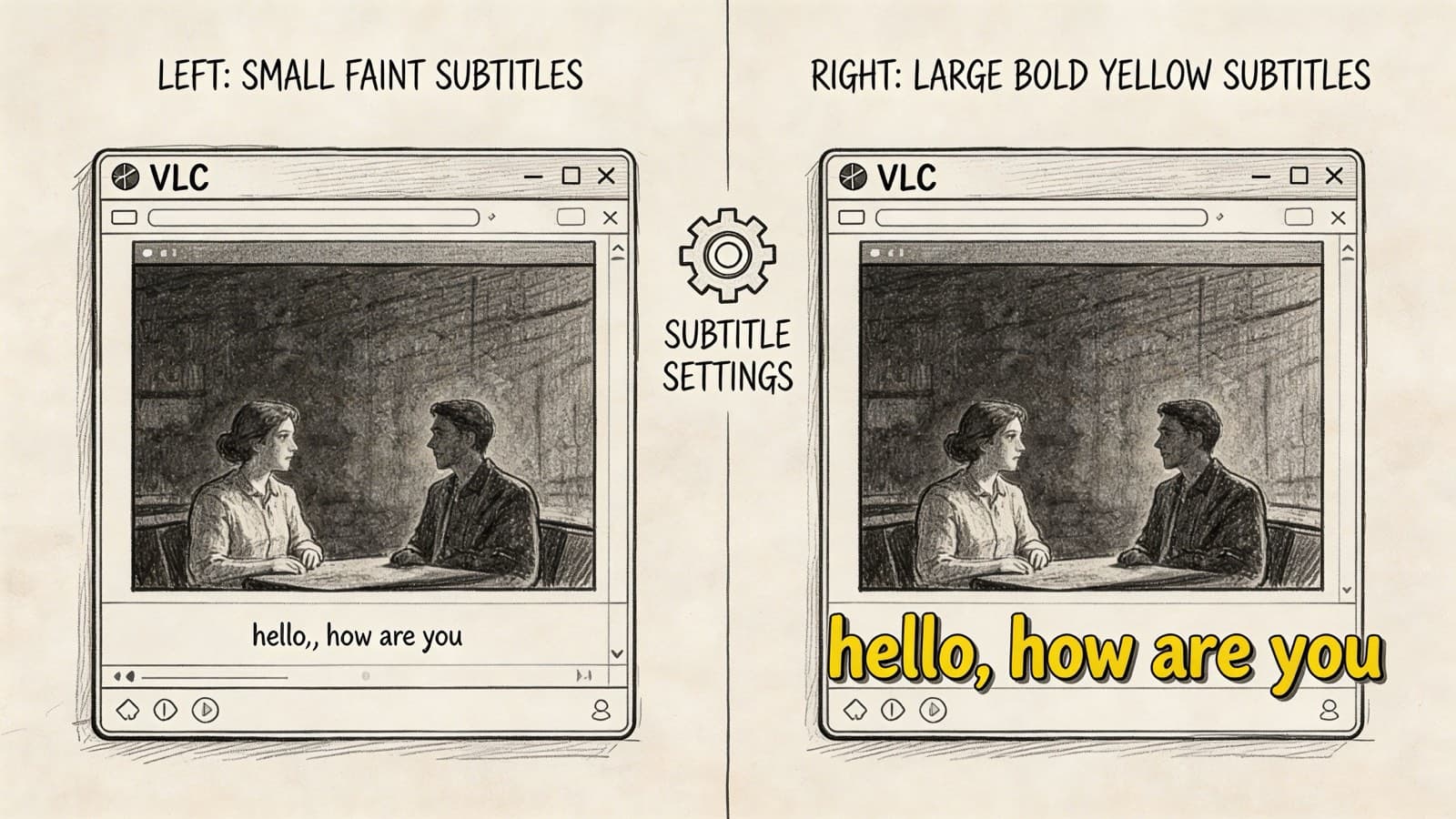
VLC’s Subtitles/OSD panel offers over 12 parameters for customization, and adding a semi-transparent background can mitigate up to 60% of readability issues on complex scenes. The same user documentation also notes support for ASS/SSA rendering with minimal CPU overhead: https://vlc-user-documentation.readthedocs.io/en/latest/userguide/subtitles.html
The practical controls worth changing first are:
- Font: Pick a clean, readable font. Arial is a safe baseline.
- Size: Increase it until you can read comfortably at your normal viewing distance.
- Outline thickness: Helps white or yellow text hold up over mixed backgrounds.
- Color: White and yellow are the most common practical choices.
- Background: A semi-transparent box often solves scenes with flashing highlights or detailed backgrounds.
- Position: Move subtitles up if they collide with graphics or hardcoded lower text.
A good baseline setup
For general playback, this combination works well:
| Setting | Practical choice |
|---|---|
| Font | Arial or another simple sans-serif |
| Size | Large enough for sofa or monitor distance |
| Outline | Medium |
| Background | On, semi-transparent |
| Position | Slightly above the bottom edge |
That baseline is better than chasing “cinematic” styling. Readability wins.
Text formats versus styled formats
Not every subtitle format behaves the same way in VLC.
SRT is simple and flexible. It is usually the best choice for review, accessibility checks, and quick playback.
ASS/SSA supports richer styling. If you receive subtitles with karaoke effects, special positioning, or more detailed formatting, VLC can handle that cleanly.
Tip: If you only care about readable dialogue, convert your workflow toward plain text subtitle formats whenever possible. Fancy styling is useful, but plain subtitle files are easier to review and fix.
One more practical note. If you change subtitle preferences and nothing seems different, stop playback and reopen the file. Some visual changes apply more reliably after a restart.
Advanced Subtitle Workflows and Professional Tools
VLC is not just a player. Used properly, it becomes a subtitle workbench. The strongest workflows usually fall into three categories: finding subtitles, hardcoding subtitles, and checking generated subtitle files before delivery.
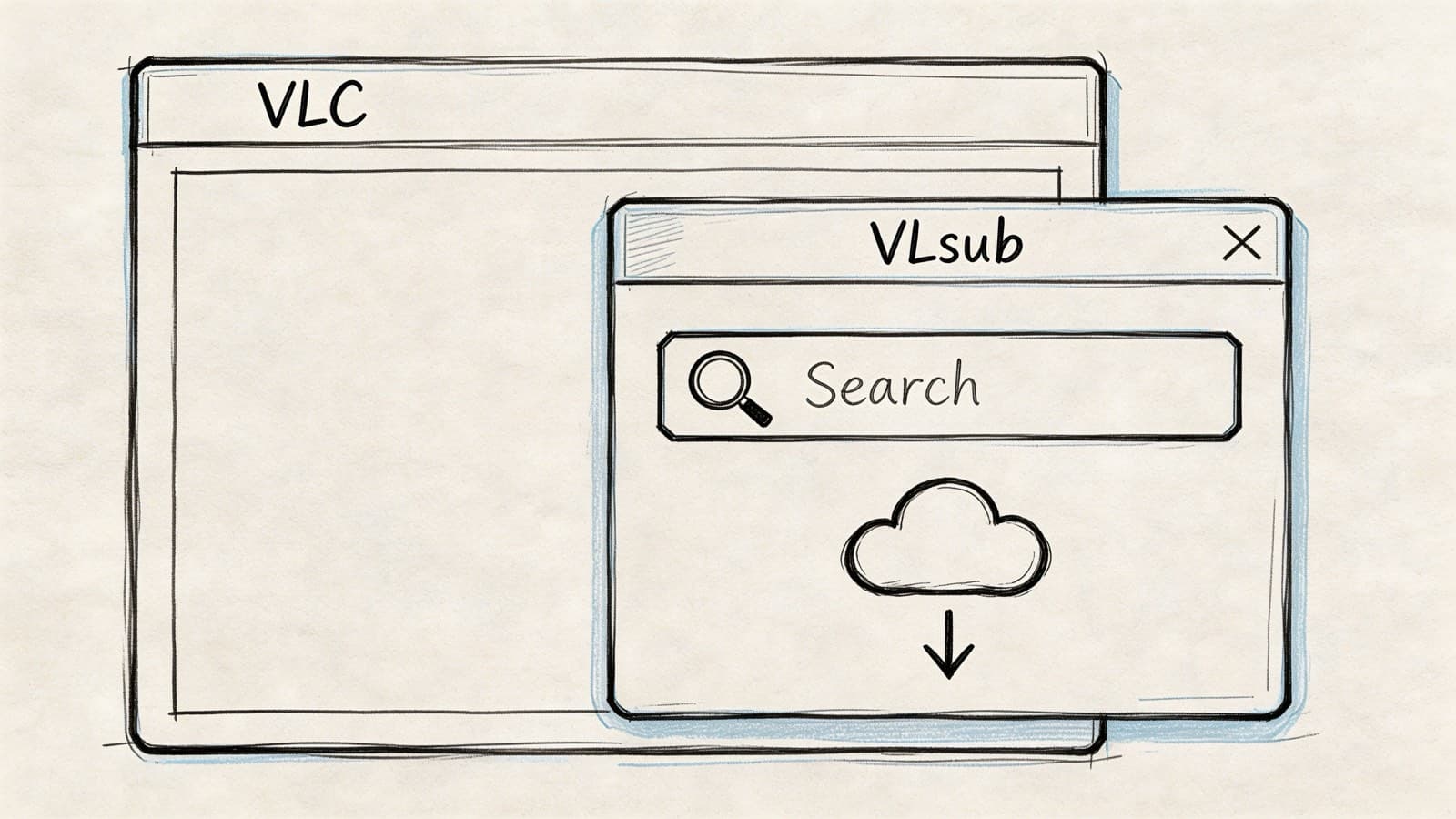
Finding subtitles inside VLC
If you are playing a common film or show and do not already have subtitles, VLsub can save time. It is an extension that lets you search and download subtitle files from within VLC instead of opening a browser and hunting manually.
That approach works best for widely distributed titles. It is less dependable for internal media, rough cuts, interviews, or newly published videos.
Use VLsub when:
- the video is commercially released
- you need a quick viewing subtitle
- you are comparing available language versions
Skip it when:
- your media is proprietary
- your cut differs from the public release
- exact timing matters for delivery
Burning subtitles into a video file
Sometimes subtitles need to stay visible no matter what player or device opens the file. That is when you burn them into the video.
In VLC, the general route is Media > Convert/Save. Add the source video, attach the subtitle track if needed, choose a conversion profile, and create a new output file.
This is useful for:
- sending previews to clients who miss subtitle files
- classroom playback on locked-down devices
- archived review copies
- social clips where captions must always appear
The trade-off is simple. Burned-in subtitles are permanent. You gain compatibility, but you lose the ability to toggle, restyle, or swap tracks later.
A practical review workflow for generated subtitles
For original media, the cleaner workflow is usually:
- Generate the subtitle file outside VLC.
- Open the video in VLC.
- Load the subtitle file.
- Check timing, line breaks, and readability.
- Decide whether to keep subtitles external or burn them in.
That review stage matters more than people think. Even strong subtitle files can need small fixes for line length, proper nouns, or scene-specific timing.
If you are comparing tools for subtitle and transcript creation in a broader content workflow, this roundup of best AI tools for content creators is a useful starting point.
For teams building a repeatable subtitle pipeline, an automatic subtitle generator is usually the right upstream tool, and VLC becomes the QC layer after it.
What VLC does best in a professional chain
VLC is excellent for quality control. It is not a full subtitle editing suite, and it does not try to be.
Use VLC for:
- quick subtitle verification
- timing checks during playback
- visual readability checks
- switching between embedded tracks
- testing what the end viewer will see
Use a dedicated subtitle editor when:
- you need to rewrite lines
- you need frame-level retiming across a full program
- you need final delivery exports for broadcasters or platforms
That division of labor is what keeps workflows efficient. VLC handles playback truth. Editing tools handle subtitle authorship.
Troubleshooting Common VLC Subtitle Problems
Most subtitle failures in VLC come from a small set of causes. The trick is to diagnose the right one quickly instead of changing random settings.
Garbled text and broken characters
If subtitles show strange symbols or unreadable characters, the problem is usually encoding.
Typical signs:
- accented letters display incorrectly
- symbols replace normal punctuation
- multilingual text becomes unreadable
Try this sequence:
- Open the video with subtitles loaded.
- Go to the subtitle encoding setting in VLC.
- Switch between common encodings such as UTF-8 and Windows-based options.
- Recheck a line with accented characters or non-English text.
This is common with older subtitle files or files passed through multiple tools. The subtitle content may be fine. VLC is just reading the text with the wrong encoding assumption.
Subtitle file will not show at all
Run a simple checklist before assuming the file is corrupt.
- Filename match: If you expected auto-loading, verify the subtitle filename matches the video filename.
- Correct track: If the media has embedded tracks, switch subtitle tracks manually.
- Wrong format source: Some downloaded subtitle files are incomplete or tied to a different video cut.
- Playback restart: Close and reopen VLC after adding or replacing a subtitle file.
If nothing appears, test the subtitle file with another known-good video only if you are sure the timing source matches. Otherwise you can create more confusion.
Tip: When subtitles fail to appear, always separate the problem into file loading, track selection, and timing. Those are different failures, not one big failure.
Fullscreen subtitle bugs on Raspberry Pi
Some subtitle issues are not user error. They are platform-specific.
A Raspberry Pi forum thread documents that 40% of VLC subtitle threads on Raspberry Pi forums during 2024-2025 go unresolved due to unpatched Wayland compositor bugs, and current VLC 3.x versions can struggle with subtitle placement on newer Pi hardware: https://forums.raspberrypi.com/viewtopic.php?t=267330
The failure pattern is familiar on Pi setups. In fullscreen, subtitles can render partly off-screen or appear shifted.
What to try:
- Switch VLC video output modules in Preferences > Video
- Test software rendering instead of hardware acceleration
- Avoid fullscreen until you confirm subtitle placement
- If you launch VLC from the command line, test alternative output flags documented in forum discussions
On desktop Windows and macOS systems, subtitle placement is usually straightforward. On ARM and Raspberry Pi setups, video output choices matter much more.
Frequently Asked Questions About VLC Subtitles
Can VLC translate subtitles in real time
No. VLC can display subtitle tracks and external subtitle files, but it is not a live subtitle translation tool.
If you need translated subtitles, generate or translate the subtitle file outside VLC, then load the finished file for playback and review.
Why does my subtitle sync fix disappear later
Because most timing changes in VLC are playback adjustments, not edits to the original subtitle file.
If you nudge sync during playback, VLC is adjusting how it displays that subtitle track in the moment. It is not rewriting the SRT file on disk. For a permanent fix, edit the subtitle file in a dedicated subtitle editor or create a new corrected export in your subtitle workflow.
Why can I style some subtitles but not others
Because some subtitle formats are text-based and others are image-based.
VLC renders VobSub (.sub/.idx) subtitles as direct bitmaps, which gives 100% fidelity to the original DVD styling but zero font or color customization. That is notably different from SubRip (.srt), where VLC can parse the text and apply its own rendering choices: https://images.videolan.org/vlc/features.html
A simple rule helps:
| Subtitle type | Can VLC restyle it? |
|---|---|
| SRT and other text-based subtitles | Usually yes |
| VobSub image-based subtitles | No |
Why do embedded subtitles behave differently from external SRT files
Because embedded subtitle tracks may use different formats and metadata than a loose external text file. Some are simple text. Some carry styling. Some are image-based. The file container also affects how VLC exposes track options.
If you need maximum flexibility, external text subtitles are usually easier to manage than embedded image-based tracks.
If subtitle review, timestamps, and exports are part of your daily work, Vatis Tech is worth a look. It helps teams turn audio and video into editable transcripts and subtitle files, then use VLC as the final playback check before publishing, sharing, or archiving.