
What Is a VTT File? A Complete Guide for 2026
A WebVTT file line by line: header, cue timings, identifiers and settings like line and align. Three ways to create one, and how to fix a track that won't load.
14 min read
•
May 6, 2026
Written by
Adrian Ispas
You’ve probably met a vtt file without noticing it. You open a video on a website, switch captions on, and the text appears in sync with the speaker. Or you upload subtitles to a player, and one file works on the website but fails on a social platform. That small sidecar caption file often decides whether your video is accessible, searchable, and usable across teams.
For developers, a vtt file looks simple at first. For compliance teams, it quickly becomes more than “just subtitles.” It can carry timing, speaker information, layout instructions, and metadata that matter in legal review, healthcare documentation, media archives, and multilingual publishing.
If you’re new to WebVTT, think of it as a caption format that sits at the intersection of accessibility and implementation. It’s readable enough to edit in a text editor, but structured enough for browsers and video players to process reliably. That combination is why teams keep coming back to it.
What Is a VTT File and Why It Matters
A VTT file is a plain-text caption or subtitle file that uses the WebVTT (Web Video Text Tracks) format. In practical terms, it tells a video player what text to show, when to show it, and sometimes how to show it.
WebVTT matters because it isn’t just another subtitle format. It became the primary open standard for HTML5 video captioning, formalized by the W3C, which made it central to modern browser-based video delivery. Its development also reflects broader institutional support for standards, with public sector investments accounting for about 61% of R&D funding in advanced technology sectors according to VTT Technical Research Centre documentation.
Why teams use it in the real world
If you publish video on the web, captions do several jobs at once:
- Accessibility: They help deaf and hard-of-hearing viewers follow spoken content and sound cues.
- Usability: They help viewers watch in quiet offices, noisy commutes, or muted autoplay environments.
- Searchability: Timed text makes video content easier to review, index, and repurpose.
- Localization: A caption track can support multilingual delivery without replacing the original video.
That’s the “what.” The “why” is even more important. A vtt file helps bridge the gap between raw media and usable content. Without captions, a recording is often difficult to scan, quote, review, or approve. With captions, teams can move faster because the video becomes easier to manage and verify.
Why this matters beyond marketing videos
A lot of beginner guides stop at “use VTT for subtitles on websites.” That’s too narrow.
In practice, legal teams may need timestamped dialogue for review. Healthcare teams may need structured transcripts tied to recordings. Newsrooms may need searchable clips with speaker changes. Product teams may need a standard browser-friendly caption format for their video player.
Practical rule: If your video needs to be accessible on the web and understandable by both humans and software, a vtt file is usually part of the answer.
The format sits in a useful middle ground. It’s simple enough to inspect manually, but capable enough to support richer workflows than a bare-bones subtitle file.
The Anatomy of a VTT File
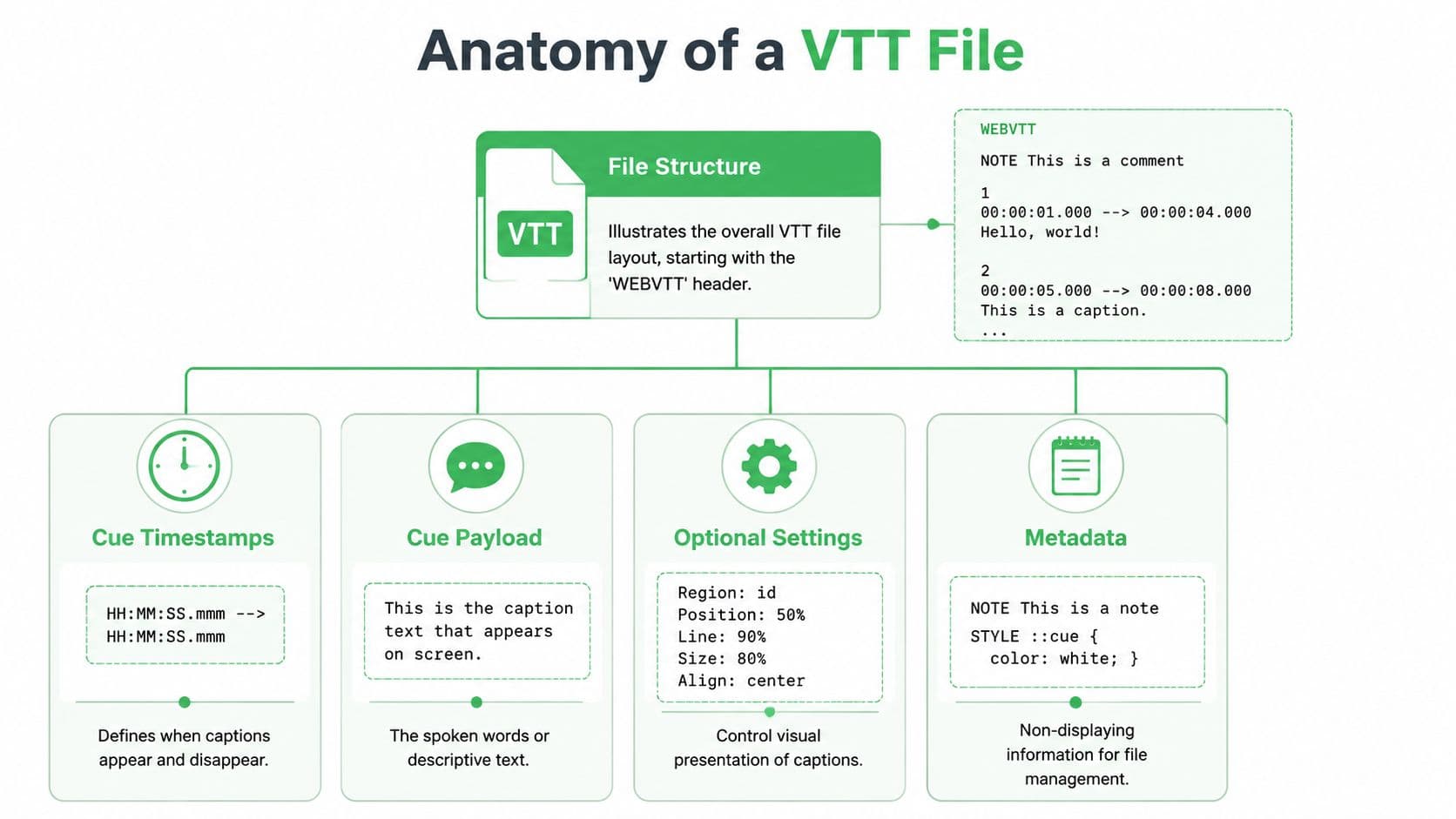
A vtt file is easier to understand once you stop thinking of it as “a file full of captions” and start reading it like a script. Each caption is a cue. Each cue has an entrance time, an exit time, and the text to display while that cue is active.
The format has a few strict rules. A WebVTT file must use UTF-8 encoding, and it must begin with the literal string WEBVTT. It also uses millisecond-precision timecodes with a period (.) separator, which is one reason it works well for HTML5 video and multilingual output across 50+ languages according to this technical overview of VTT timing and encoding.
The smallest valid structure
Here’s a simple example:
WEBVTT

00:00:01.000 --> 00:00:04.000
Welcome to the training session.

00:00:05.200 --> 00:00:08.700
Today we'll review how caption files work.
That file has four key ideas:
- Header
- Blank line
- Cue timing
- Cue text
If the header is missing, many players won’t recognize the file as WebVTT. If the timestamp format is wrong, the cue may be skipped entirely.
Breaking down a single cue
Look at one cue closely:
00:00:05.200 --> 00:00:08.700
Today we'll review how caption files work.
The first line is the timing line.
- Start time:
00:00:05.200 - Arrow separator:
--> - End time:
00:00:08.700
The second line is the payload, meaning the text that appears on screen.
A beginner mistake is assuming the numbers represent frames. In WebVTT, they represent time in hours, minutes, seconds, and milliseconds. If you need a better handle on timing logic, this guide to video timestamps and timing structure is useful because it shows how timestamped media is organized in practice.
Optional cue identifiers and notes
You can also add an identifier above a cue:
WEBVTT

intro-1
00:00:01.000 --> 00:00:04.000
Welcome to the training session.
That identifier doesn’t display on screen, but it helps when you need to reference a specific cue during editing, QA, or scripting.
Comments and notes can also appear in a vtt file:
WEBVTT

NOTE Intro section approved by legal

00:00:01.000 --> 00:00:04.000
Welcome to the training session.
This is one reason teams like WebVTT. The file can remain readable to a human while still carrying extra workflow information.
Read a vtt file top to bottom like stage direction. The timestamp tells the player when the line enters and exits, and the text tells the audience what they should see.
Cue settings that affect display
A cue can include settings after the end timestamp:
WEBVTT

00:00:10.000 --> 00:00:14.000 line:85% position:50% align:middle
[Music]
These settings can control where the text appears and how it aligns. That matters when captions would otherwise cover a lower-third graphic, a speaker’s name, or clinical annotations in a recorded consultation.
Here’s a quick anatomy reference:
| Part | What it does | Example |
|---|---|---|
| Header | Identifies the file as WebVTT | WEBVTT |
| Cue identifier | Optional label for a cue | intro-1 |
| Start and end times | Defines display window | 00:00:01.000 --> 00:00:04.000 |
| Cue payload | Visible caption text | Welcome to the training session. |
| Cue settings | Controls placement or style behavior | line:85% align:middle |
| Notes | Non-displayed comments | NOTE Internal review passed |
Once you understand those parts, the file stops looking cryptic. It becomes a predictable text format you can read, debug, and generate.
VTT vs SRT A Practical Comparison
Comparing subtitle formats often involves a workflow question, not a technical one. Teams want to know which file will upload cleanly, display correctly, and avoid extra conversion work later.
That’s why the VTT vs SRT choice matters. Both formats can carry timed caption text, but they solve different problems.
VTT vs. SRT at a Glance
| Feature | VTT (WebVTT) | SRT (SubRip) |
|---|---|---|
| Intended use | Web and HTML5 video captioning | Broad subtitle compatibility across many platforms |
| Required header | Yes, WEBVTT | No header required |
| Timestamp separator | Period for milliseconds | Comma for milliseconds |
| Cue numbering | Optional | Commonly used |
| Styling support | Yes, supports richer styling and cue settings | Very limited |
| Positioning control | Yes | Minimal |
| Metadata support | Yes, supports notes and richer structure | Limited |
| Browser alignment | Designed for HTML5 workflows | Often used as a universal fallback |
| Editing difficulty | Still simple, but slightly more structured | Very easy to edit manually |
The syntax difference shows up immediately
Here’s the same caption in both formats.
VTT
WEBVTT

00:00:01.000 --> 00:00:04.000
Welcome to the training session.
SRT
1
00:00:01,000 --> 00:00:04,000
Welcome to the training session.
At a glance, that looks minor. In production, it isn’t. The period versus comma difference alone can break imports if you upload the wrong format to the wrong workflow.
When VTT makes more sense
Choose VTT when you need more than basic subtitles.
That includes cases where you need:
- Precise web delivery: It’s built for browser-based video players.
- Layout control: You may need captions positioned away from graphics or speakers.
- Structured speaker labels: Useful for interviews, hearings, and customer calls.
- Metadata-friendly files: Helpful when the subtitle file also feeds analytics or internal review.
Professional teams recognize the difference. A marketing clip may work fine with SRT. A legal deposition review system or newsroom archive usually benefits from the extra structure in VTT.
When SRT is still the practical choice
SRT stays popular for one reason. It’s accepted almost everywhere.
If your top priority is broad upload compatibility across older tools and rigid publishing platforms, SRT often creates less friction. It’s the file you keep around when the destination platform has limited support or inconsistent parsing.
Working advice: Use VTT as your web-first master when you need styling, metadata, or browser-native playback. Keep SRT as a fallback when distribution targets are unpredictable.
The real tradeoff
This isn’t a “new format beats old format” story. It’s a trade between capability and compatibility.
VTT gives you a stronger format for modern web video. SRT gives you a safer option for legacy and mixed-platform delivery. Teams that publish to multiple destinations often maintain both because each solves a different deployment problem.
That’s also why developers should avoid treating subtitle export as an afterthought. Once your team needs accessibility review, multilingual publishing, speaker-aware captions, or structured archives, the file format choice starts affecting product behavior, not just upload convenience.
How to Create and Export a VTT File
There are three common ways to create a vtt file. You can write one by hand, generate one in captioning software, or export one from an automated transcription workflow.
The right method depends on what you’re trying to optimize. If you’re learning the format, manual editing helps. If you’re shipping volume, automation saves time.
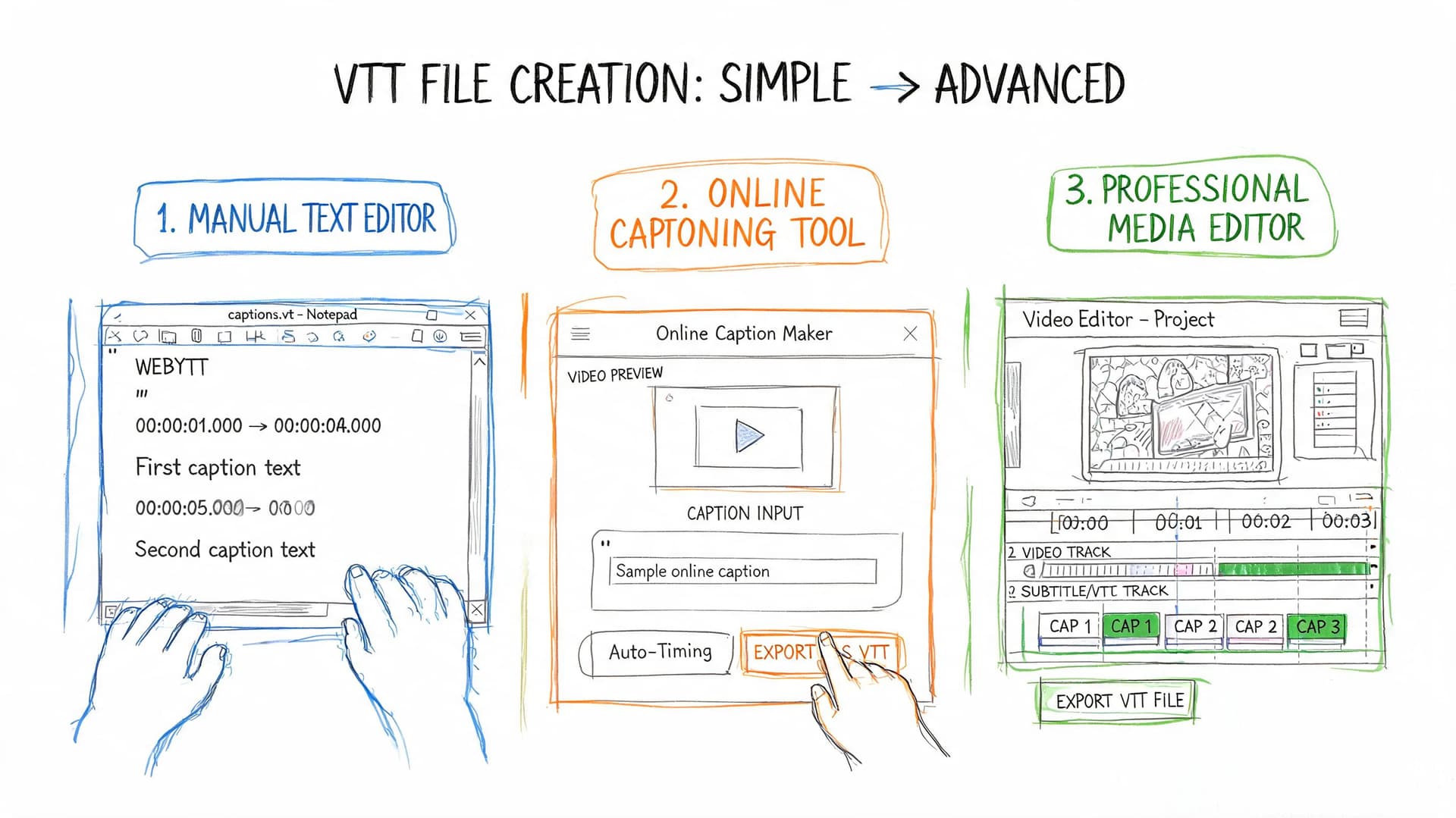
Method one using a text editor
This is the cleanest way to understand the format.
Open Notepad, VS Code, Sublime Text, or any plain-text editor and create a new file with this structure:
WEBVTT

00:00:00.000 --> 00:00:03.500
Hello and welcome.

00:00:04.000 --> 00:00:07.500
We'll look at WebVTT basics today.
Save the file with a .vtt extension and make sure the encoding is UTF-8.
Manual creation works well for:
- Short clips: Product demos, short explainers, internal clips
- Quick fixes: Correcting wording or timing in a small file
- Training: Learning how cue timing and syntax behave
Its downside is obvious. For long recordings, manual timing becomes tedious and error-prone.
Method two using subtitle or video tools
Many teams create VTT files inside video or captioning tools rather than typing cues line by line. In those tools, you usually work through a timeline or transcript editor, then export to VTT.
This approach is useful when you need to review line breaks, cue durations, and speaker transitions visually. It’s also easier when multiple reviewers need to check the same file before publishing.
A common workflow looks like this:
- Import the audio or video into your editing or captioning tool.
- Generate or enter caption text.
- Adjust timing against the waveform or preview.
- Review line length and readability.
- Export as
.vtt.
Method three using AI transcription and export
For longer media libraries, teams usually start with automatic transcription. A platform like Vatis Tech’s audio to subtitle workflow naturally fits this approach. It lets users upload media, generate timestamped transcripts, and export formats such as VTT without manually building every cue.
This workflow is practical because WebVTT supports speaker diarization annotations and multilingual text, can process content across 50+ language combinations, and has adoption exceeding 90% among major streaming platforms and content management systems according to VTT technical research on analytics and multilingual support.
That matters when your recording isn’t just one person speaking clearly into a microphone. It matters more when there are multiple speakers, mixed accents, legal review requirements, or localization needs.
A practical review checklist before export
Before you save or publish a vtt file, check these items:
- Header present: The file starts with
WEBVTT - Timestamps valid: Periods are used for milliseconds, not commas
- Encoding correct: Save as UTF-8
- Cue text readable: Avoid overly long lines that flood the screen
- Speaker labels consistent: If you use them, use them the same way throughout
- Final playback tested: Open the file in the actual player you’ll publish with
A short demo of the captioning workflow can help if you prefer to see the process rather than read it:
Which method should you choose
Use a text editor when you’re learning or fixing a tiny file. Use editing software when you need visual QA. Use automated transcription when you’re processing real production volume.
If your team reviews recordings regularly, the export step isn’t the hard part. The hard part is getting clean timestamps, readable segmentation, and consistent speaker handling before export.
That’s why VTT creation is really a workflow decision, not just a file-format decision.
Advanced VTT Features for Professionals
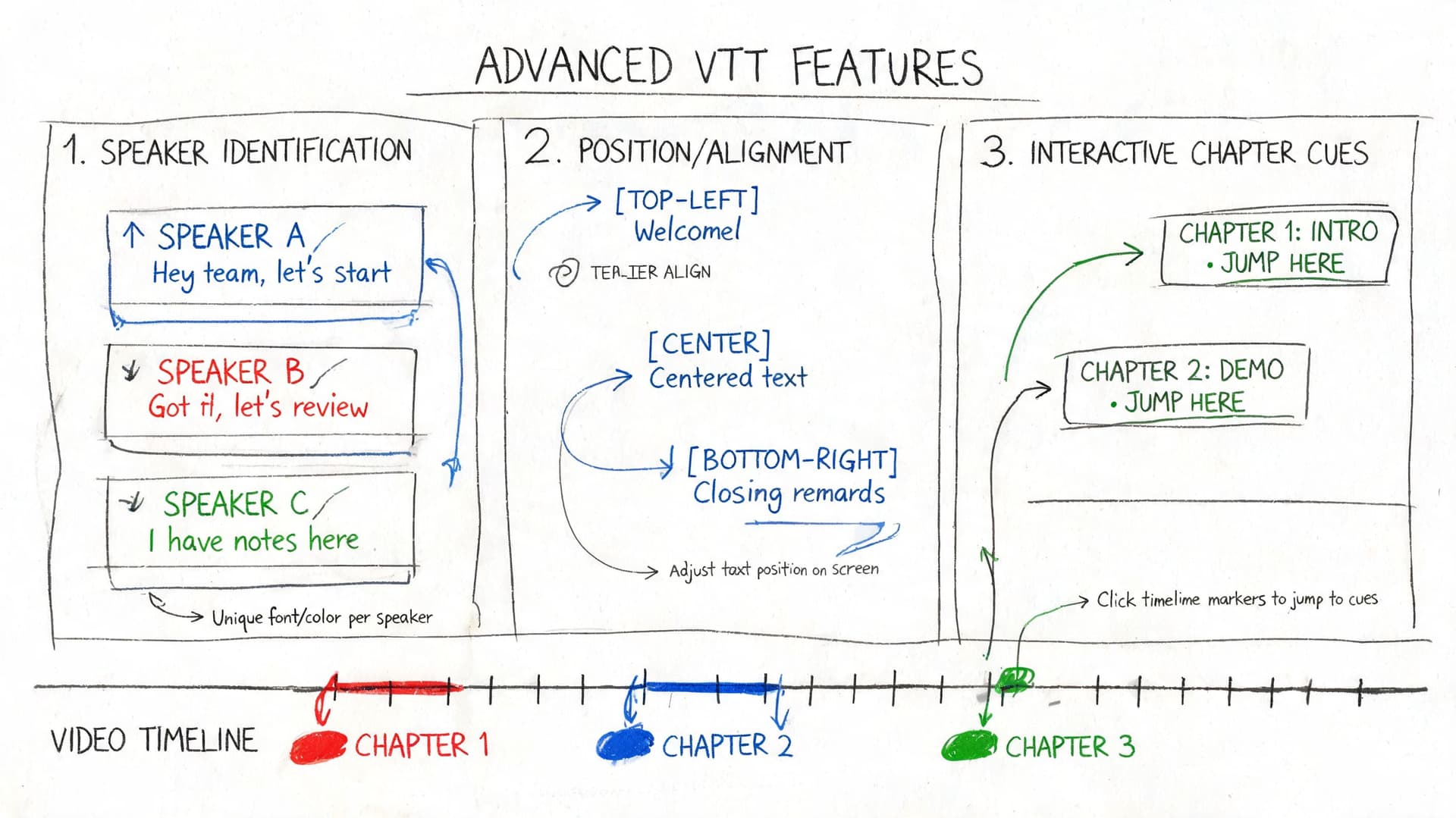
A basic vtt file displays captions. An advanced one becomes structured media data.
That’s where WebVTT starts to matter for product teams, legal operations, healthcare documentation, and media archives. The format supports CSS-compliant styling, speaker tags, and custom metadata within the payload, which makes it useful far beyond simple subtitles, as described in this overview of advanced WebVTT capabilities.
Speaker identification
In multi-speaker content, unlabeled captions get confusing quickly. WebVTT can identify speakers directly in the cue text using voice tags.
Example:
WEBVTT

00:00:01.000 --> 00:00:04.000
<v Judge>State your name for the record.

00:00:04.200 --> 00:00:06.500
<v Witness>Jordan Hale.
That’s useful in depositions, call reviews, interviews, and panel discussions. A new viewer can follow the exchange without guessing who’s speaking.
Layout and display control
Professional captioning often needs more than “centered text at the bottom.” A lower-third title, on-screen graph, or patient annotation can make default captions unreadable or disruptive.
Cue settings can move captions away from critical visuals:
WEBVTT

00:00:12.000 --> 00:00:16.000 line:10% position:80% align:end
Please review the highlighted section.
Common controls include:
- Line position: Moves captions higher or lower
- Horizontal position: Shifts the cue left or right
- Alignment: Changes text anchoring
- Size and region behavior: Helps manage readability in responsive layouts
Styling that serves accessibility
WebVTT also supports styling hooks such as ::cue. That gives developers room to control presentation in compatible web environments.
Here’s the practical reason to care. Accessibility isn’t only about having captions turned on. It’s also about whether the text is readable against the video, whether it covers important content, and whether it stays usable across screen sizes.
Captions that technically exist but are badly placed still create a poor viewing experience.
Metadata for enterprise workflows
Here, many teams underestimate the format.
WebVTT’s extensible structure allows developers to include custom metadata such as sentiment markers, topic tags, or PII-related flags inside the workflow around the caption payload. For enterprise users, that opens up practical patterns:
| Team | Possible VTT use |
|---|---|
| Legal | Speaker-linked transcript review, procedural notes, case-related context |
| Healthcare | De-identification markers, review states, structured handoff notes |
| Contact centers | Speaker-aware QA, sentiment-linked segments, redaction workflows |
| Broadcast and archives | Chapter points, content warnings, searchable segment tags |
The important caution is that support for enterprise metadata conventions is not standardized enough across industries. The format allows extensibility, but organizations often still need internal rules for how metadata should be added, reviewed, and preserved.
A realistic way to use advanced features
Don’t try to put every workflow detail into the caption text itself. Use advanced VTT features when they directly improve playback, review, or downstream processing.
A practical pattern looks like this:
- Keep spoken text clean for viewers.
- Use speaker tags where identity matters.
- Use layout controls only when visuals require them.
- Add structured metadata only if your tools and review process can handle it consistently.
That’s the difference between a subtitle file that merely displays text and one that becomes part of a reliable media operation.
Using VTT Files on Websites and Video Platforms
Once you have a vtt file, the next question is simple: how do you use it?
On websites, the standard answer is the HTML <track> element. It connects the video to the subtitle or caption file.
Basic HTML example
<video controls width="100%">
  <source src="training-video.mp4" type="video/mp4" />
  <track src="training-video-en.vtt" kind="captions" srclang="en" label="English" default />
</video>
This is the clean web-native use case. The browser loads the VTT track, and the player displays it as captions.
Why implementation is still messy
In standards terms, WebVTT is in a strong position. In deployment terms, support is uneven.
VTT works well in HLS/DASH workflows, but real-world cross-platform support remains inconsistent, and there isn’t a consolidated compatibility tracker teams can rely on, as noted in the W3C WebVTT specification discussion and related ecosystem gap. That’s why developers still hit the same frustrating pattern: the file works perfectly in one player and fails unnoticed somewhere else.
Here’s the practical takeaway:
- Website player: VTT is usually the first format to try.
- Streaming workflows: VTT aligns well with modern web delivery.
- Mixed publishing stack: Keep a fallback format available.
- Third-party upload tools: Test, don’t assume.
Platform strategy that avoids surprises
If your team publishes through hosted video systems, test the exact player and CMS combination you’ll use. A platform may accept upload of a vtt file but handle styling, metadata, or cue settings differently than expected.
That’s also where tooling choices matter. If you’re evaluating hosting stacks, a roundup like Wistia video marketing tools can help compare the broader video platform layer around captions, hosting, and player behavior.
For internal planning, it also helps to think about captions as part of content operations, not just media upload. A practical reference is this caption generator guide for publishing workflows, especially if your team has to move from transcript generation to web delivery without losing timing quality.
Don’t treat “accepted for upload” as “safe in production.” Always test playback, switching, and visual behavior on the exact destination player.
A simple rule for distribution
Use VTT first when the destination is browser-based video. Keep SRT available when you don’t fully control the player environment.
That approach isn’t elegant, but it reflects how teams ship captions in practice across websites, internal portals, and third-party platforms.
How to Fix Common VTT File Errors
Most vtt file problems come down to small syntax mistakes. The frustrating part is that video players often fail without warning. Instead of giving you a clear error, they just don’t show captions.
The good news is that the issues are usually easy to isolate once you know what to inspect.
Common problems and likely causes
| Symptom | Likely cause | Fix |
|---|---|---|
| Captions don’t appear at all | Missing WEBVTT header or wrong file extension | Add the header and save as .vtt |
| File uploads but timing fails | Timestamps use commas instead of periods | Change 00:00:01,000 to 00:00:01.000 |
| Strange characters appear | File isn’t saved as UTF-8 | Re-save with UTF-8 encoding |
| Some cues vanish | Invalid formatting or bad cue structure | Check blank lines, timing arrows, and cue order |
| Internal metadata breaks import | Notes or custom fields are written in a way the tool doesn’t validate | Simplify and re-test in the target player |
A quick troubleshooting sequence
When captions fail, check the file in this order:
- Open the file in a plain-text editor. Look for the
WEBVTTheader on the first line. - Inspect one timestamp. Make sure milliseconds use periods.
- Check cue spacing. Each cue should be separated cleanly.
- Remove extras temporarily. If you used notes, styling, or advanced settings, test a stripped-down version first.
- Test in the destination environment. A file that parses in one tool may still fail elsewhere.
Many errors stem from metadata problems or formatting that fails validation. FADGI discusses metadata embedding, but there’s still a gap in practical guidance for compliance and audit workflows in legal and healthcare settings, which often pushes teams toward proprietary handling around the file rather than standardized in-file practice, as noted in the FADGI WebVTT metadata guidance.
When the problem is not the file
Sometimes the VTT is fine and the player is the issue.
If a caption file works in a local browser test but fails after upload, check the platform’s caption requirements, player settings, and accepted feature subset. Some systems accept basic WebVTT but ignore advanced positioning, notes, or metadata conventions.
Troubleshooting shortcut: If a complex vtt file fails, reduce it to header, timestamps, and plain text. Once that works, add features back one at a time.
That method saves more time than trying to debug everything at once.
Frequently Asked Questions About VTT Files
Can I convert an SRT file to a VTT file
Yes. In many cases, the conversion is simple.
You usually need to:
- add the
WEBVTTheader at the top - replace comma millisecond separators with periods
- save the file with a
.vttextension
You should still test the converted file in a real player, especially if the original SRT had unusual line breaks or numbering issues.
Does YouTube accept VTT files
Yes, YouTube accepts WebVTT files. But acceptance isn’t the same thing as “this will be the best format for every destination.” Teams often keep both VTT and SRT versions because other platforms may behave differently.
If your publishing workflow spans a website, social clips, and external hosting tools, keeping more than one subtitle format is often the safer operational choice.
What software can edit a VTT file
Any plain-text editor can edit a vtt file. That includes Notepad, VS Code, Sublime Text, and similar tools.
For better review, caption editors and video tools are easier because they show timing against media playback. Use a text editor for simple corrections. Use a timeline-based tool when timing and readability need careful review.
Is a VTT file only for subtitles
No. That’s the most common use, but it’s not the only one.
A VTT file can also support speaker-aware captions, chapter-like markers, searchable media workflows, and structured review use cases where timing and metadata matter. That’s why developers and compliance teams care about it more than casual publishers sometimes do.
Why do some VTT files work on one platform and fail on another
Because “supports VTT” doesn’t always mean “supports every VTT feature.”
One platform may accept plain captions only. Another may handle cue settings correctly. Another may import the file but ignore metadata or placement controls. That’s why cross-platform testing matters.
What’s the biggest beginner mistake
Using the wrong timestamp syntax.
If you come from SRT, it’s easy to paste in comma-based timing and forget that WebVTT expects periods. The second most common mistake is forgetting the WEBVTT header.
Should I keep VTT or SRT as my main file
If your primary destination is a website or HTML5 player, VTT is the cleaner starting point. If your workflow spans mixed or older platforms, keep an SRT fallback too.
The best answer depends less on theory and more on where your captions need to run.
If your team needs to turn recordings into editable transcripts and export caption-ready files for web video, Vatis Tech is one option to consider. It supports speech-to-text workflows with timestamped output and VTT export, which can help when you need captions for websites, multilingual media, or review-heavy environments like legal, healthcare, and broadcast.