
How to Transcribe Audio to Text: An End-to-End Guide
Prep the file, add a glossary before upload, review the high-risk zones first, then export to TXT, DOCX, SRT or VTT — plus the API path when it runs at scale.
14 min read
•
April 18, 2026
Written by
Adrian Ispas
You’ve got audio sitting in folders, inboxes, cloud drives, or inside your product. Interviews that need quotes. Customer calls that need QA. Medical dictation that needs records. Legal recordings that need a clean written version. The value is there, but until that speech becomes searchable text, it’s stuck.
That bottleneck is one reason AI transcription has moved from convenience feature to operating tool. The global AI transcription market was valued at $4.5 billion in 2024 and is projected to reach $19.2 billion by 2034, a projected 15.6% CAGR, according to Sonix’s transcription statistics roundup. In practice, that shift happened because teams want speed, searchable records, and repeatable workflows, not because they suddenly stopped caring about accuracy.
If you’re trying to figure out how to transcribe audio to text, the actual job isn’t just “upload file, get words.” The core work starts earlier with file prep, and it ends later with editing, export, and sometimes API integration. That’s where professional workflows differ from casual consumer use.
The same logic applies if your source material is visual content with spoken dialogue. If you also handle recorded sermons, webinars, livestreams, or clips, this guide on how to transcribe video to text is useful because the workflow overlaps heavily once you get to audio extraction, transcription, and caption export.
From Audio File to Actionable Insights
Transcription challenges typically arise with increasing volume. One interview is manageable. Ten interviews, a week of support calls, or a full production archive becomes a different problem. Searchability, review speed, and consistency start to matter more than merely obtaining a rough transcript.
What changes when you stop doing it manually
Manual transcription still sets the benchmark for careful review. But manual workflows don’t scale well when teams need fast turnarounds, collaboration, and structured outputs. Newsrooms need quotes fast. Contact centers need searchable conversations. Legal and healthcare teams need records that can be reviewed, corrected, and stored securely.
A transcript is more than text on a page. In a professional workflow, it becomes:
- A searchable record that lets teams jump to names, topics, and decisions
- An editing surface where you can fix terminology, assign speakers, and verify wording
- A source asset for captions, reports, summaries, compliance review, and analytics
Clean transcripts save more time in the second hour than in the first. Search, reuse, and export are where the workflow really pays off.
What a solid workflow actually looks like
The practical workflow usually follows the same sequence, even if the tools differ:
- Prepare the source audio so the model isn’t fighting compression, background noise, or overlapping voices.
- Run the first-pass transcription in a tool that supports timestamps and speaker separation.
- Review the transcript against the audio and fix the words machines commonly miss: names, jargon, numbers, and interruptions.
- Export in the right format for the job, whether that’s a plain text file, a document, or caption files like SRT and VTT.
- Integrate or automate if transcription is part of a larger workflow, such as a newsroom CMS, call-center QA process, or speech-enabled app.
That’s the difference between turning audio into text and turning audio into something a team can use.
Preparing Your Audio for Flawless Transcription
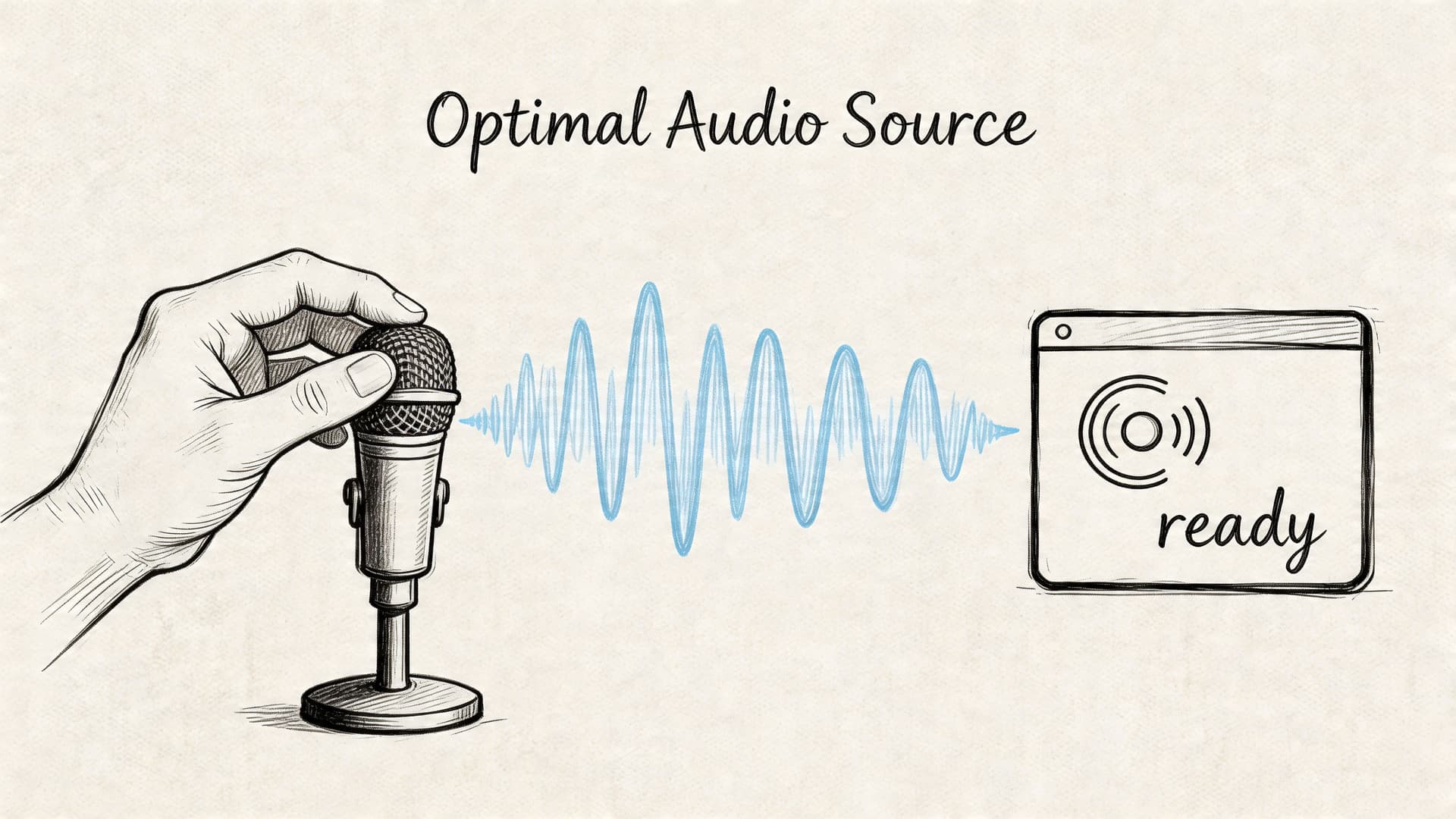
The transcript quality you get is usually earned before you click Upload. Poor source audio forces the model to guess. Good source audio lets it decode. That’s the biggest practical divide between frustrating results and usable ones.
Research summarized by Ditto Transcripts notes that human transcription reaches about 99% accuracy but takes 4 to 6 hours to process a single hour of audio, while real-world AI accuracy on challenging business audio averages 61.92%. The same source notes that background noise or poor compression can cause a 20% to 30% accuracy drop, which is why file prep matters so much in production workflows, as detailed in this comparison of AI and human transcription.
Choose the file format before you worry about the tool
If you have a choice, start with WAV or another high-quality source format rather than a heavily compressed MP3. Compression artifacts can blur consonants, smear quiet syllables, and make speaker boundaries harder to detect.
If your files are already in a compressed format, don’t panic. You can still transcribe them. Just know that conversion won’t restore lost detail. If you need help handling format changes cleanly, this guide on converting FLAC audio to MP3 is a practical reference for managing source files before upload.
Record for separation, not just loudness
The single biggest recording mistake in meetings and interviews is capturing everyone into one messy track in a reflective room. The machine then has to decide not only what was said, but who said it.
Use these habits when you can:
- Give speakers their own mic if the session matters. Separate tracks or dedicated microphones make speaker diarization far more reliable.
- Reduce room noise at the source. Turn off fans, notifications, and nearby devices before recording.
- Avoid aggressive compression from messaging apps or low-quality export settings if you control the pipeline.
- Leave space between turns in interviews and roundtables. Slight pauses make speaker changes easier for both editors and models.
Practical rule: Fix the room before you fix the transcript. Air conditioners, table taps, and laptop speakers create more transcription pain than most people expect.
Do a quick cleanup pass
You don’t need to be an audio engineer to improve a file. A simple prep pass often helps more than switching transcription tools.
A workable checklist:
- Normalize the level so quiet voices don’t disappear and loud voices don’t clip.
- Apply light noise reduction if the file has a steady hum or hiss.
- Trim dead air at the start and end, especially on long recordings.
- Check channel balance if one speaker is buried on a stereo recording.
Know when not to expect miracles
Some files are just hard. Cross-talk, speaker overlap, distant microphones, echoes, and people eating into the mic will produce errors no matter what tool you use. In those cases, the goal isn’t “perfect first pass.” It’s getting a transcript that’s structurally useful enough to review quickly.
When people ask how to transcribe audio to text accurately, this is usually the part they skip. They compare tools before they’ve fixed the file. In production, the file usually decides the outcome first.
Generating Your First AI Transcript in Minutes
Once the file is ready, the actual transcription step is straightforward. The difference between an amateur workflow and a professional one is not complexity. It’s whether the output comes back structured enough to edit quickly.
A good first-pass transcript should include the text itself, timestamps, and speaker labels. Without those, you’re left hunting through audio manually, which defeats the point.
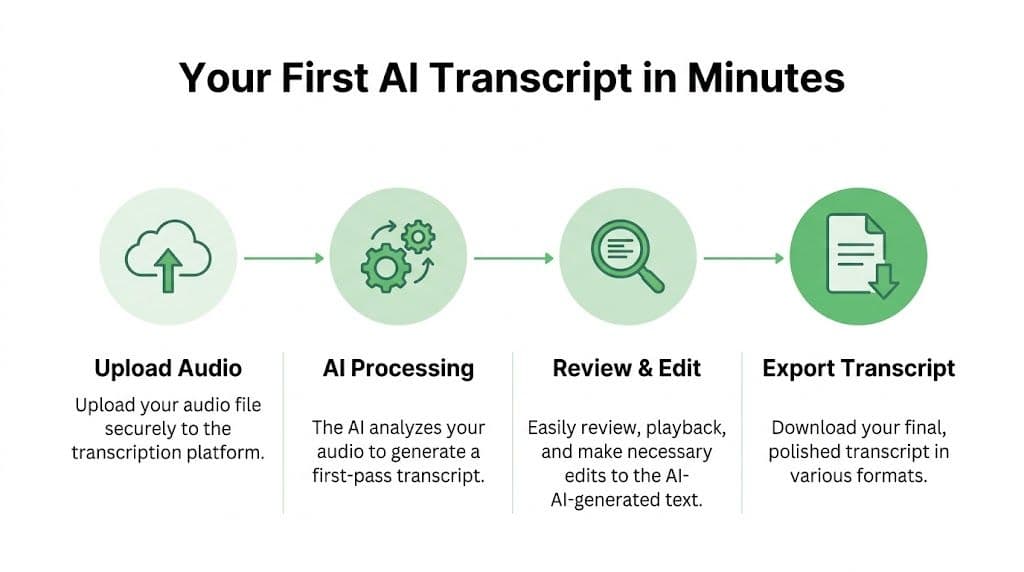
The basic upload workflow
Most modern platforms follow the same pattern:
- Upload the file
Drag in the recording, or import it from cloud storage if your platform supports that. - Set the language and options
Confirm the spoken language. If the tool offers diarization, summaries, or custom vocabulary, enable the ones you need before processing. - Start transcription
The model processes the file and generates a first draft. - Open the editor
Review the transcript while listening to the synced audio.
That’s the core loop. For many media and internal documentation tasks, it’s enough to get a useful transcript in minutes.
Here’s a quick visual walkthrough:
What to look for in the first output
Don’t judge the result only by whether every word is perfect. Judge it by whether it’s easy to refine.
A strong first-pass transcript usually gives you:
- Speaker diarization so you can tell who said what
- Clickable timestamps so review doesn’t turn into scrubbing blindly
- Paragraph or sentence grouping that follows speech naturally
- Editable text rather than a static block you have to rework elsewhere
For meetings, it also helps when the tool can generate a quick summary. If you just need a fast test file, an option like Vatis’s free AI meeting transcription and summarization tool is a simple way to see what a structured transcript looks like before you move into a larger workflow.
File upload versus link-based transcription
There are two common ways to start:
| Input method | Best for | Trade-off |
|---|---|---|
| Direct file upload | Interviews, calls, local recordings, sensitive material | Gives you more control over source quality and handling |
| Paste a media link | Public videos, hosted webinars, remote content review | Faster intake, but you depend on the source audio quality |
If you work with online media regularly, tools that accept links can save time because they remove the download-and-reupload step. That’s especially useful in editorial teams and monitoring workflows.
For teams comparing options, it can also help to look at adjacent products built around speech workflows. Parakeet AI is one example worth reviewing if you want to compare how different transcription platforms handle structured outputs and downstream voice-data use cases.
A practical example
Take a recorded panel discussion with three speakers. The first draft usually gets you most of the way there if the microphones were close and the room wasn’t too live. You’ll still need to fix names, a few interruptions, and any domain terminology. But you won’t be typing from scratch.
That’s the gain. You’re not replacing editorial judgment. You’re replacing the repetitive part of the job.
One tool, one pass, then review
For platform choice, use something that can handle uploads, timestamps, speaker labels, and editable transcripts in one environment. Vatis Tech fits that pattern by supporting uploads or links, generating editable transcripts with diarization and timestamps, and exporting into common document and caption formats. That kind of all-in-one workflow is easier to manage than stitching together a recorder, a transcription engine, and a separate caption editor.
The right first draft isn’t the one with the fewest visible errors. It’s the one that takes the least effort to verify.
Tips for Achieving Near-Human Accuracy
The jump from “usable” to “publishable” usually comes from a handful of disciplined choices. These decisions enable teams to save editing time. They also allow many failed transcription projects to be rescued.
The Brass Transcripts guide notes that custom glossaries can improve transcription accuracy by 15% to 25% in healthcare or legal contexts, and that proper speaker diarization with dedicated mics reduces crosstalk errors, where systems can misattribute speech up to 40% of the time in typical meetings, as described in their workflow advice for fixing audio quality issues.
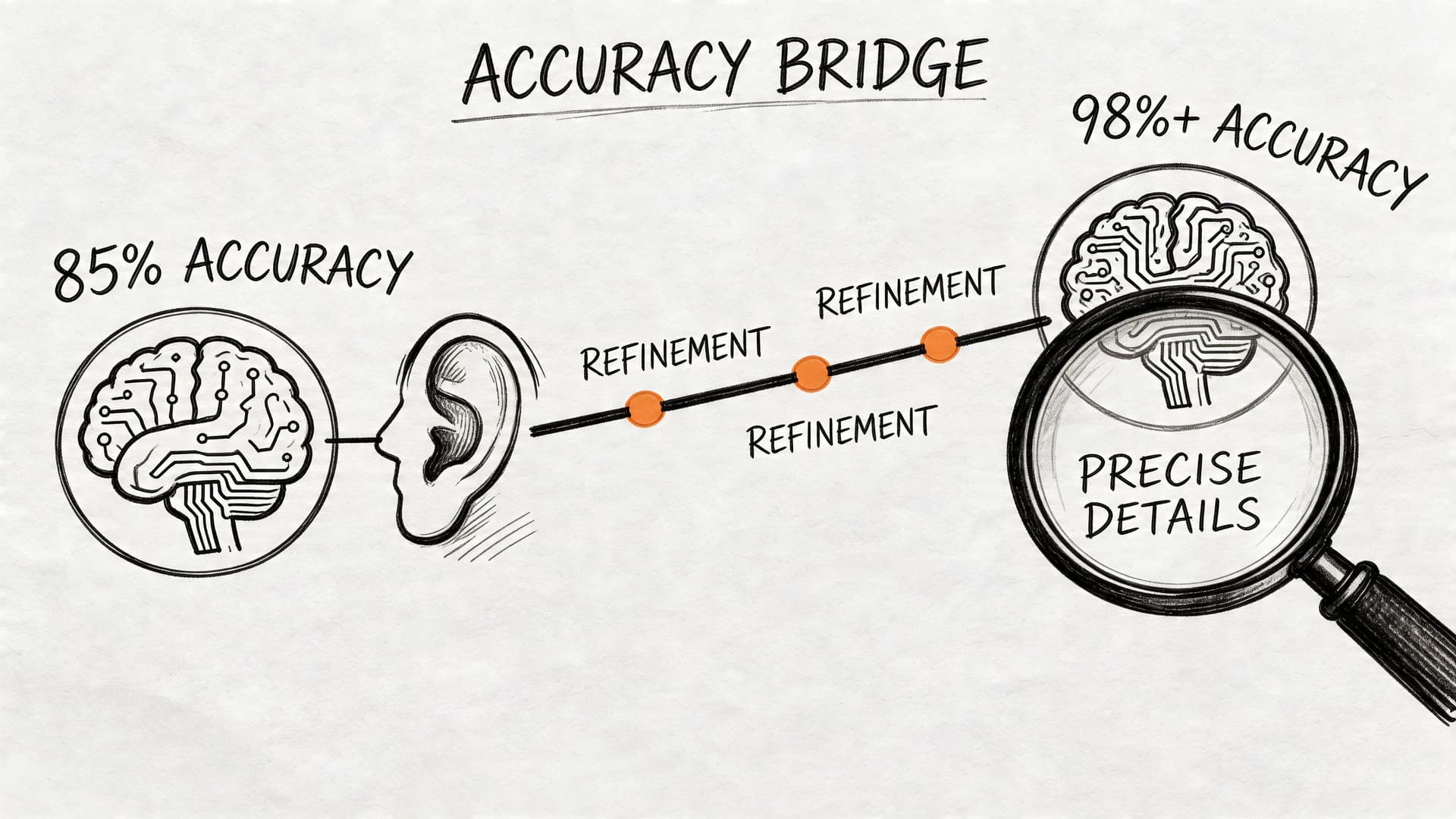
Build a glossary before the upload
If you work in healthcare, legal, finance, broadcasting, or technical support, generic models will often stumble on names, acronyms, product terms, and niche vocabulary. A custom glossary fixes that by giving the system the words you already know matter.
A useful glossary often includes:
- People’s names used in the recording
- Company and product names
- Acronyms and abbreviations
- Industry terms that sound similar to common words
- Place names or case names likely to appear repeatedly
Don’t wait until editing to solve terminology that was predictable.
Separate speakers whenever possible
The machine’s job gets much harder when two people speak over each other, or when one mic picks up the whole room from the far end of the table. Even a strong model can label the wrong speaker if the source audio collapses everyone into one muddy channel.
If you control the recording setup:
- Put a mic near each speaker
- Use a moderator in multi-person sessions
- Ask participants to avoid interruptions
- Record locally when remote platforms allow separate tracks
Clean the audio lightly, not aggressively
A common mistake is overprocessing. Heavy denoising can make speech sound underwater, which creates new recognition errors. Aim for light cleanup that removes obvious noise without damaging speech detail.
Good candidates for cleanup are steady hum, HVAC noise, and low-level hiss. Harder problems like room echo and constant overlap usually require recording changes more than filters.
Named entities break transcripts faster than filler words do. Fix names, numbers, and acronyms first.
Review the high-risk zones first
When accuracy matters, don’t read linearly from top to bottom on the first pass. Check the places where errors are most expensive:
- Openings where speakers introduce themselves
- Names and titles
- Numbers and dates
- Negations like “can” versus “can’t”
- Conclusions and action items
This approach matters more than polishing every hesitation or false start. In legal, medical, and newsroom work, one incorrect name can matter more than ten missed filler words.
Editing and Polishing Your Final Transcript
AI gets you to the rough draft fast. The final transcript becomes trustworthy during review. This stage should feel like verification, not re-transcription.
Use synced playback, not guesswork
A proper editor lets you click a line of text and hear the matching audio instantly. That changes the workload. You’re no longer hunting through a waveform trying to find where the phrase occurred.
When reviewing, move in this order:
- Correct obvious recognition errors first
- Fix speaker labels next
- Standardize names and terminology
- Adjust punctuation and paragraph breaks
- Check timestamps only where timing precision matters
This order keeps you from making cosmetic edits before the underlying text is right.
Decide what kind of transcript you actually need
Not every transcript should read the same way. A legal verbatim transcript is different from a cleaned newsroom interview transcript or a subtitle-ready transcript.
Use this quick distinction:
| Transcript style | Best for | Editing choice |
|---|---|---|
| Verbatim | Legal review, evidence, research | Keep fillers, false starts, and interruptions if required |
| Clean read | Articles, internal documentation, meeting notes | Remove filler words and tighten grammar carefully |
| Caption-ready | Video publishing, accessibility | Keep spoken meaning intact and check timing breaks |
If you skip this decision, people often over-edit. They turn spoken language into prose that no longer reflects what the speaker said.
Fix repeated errors in batches
The fastest editing sessions usually rely on pattern recognition. If the model got a surname wrong once, it may have gotten it wrong throughout the file. Don’t correct those one by one if your editor supports search and replace.
Look especially for:
- Recurring speaker names
- Brand names or drug names
- Commonly misheard acronyms
- Formatting inconsistencies such as punctuation around initials
Merge judgment with the machine output
Context is still the human advantage. A model can hear words. You know whether a quote makes sense in context, whether a speaker was being sarcastic, or whether a phrase conflicts with the subject matter.
That matters in practical use. A healthcare team may need precise terminology. A journalist may need exact quotes. A legal team may need to preserve interruptions and unfinished sentences. The polished transcript is where those requirements become real.
Don’t edit a transcript as if you’re rewriting the speaker. Edit it as if you’re making the record dependable.
Advanced Workflows Security Exports and API Integration
For one-off jobs, a browser uploader and editor are enough. For organizations handling large audio volumes, transcription becomes infrastructure. The concerns shift from “Can I get a transcript?” to “Can I process reliably, protect sensitive content, and move outputs where teams already work?”
The AssemblyAI technical overview notes that API integration with end-to-end models and custom vocabulary can improve accuracy on specialized terms by 20% to 30%, that PII redaction using NER models can mask 95% of sensitive data, and that modern APIs can reach 98%+ accuracy with LLM-powered post-processing like summaries and chapters, as outlined in their guide to speech-to-text accuracy.
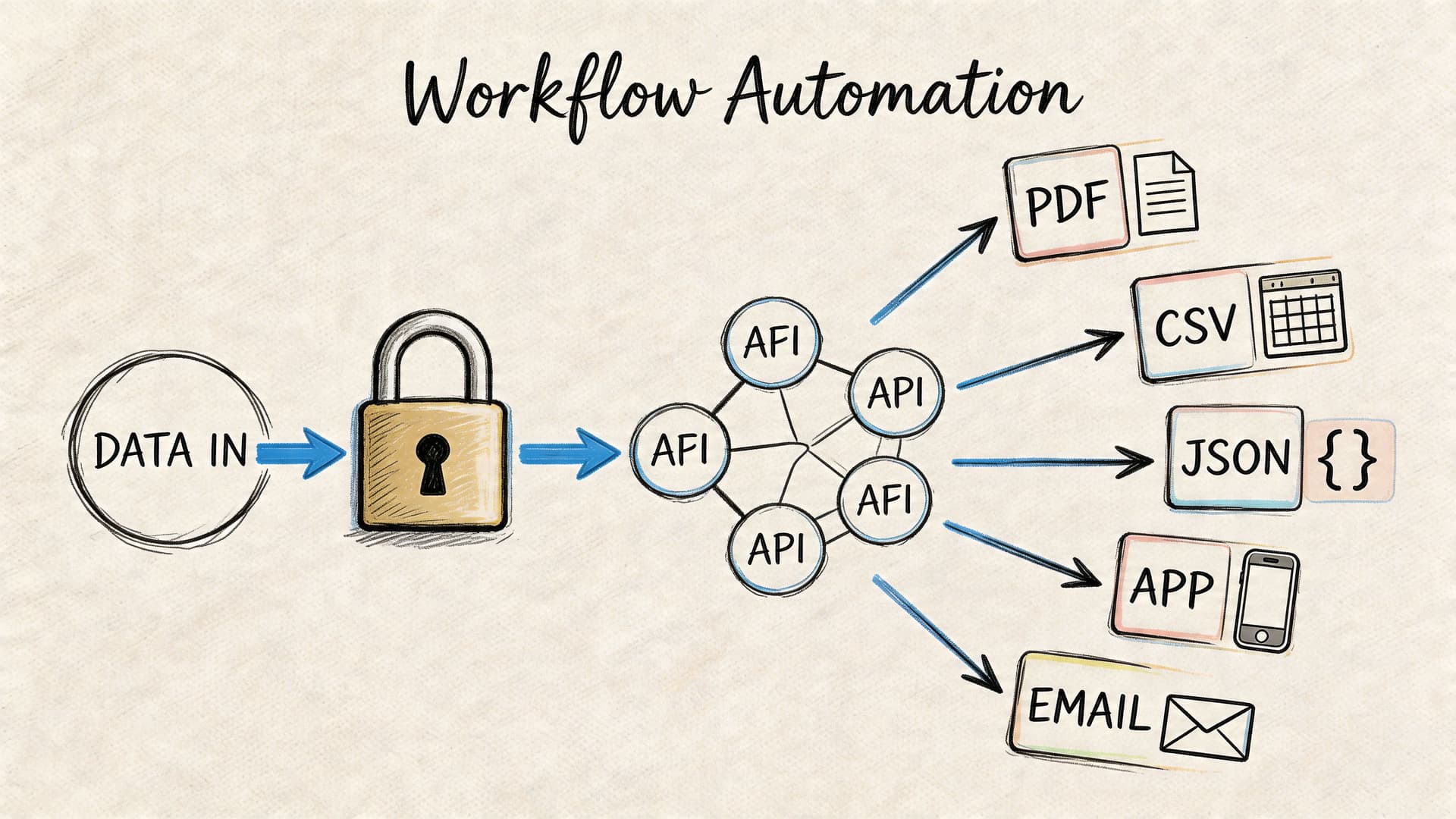
When transcription should move into your stack
If your team transcribes content every day, manual upload becomes a bottleneck. That’s when an API starts to make sense.
Typical API use cases include:
- Contact centers sending recorded calls directly into speech analytics workflows
- Broadcasters and media monitoring teams processing incoming clips continuously
- Healthcare and legal software attaching transcripts to case or record systems
- Internal tools that generate searchable transcripts, summaries, and chapters for users automatically
A production API also helps keep processing consistent. Instead of relying on individual staff members to choose settings manually each time, you define the workflow once and apply it at scale. For teams building that kind of pipeline, Vatis offers a speech-to-text API with the kind of integration path developers usually need when transcription is embedded inside another product.
Security isn’t a side feature
In professional environments, the transcription itself is only part of the task. The rest is handling data responsibly.
For sensitive workflows, teams should evaluate:
- PII redaction so names, addresses, identifiers, and other protected details can be masked when appropriate
- Encryption and controlled access for recordings and transcript files
- Compliance alignment that matches internal requirements for regulated industries
- Deployment flexibility if certain workloads need private cloud or on-premise handling
This is especially important in healthcare, legal, government, and customer support environments. A transcript can contain far more sensitive material than people expect because spoken conversation is messy. Customers disclose account details, patients reveal health information, and callers mention other people by name without warning.
Real-time versus batch processing
The right architecture depends on the use case.
Batch transcription works well when you care more about completeness than immediacy. Recorded interviews, podcast episodes, legal proceedings, and archived calls often fit this model.
Streaming or real-time transcription is better when users need instant text. Live captions, agent assist tools, and media monitoring dashboards all benefit from partial transcript delivery as the audio arrives.
The trade-off is operational, not just technical. Real-time systems need tighter handling of latency, segmentation, and downstream UI behavior. Batch systems usually allow more cleanup and post-processing before anyone sees the output.
Choosing the right export format
The export format determines where the transcript can go next. That sounds obvious, but many teams still export everything as plain text and then rebuild formatting later.
Choosing the Right Export Format
| Format | Primary Use Case | Key Features |
|---|---|---|
| TXT | Quick notes, raw archives, lightweight search | Plain text, simple, broadly compatible |
| DOCX | Editing, collaboration, formal documentation | Easy review in word processors, comments, revision tools |
| Fixed records, sharing finalized copies | Stable layout, harder to alter casually | |
| SRT | Video subtitles and captions | Timecoded caption blocks, widely supported by video platforms |
| VTT | Web video captioning | Timecoded captions with web-friendly support |
| JSON | API workflows, app integrations, structured downstream processing | Machine-readable structure, metadata, speaker labels, timestamps |
| CSV | Analysis and reporting | Easy import into spreadsheets and BI workflows |
A practical export decision tree
Use TXT if you just need the words fast.
Use DOCX when an editor, attorney, producer, or compliance reviewer needs to mark up the text.
Use SRT or VTT when the transcript needs to become captions. Don’t hand subtitle work to a generic document export and expect timing to hold.
Use JSON if a product or internal tool needs structured transcript data, speaker turns, or timestamps programmatically.
The workflow that usually holds up
The professional pattern is simple:
- Capture the cleanest audio you can.
- Transcribe with diarization and timestamps.
- Apply glossary support and sensitive-data handling where needed.
- Review the transcript in a synced editor.
- Export in the format the next team or system needs.
- Automate the handoff once the process repeats often enough.
That’s the version of transcription that scales. Not just converting speech into text, but turning recordings into durable workflow inputs.
Frequently Asked Questions
What’s the best way to handle background noise?
Start by improving the file before transcription. Light noise reduction and level normalization help, but they won’t fully fix distant mics, room echo, or people talking over each other. If the recording is important, re-recording with closer microphones usually does more than switching tools.
Can I transcribe audio with multiple speakers?
Yes, but speaker separation quality depends heavily on the recording setup. Meetings with clear turn-taking and close microphones are far easier to diarize than group calls with overlap and speakerphone audio. If speaker identity matters, review labels manually after the first draft.
What if the recording includes technical jargon or unusual names?
Use a custom vocabulary or glossary whenever the tool supports it. This is one of the highest-value adjustments you can make because names, acronyms, and domain terms often create the most expensive errors during review.
Should I clean the transcript or keep it verbatim?
It depends on the use case. For evidence, compliance, or research, keep a transcript as close to the original speech as required. For articles, meeting notes, and internal summaries, a cleaned transcript is often easier to use, as long as you don’t change meaning.
How do I transcribe very long recordings?
Break the job into logical sections if possible. Multi-hour files are harder to review, harder to retry if something fails, and more cumbersome when several editors need to work at once. Segment by session, speaker block, or chapter when the workflow allows it.
Can I create captions from the transcript?
Yes, but use a caption format such as SRT or VTT rather than a generic document export. Caption files preserve timing data, which video players need to display subtitles correctly.
Is AI transcription good enough for legal or healthcare use?
It can be useful, but high-stakes environments still need human review. The practical approach is to use AI for the first pass, then have someone verify terminology, names, dates, and any sensitive statements before the transcript becomes part of an official record.
What’s the fastest way to improve a weak transcript?
Don’t start by proofreading every line. First fix speaker labels, names, acronyms, numbers, and other repeated high-impact errors. Then review the sections where accuracy matters most, such as introductions, decisions, instructions, and closing statements.
If transcription is becoming a recurring part of your workflow, not just a one-off task, Vatis Tech is worth a look. It handles audio and video transcription, timestamps, speaker diarization, summaries, captions, exports, and developer API use cases in one system, which is often easier than piecing together separate tools for each step.