Master Subtitles Apple TV: Enable, Customize & Fix in 2026
Turn Apple TV subtitles on system-wide or mid-playback, restyle them so they read on a big screen, load your own SRT or VTT files, and fix sync drift.
12 min read
•
May 13, 2026
Written by
Adrian Ispas
You sit down to watch a new movie on Apple TV. The picture looks great. The opening scene lands. Then the dialogue disappears under music, effects, and whispery delivery, and you're backing up ten seconds at a time just to catch one line.
That's why so many people search for subtitles apple tv instead of treating captions as an afterthought. For some viewers, it's accessibility. For many others, it's the fastest fix for modern audio mixes, inconsistent streaming playback, and personal media files that arrive with poor or missing subtitle support.
Why Everyone Is Using Subtitles on Apple TV
Subtitles aren't a niche viewing habit anymore. 50% of Americans watch content with subtitles most of the time, and 70% of Gen Z are frequent subtitle users, according to Preply's subtitle use survey. That lines up with what Apple TV users run into every night: expensive TVs, decent speakers, and still not enough dialogue clarity.
The important shift is this. People no longer turn subtitles on only when they have to. They turn them on because they want cleaner comprehension, less rewinding, and fewer missed lines.
Why Apple TV makes this especially relevant
Apple TV sits at the center of a mixed viewing setup. One night you're in the Apple TV app, the next in Netflix or Disney+, then maybe Plex, Infuse, or VLC for your own library. Each app handles subtitles a little differently, and some do a better job than others with language selection, SDH support, and custom styling.
That's also why it helps to know the difference between captions and subtitles in practical terms, especially if you're comparing dialogue-only tracks with hearing-accessible tracks that include speaker cues and sound information. If you need a clear breakdown, this guide on closed captions vs subtitles is a solid reference.
Subtitles on Apple TV work best when you treat them as part of your playback setup, not as a toggle you only touch when something goes wrong.
Subtitles are now a quality-of-experience feature
The old assumption was that subtitles cluttered the screen. In practice, bad subtitle settings do that. Good subtitle settings fix a problem you already notice.
If you also publish video and want a wider view of the tools people use for caption workflows, Klap recommends captioning tools that are useful to compare before you settle on a process.
For Apple TV users, the full opportunity is bigger than just switching subtitles on. You can set a default, style them to match your room and screen, troubleshoot app-specific failures, and even create your own cleaner subtitle files for personal media when the built-in options aren't good enough.
The Official Way to Turn On Apple TV Subtitles
The simplest way to enable subtitles apple tv is through system settings. That gives you a default behavior across apps that support Apple's accessibility controls.
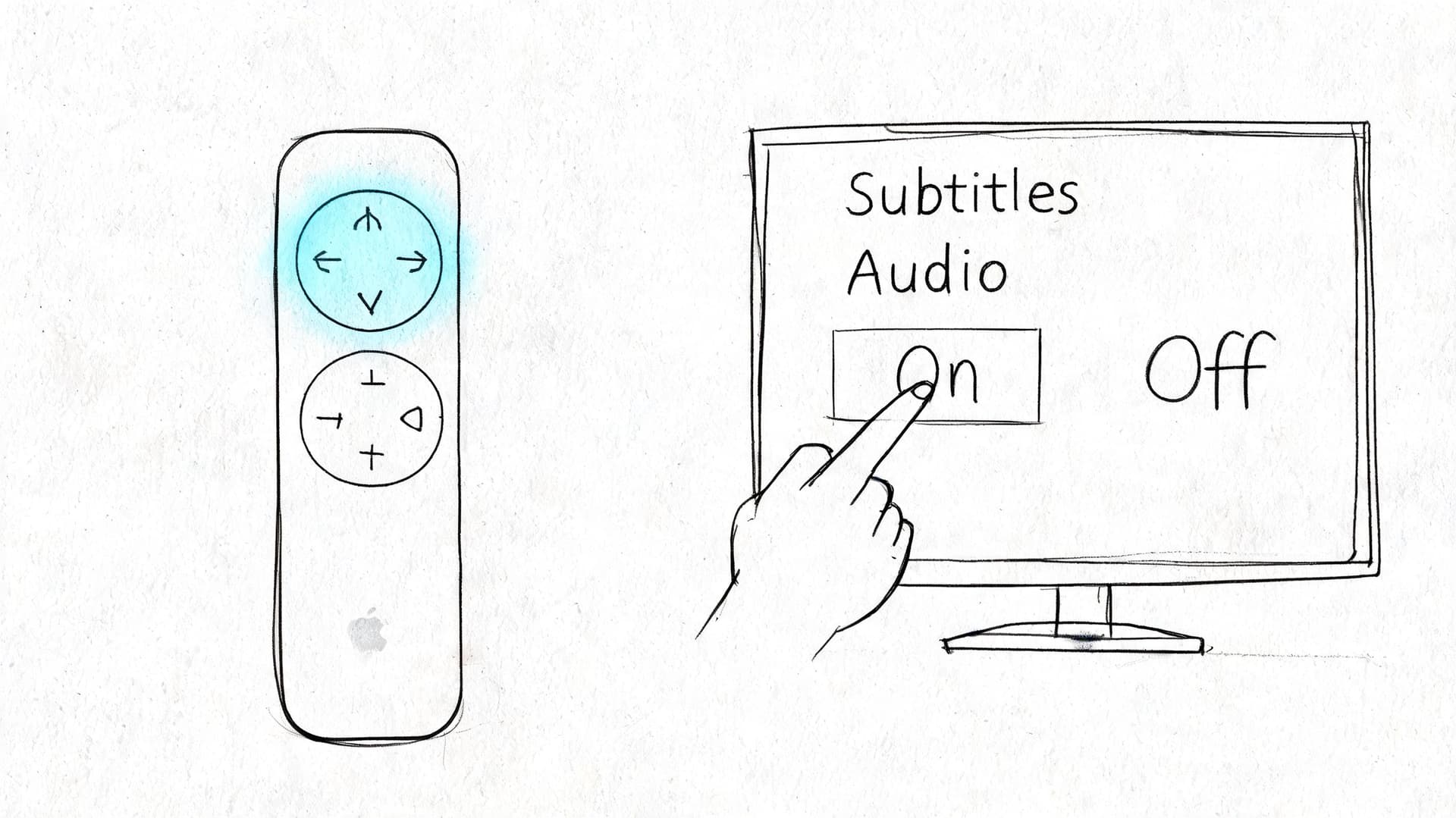
Turn subtitles on system-wide
On Apple TV 4K, go to:
- Settings
- Accessibility
- Subtitles and Captioning
- Turn on Closed Captions + SDH
This is the setting many users prioritize because it applies beyond a single episode or film. If an app respects the system preference, subtitle-enabled content should start with captions or SDH already active.
SDH means Subtitles for the Deaf and Hard of Hearing. In practice, SDH usually includes speaker labels and important sound cues, not just spoken dialogue. If you only want translated dialogue and no extra cues, some apps will also offer standard subtitle tracks separately.
Change subtitles during playback
The faster route is inside the video player itself. Start your movie or show, then use the Siri Remote playback controls to open the subtitle menu and choose the track you want.
That matters because streaming apps often expose multiple subtitle options at the content level, including:
- English
- English SDH
- Off
- Other available languages
If the global setting is on but the current title is still missing subtitles, check the player menu before assuming Apple TV is ignoring your preference.
A quick visual walkthrough helps if you're setting this up for someone else in the house:
Which method works better
Use system settings if:
- You want subtitles on by default across apps
- Another family member relies on SDH
- You don't want to re-enable captions every time you start something new
Use in-playback controls if:
- You switch between subtitle tracks often
- You only want subtitles for certain shows
- You need to test whether the app itself is exposing the right track
Practical rule: If subtitles are available but not showing, always check both places. Apple TV may have captions enabled globally, while the app player is still set to Off for that title.
What casual users usually miss
A lot of people stop after enabling Closed Captions + SDH and expect every service to behave the same way. They won't. Some apps prioritize their own player settings, and some titles offer multiple English tracks that behave differently.
That's normal. Apple gives you the system control, but each app still decides how it surfaces subtitle choices inside its own player. If you know both paths, you can usually fix the problem in seconds instead of digging through menus while the scene keeps playing.
How to Customize Subtitle Appearance
Default subtitles are often the actual problem, not subtitles themselves. Thin white text with a weak shadow can look fine on a menu screen and become unreadable the moment a bright scene appears.
Apple TV provides more control than is commonly understood. According to Gear Patrol's overview of tvOS subtitle styling, Apple TV lets you edit subtitle styles for font, size, color, and background opacity, and these settings work well with text-based subtitle formats like SRT and VTT. The same styling has limited to no effect on graphic-based subtitles such as PGS/VOBS, which is why Blu-ray rips often confuse users.
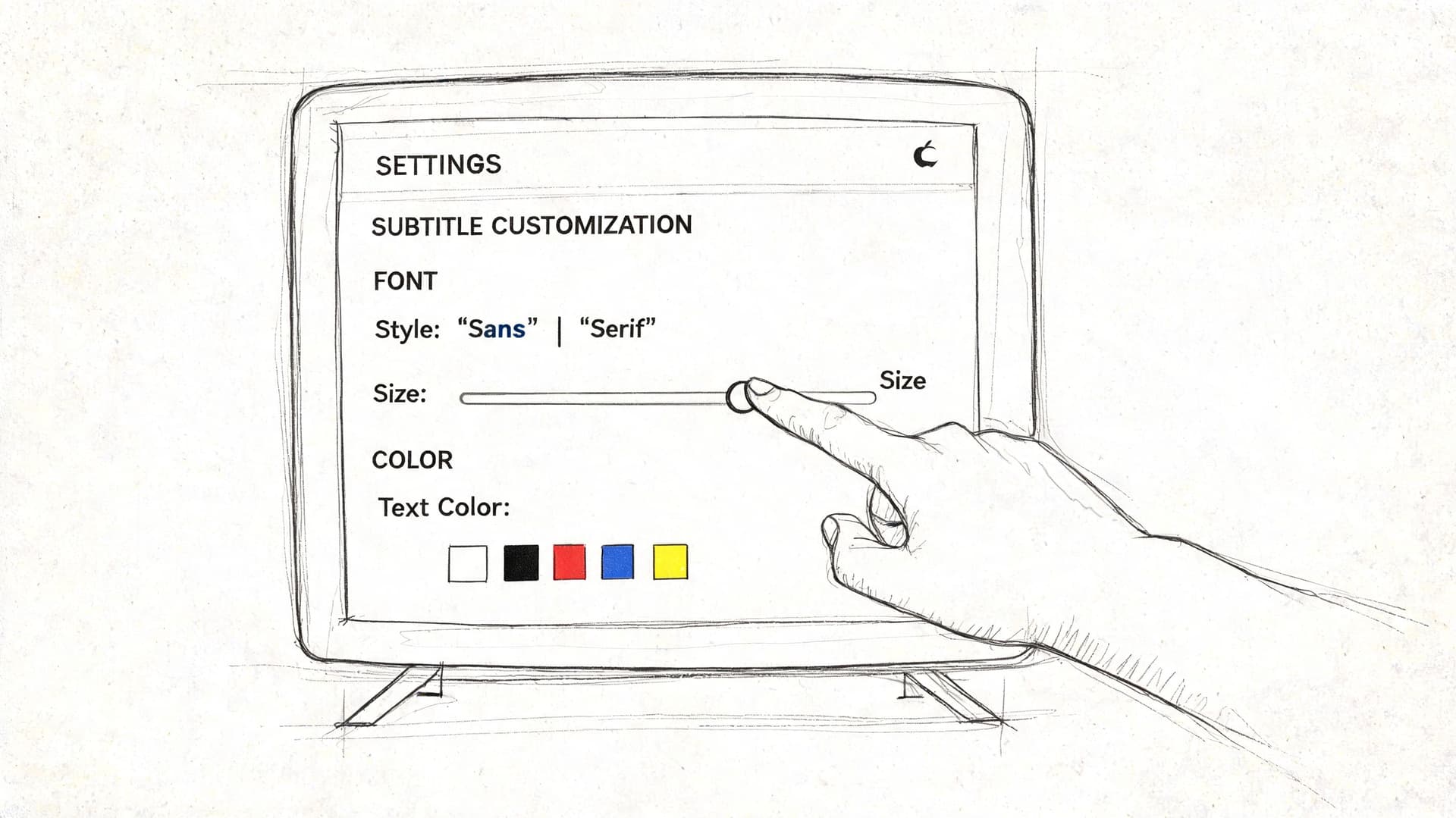
Where to edit subtitle styles
Go to:
- Settings
- Accessibility
- Subtitles and Captioning
- Style
- Choose a preset or open Edit to build your own
Inside the style editor, Apple TV lets you adjust the parts that most affect readability:
- Font
- Text size
- Text color
- Background color
- Background opacity
- Edge or outline effects
A style that works in real living rooms
For most TVs, the cleanest setup is:
- White or off-white text
- A dark semi-transparent background
- Moderate text size
- A subtle outline or shadow
That combination survives bright scenes, dark scenes, animation, and fast-cut editing better than transparent text alone. If you watch in a room with lamps or daylight spill, background opacity matters more than people think.
White text without a background looks elegant until a bright sky or flashing scene lands behind it. Readability wins.
When your style changes do nothing
This is the part that trips up advanced users. If you're watching local media through Plex, Infuse, or another app and your custom subtitle styling doesn't seem to apply, the subtitle format is usually the reason.
Here's the practical split:
| Subtitle type | What it is | How Apple TV styling behaves |
|---|---|---|
| Text-based | SRT, VTT, ITT | Apple TV can restyle these well |
| Graphic-based | PGS, VOBSUB/VOBS | Styling is limited or ignored |
Graphic subtitles are image overlays, not text. Apple TV can display them, but it can't reliably reformat them the way it can with plain text subtitle tracks.
Best settings for different viewers
Not everyone needs the same subtitle profile.
- For distance viewing: Increase size first. People often try bold color changes when the real issue is that the text is too small for sofa distance.
- For bright rooms: Raise background opacity. That helps more than switching to pure yellow text in most setups.
- For kids or older viewers: Use a simple font and avoid decorative effects.
- For anime or foreign-language content: Keep the text large enough to read quickly, but not so large that two-line subtitles dominate the frame.
One useful test before you settle on a style
Open three very different scenes:
- A dark interior
- A bright outdoor shot
- A busy action sequence
If your subtitles stay readable in all three, your style is dialed in. If not, adjust background opacity before anything else. In practice, that setting solves more subtitle fatigue than font changes do.
Using Custom Subtitles for Your Personal Media
Streaming apps cover only part of the Apple TV story. A lot of people use Apple TV to watch personal files through Plex, Infuse, or VLC. That's where custom subtitles become powerful, because you aren't limited to whatever a platform bundled with the video.
The usual method is a sidecar subtitle file. That means a separate subtitle file sits alongside the video file in the same folder, with a matching name. Media apps scan the folder, detect the file, and offer it as a subtitle track during playback.
How sidecar subtitles work in practice
A simple example looks like this:
movie-name.mp4movie-name.srt
Or:
movie-name.mkvmovie-name.vtt
If the names match closely enough for your media app, the subtitle file is usually detected automatically. Inside Plex or Infuse, you then choose that track from the subtitle selector just as you would with a streaming title.
This is the cleanest fix when:
- your file has no subtitles at all
- the bundled subtitles are wrong
- the subtitles are badly timed
- the included track is graphic-based and won't restyle well on Apple TV
SRT vs VTT Subtitle Formats at a Glance
| Feature | SRT (.srt) | WebVTT (.vtt) |
|---|---|---|
| Compatibility | Widely supported across media apps and players | Widely supported, especially in web-based workflows |
| Structure | Plain text with timestamps and subtitle blocks | Plain text with timestamps, plus web-oriented formatting features |
| Styling support | Basic | More flexible for web and metadata-heavy use |
| Good for Apple TV personal media | Yes, especially when you want simple compatibility | Yes, especially when your workflow already uses web video tools |
| Ease of editing | Very easy in any text editor | Also easy, but slightly more structured |
If you want a format-level explanation before editing files manually, this breakdown of the VTT file format is worth keeping handy.
Which format should you choose
For most home media libraries, SRT is the default choice because it's simple and broadly recognized. If you're moving between Apple TV playback and web publishing, VTT can make more sense because it fits better into browser-based video workflows.
What matters more than the format name is subtitle quality:
- Timing has to match speech naturally
- Line breaks should be readable
- Spelling and names should be correct
- The file should use the right language track
If a subtitle file is technically supported but badly timed, it still feels broken. Format compatibility isn't the same thing as watchability.
A practical workflow for personal libraries
Many people now generate subtitles as part of a broader content workflow. If you're also repurposing scripts, transcripts, or short-form content, tools that transform text into videos can fit into the same ecosystem, especially when you need captions attached early rather than added as an afterthought.
For Apple TV playback, the best result usually comes from this sequence:
- Start with a clean video file.
- Add a sidecar SRT or VTT.
- Test playback in your preferred app.
- Adjust sync if needed.
- Re-test on the actual Apple TV, not only on desktop.
Desktop playback can hide subtitle issues that show up on television. Line length, timing feel, and styling all land differently on the couch than they do on a laptop.
Creating Professional Subtitles for Apple TV
If you publish video, deliver content to clients, or manage a media library at scale, subtitle quality stops being a convenience setting and becomes part of delivery. The difference between “close enough” subtitles and professional subtitles shows up in readability, sync, compliance, and how often viewers stick with the content.
That business side matters. A Kapwing roundup of subtitle statistics cites research showing that 80% of viewers are more likely to finish a video when subtitles are present, and the same page notes an example where adding subtitles led to a 7.32% total increase in YouTube views and an 8% lift in ad recall. For creators and distributors, subtitles aren't just accessibility. They affect completion, recall, and whether the content gets watched to the end.
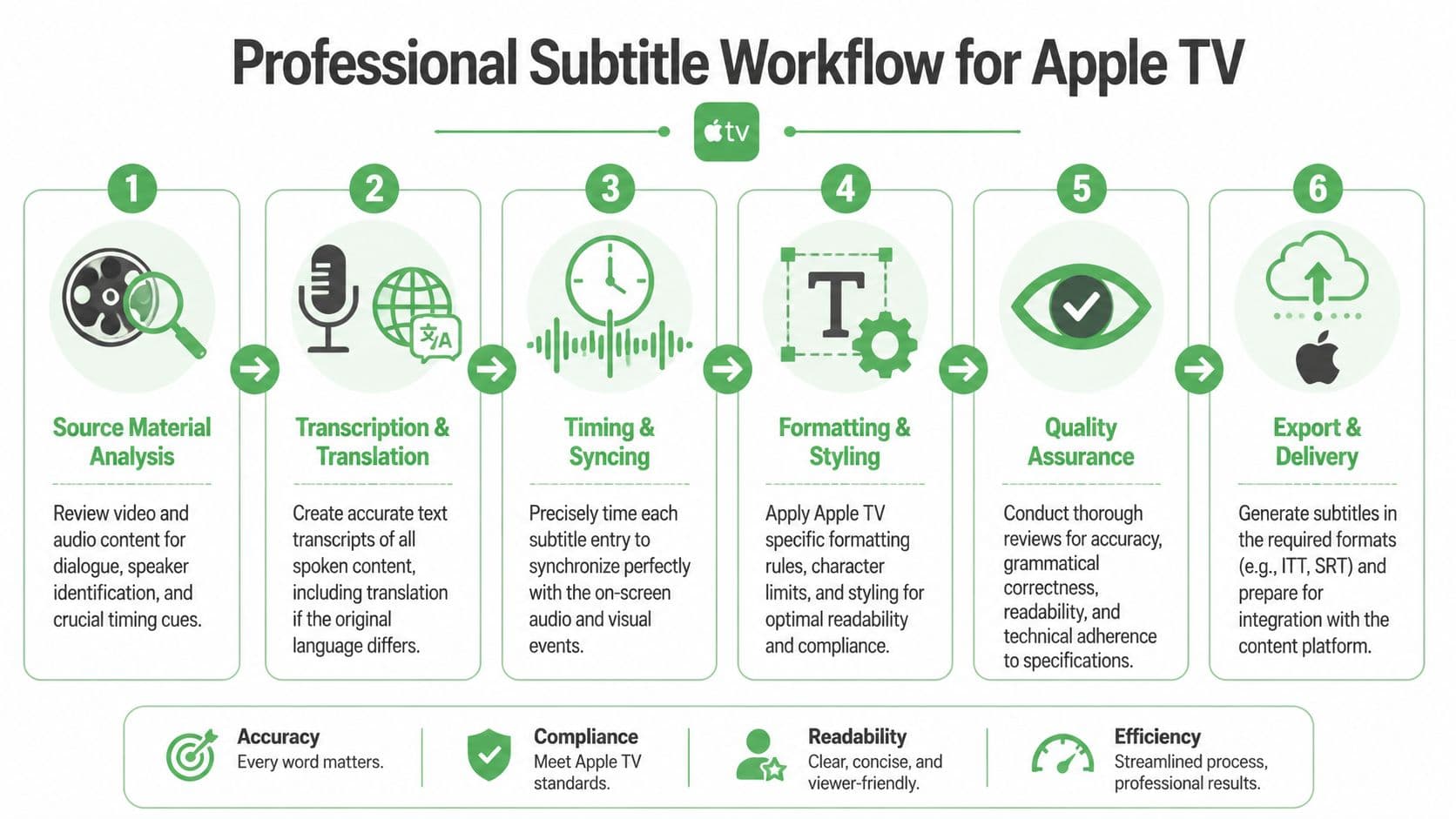
What Apple expects from timed text
Apple's delivery environment favors .ITT, SRT, and VTT. The technical rules matter. According to Apple TV 4K specifications, subtitles for professional delivery should be synced within a 3-frame gap, stay on screen for a minimum of 20 frames, and not exceed 42 characters per line.
Those rules aren't academic. They affect whether subtitles feel natural and whether files survive ingest cleanly in platform workflows.
A professional workflow that actually holds up
The strongest subtitle workflow usually looks like this:
- Generate the transcript from the source audio
Start with speech-to-text, but don't stop at the raw transcript. You need speaker identification, punctuation, names, and a review pass. - Edit for subtitle reading, not transcript fidelity alone
A transcript can be accurate and still be bad subtitle copy. Spoken language often needs cleaner segmentation for on-screen reading. - Time each subtitle block properly
Many auto-generated files often falter here. Good subtitle timing follows speech rhythm and visual pacing instead of dropping mechanically at arbitrary intervals. - Export in the right format
Use SRT or VTT for most operational workflows. Use the delivery format the destination platform requires. - Test on device
Apple TV playback reveals line-length issues, overlap problems, and readability failures that may not stand out in a browser preview.
Why AI transcription is the practical choice
For modern teams, AI transcription is the starting point because manual-from-scratch subtitling is slow and inconsistent under deadline pressure. The value isn't just speed. It's getting an editable first pass with timestamps, speaker separation, and export-ready formats that a human reviewer can refine quickly.
That same logic applies whether you're producing:
- broadcast clips
- newsroom packages
- social edits
- training content
- internal libraries for support or compliance teams
If your team also handles short-form distribution, tools that streamline social media video editing can complement a subtitle workflow, especially when transcription, cutting, and publishing happen in the same production chain.
What separates amateur subtitles from professional ones
A lot of bad subtitles are technically valid files. They still fail in use because they:
- break lines in awkward places
- appear too late
- disappear too quickly
- ignore speaker changes
- overload the screen with transcript-style text
The professional standard is different. Subtitles should feel invisible in the best sense. Viewers shouldn't have to fight the timing or parse crowded lines while trying to follow the scene.
For step-by-step implementation in your own workflow, this guide on how to add subtitles to video is a practical companion if you're moving from casual captioning to repeatable delivery.
Workflow note: The fastest subtitle process isn't the one with the fewest steps. It's the one that produces a clean first draft, a fast review cycle, and a final file that plays correctly on the target device.
Troubleshooting Common Subtitle Problems
Most subtitle failures on Apple TV fall into a few predictable buckets. The subtitles don't appear, they appear in the wrong language, they drift out of sync, or they work in one app and fail in another.
That pattern isn't unusual. A video discussing Apple TV subtitle issues notes that many complaints involve sync issues or subtitles failing to appear on specific streaming services despite global settings being enabled, often because of app-specific settings, buffering delays, or content-level DRM restrictions.
If subtitles aren't showing up
Start with the obvious checks, but do them in the right order:
- Confirm the current title has a subtitle track
Some content libraries vary by version, region, or language track. - Open the in-player subtitle menu
Even when Apple TV accessibility settings are enabled, the app may still have subtitles set to Off. - Check the audio language
Some services tie subtitle availability to the selected audio track. - Restart the app
Subtitle track availability can fail to load cleanly after a resume or long standby period.
If subtitles are out of sync
Sync drift can come from the app, the stream, or the subtitle file itself.
Try this sequence:
- Pause and resume playback
- Exit the video and reopen it
- Restart Apple TV
- Check your network stability
- For personal media, test a different subtitle file
If you're watching your own media in Plex or Infuse, out-of-sync subtitles often mean the sidecar file was created from a different cut of the video. Even a small runtime difference can make a subtitle track feel progressively worse as the movie goes on.
When sync problems happen only in one app, treat it as an app problem first, not an Apple TV problem.
If one app ignores your settings
This is common with streaming services. Apple TV can hold a global preference, but apps may override it with title-level or account-level playback settings.
Use this mini-checklist:
- Sign out and back in to the app
- Update the app if an update is available
- Delete and reinstall the app if subtitle behavior stays inconsistent
- Verify that the app's own language and accessibility settings match what you expect
If custom styling doesn't apply
When your subtitle appearance changes work in one file and not another, the issue is usually subtitle type. Text-based subtitles respond to styling. Graphic-based subtitles often don't.
For local media, the clean fix is often to replace image-based subtitle tracks with a clean text-based SRT or VTT file. That gives Apple TV more room to render the subtitles properly and apply your chosen style.
If nothing works
At that point, narrow the failure:
- Test another streaming app
- Test another title in the same app
- Test a local media file
- Compare system-wide settings with in-player settings
That tells you whether the fault lives in the app, the specific title, the stream, or your Apple TV settings.
If subtitle quality matters in your work, not just your living room, Vatis Tech helps teams turn audio and video into accurate, editable transcripts and subtitle files in 50+ languages, with exports like SRT and VTT for Apple TV-ready workflows. It's a practical fit for broadcasters, support teams, legal and healthcare operations, and developers who need searchable transcripts, cleaner caption delivery, and a faster review process.